Fill out, approve, and track forms
A quick user guide for everyone who uses Droplet without building forms: the people who submit requests, the people who approve them, and anyone checking the status of submissions.
If your job is building forms, start with Build your first form instead. If you manage Droplet for your organization, this is a good page to send your staff when you roll it out.
How Droplet works
Your organization's Droplet administrators build the forms. You fill them out, and Droplet sends each one to the right people, in the right order, without anyone passing paper around. Four words come up everywhere:
Form: the set of questions, like a Classroom Supply Request.
Submission: one filled-out copy of a form.
Step: one stop on the form's route, like Principal or Business Office.
Assignee: the person a submission is waiting on at its current step.
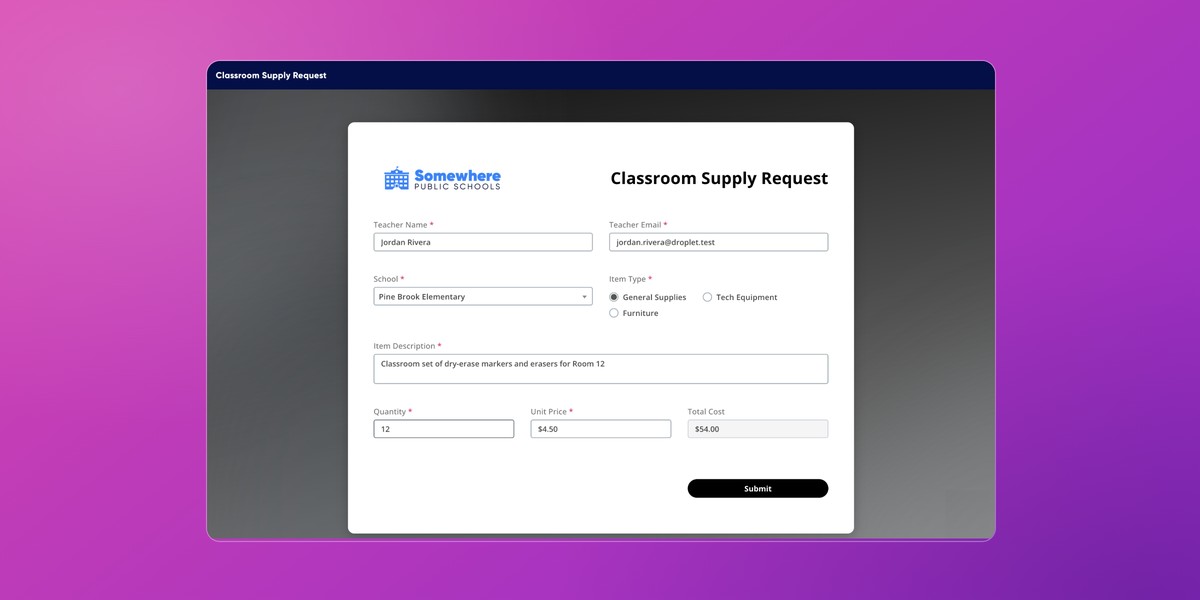
Here is a real example from a sample school district. A teacher asks for classroom supplies. Tech equipment and orders of $250 or more stop at the principal first. Orders over $500 then go to the business office, and everything else goes to an assistant. Any approver can deny the request.
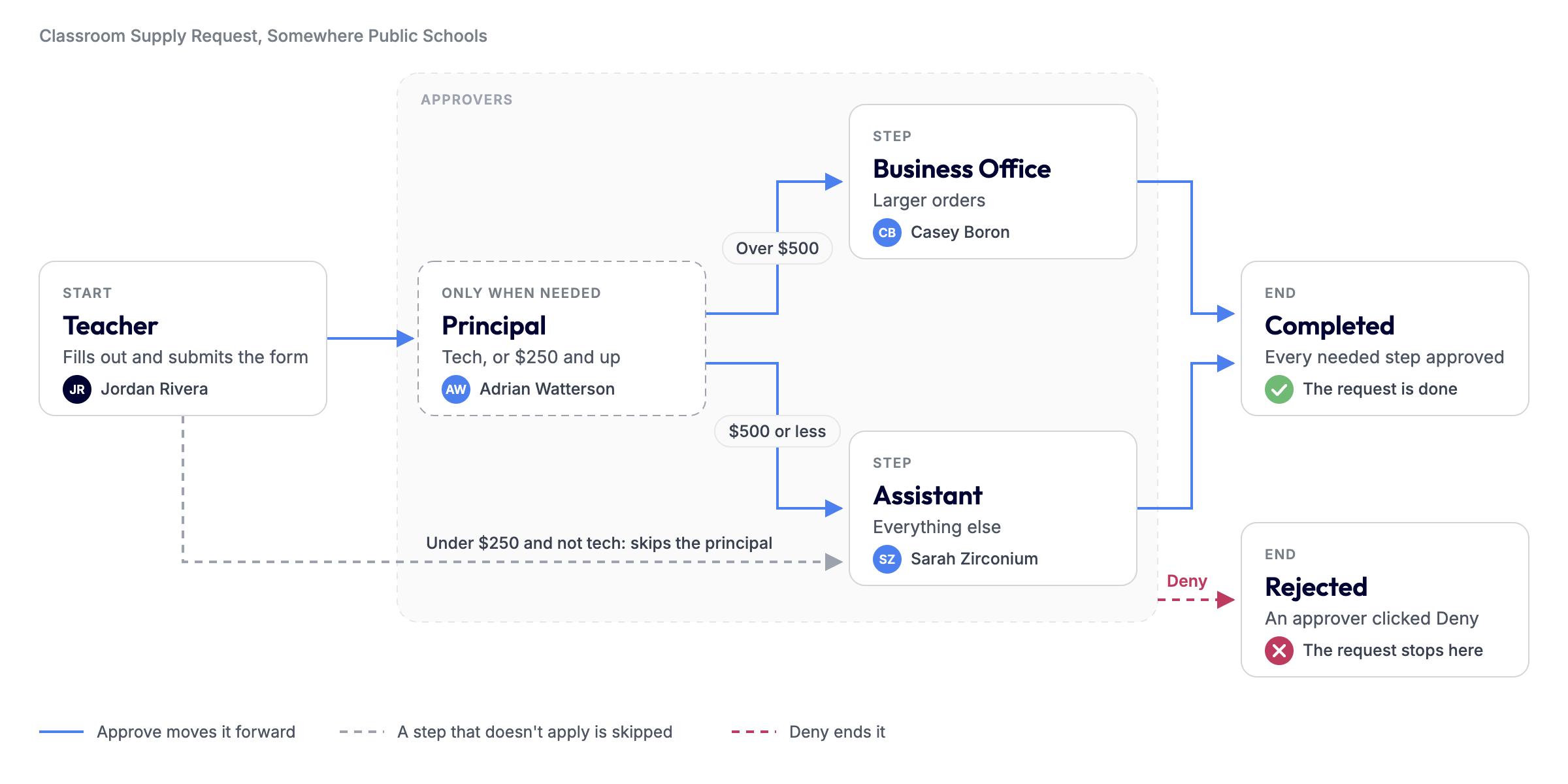
You never manage the route yourself. When one person finishes, Droplet moves the submission along and emails whoever is next. Steps that don't apply are skipped, so a small order can go straight to the assistant.
Sign in and find your way around
Go to app.droplet.io and sign in with your work email. If your organization uses single sign-on, such as Google, you sign in the same way you do for your other work tools. For the details, see Log into Droplet.
Your menu shows what your role allows, so it may be shorter than a coworker's. Most people use these:
Home: everything waiting on you right now, newest first. When nothing is, it says so.
Submissions: the submissions you started and the ones assigned to you, with built-in My Submissions and My Assignments views.
Account (bottom left): your name and photo, email notifications, and Out of Office.
The question mark (bottom left): opens this support site.
No Forms page in your menu? That's normal. Many organizations share forms by link instead, on an intranet, in an email, or on a website.
Fill out and submit a form
Click the link you were given. If you do have a Forms page, you can also click Start on any form there.
A red asterisk (*) marks a required field. Some fields fill themselves in: your name and email often come from your account, and totals calculate as you type.
Droplet confirms with Successfully submitted. You can close the tab. The submission is on its way to the first approver.
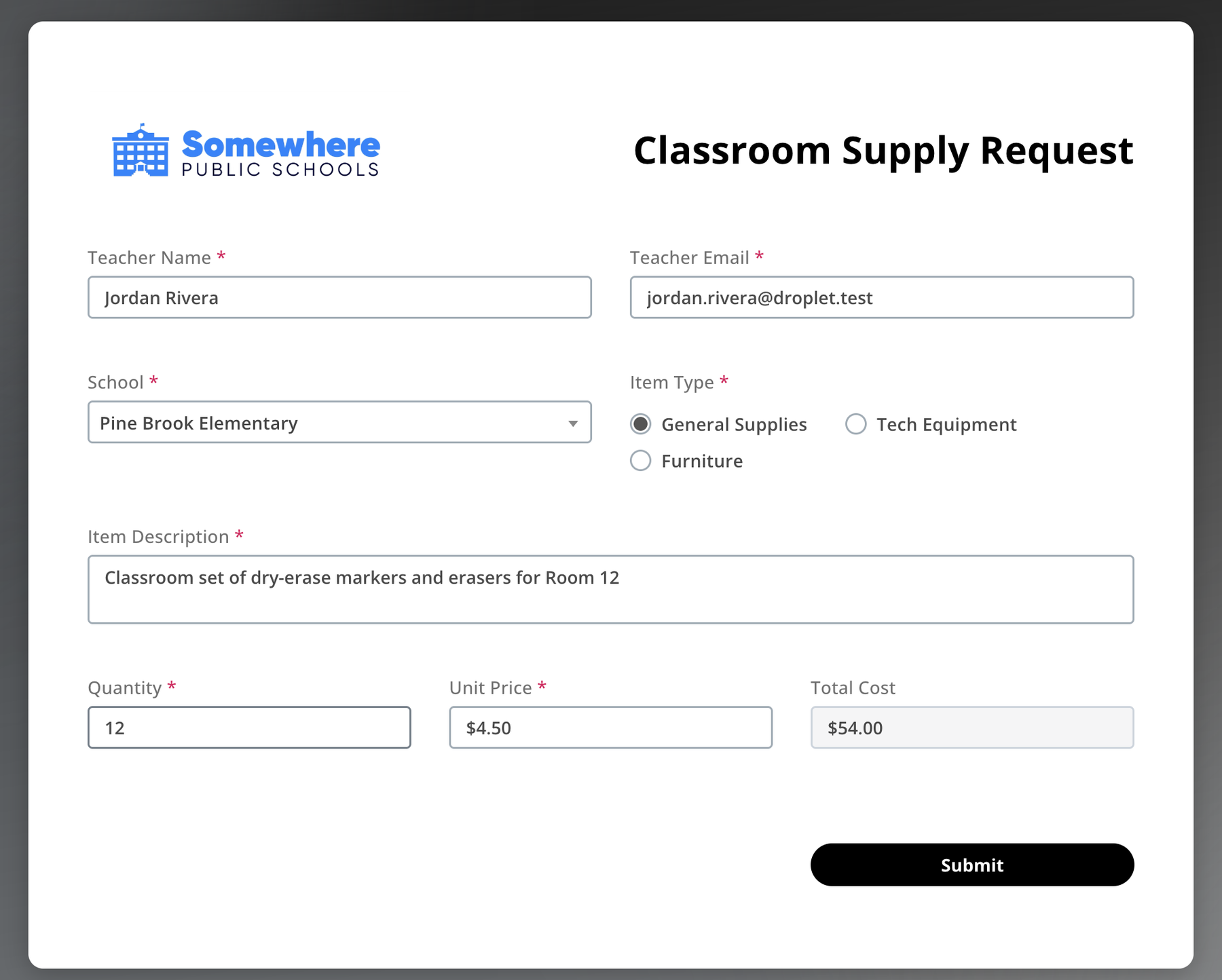
Finish a new form in one sitting. A brand-new form isn't saved until you click Submit, so closing the tab or reloading the page starts it over. If an answer is long, write it somewhere else first and paste it in.
If the form filled in your email, leave it as it is. Forms that record who submitted them check that email against the account you're signed in with, and a different address can stop the form from submitting.
If Submit doesn't go through
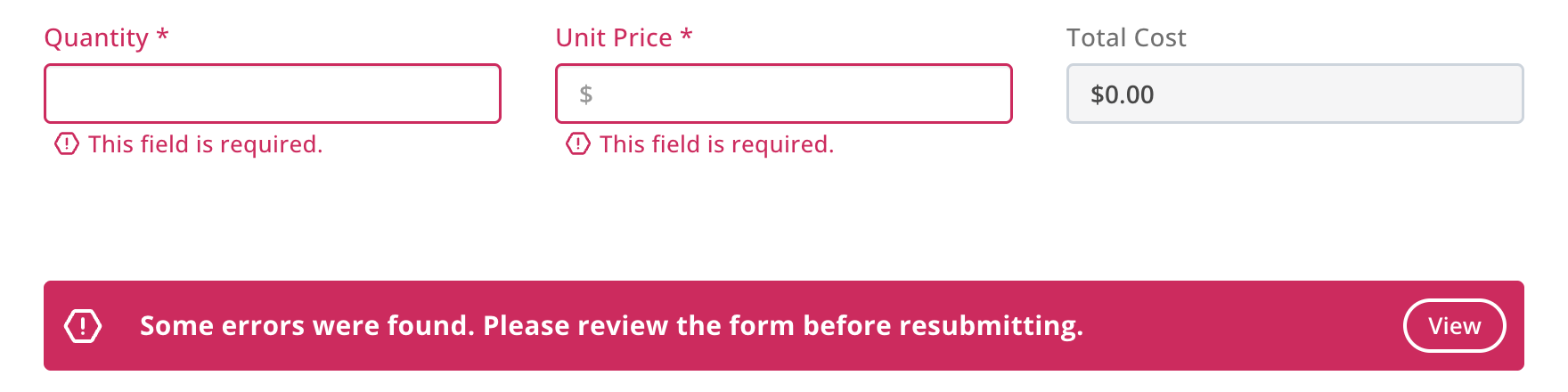
Droplet outlines every field that needs attention in red and shows a summary bar at the bottom of the form. Fix each highlighted field, then click Submit again.
Still stuck? Why you can't submit a form covers the other usual causes.
Check where your submission is
Open Submissions and choose the My Submissions view. Each row tells you where things stand:
Still moving: the Status column names the current step, with a ring showing how far along it is. Assigned To shows who has it.
Finished: the ring is replaced by its final status, Completed or Rejected.

Click a row to open the submission. Your answers are read-only once you've submitted. For the full story, open the three-dot menu at the top right and choose Activity Log. The same menu has Download PDF if you want a copy for your records.
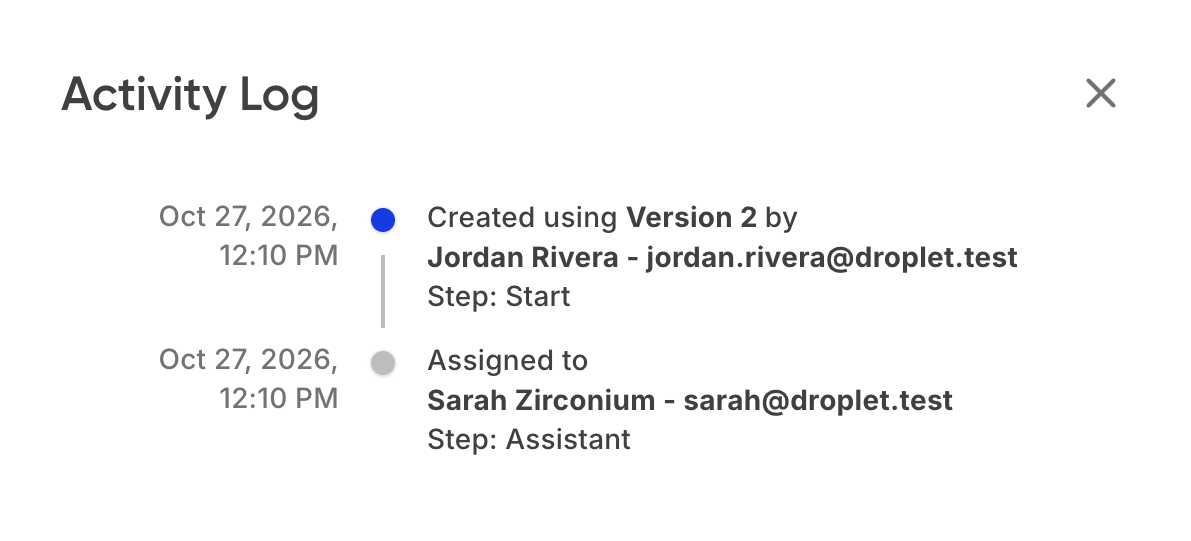
Your organization decides what you can see. Most people see the submissions they started and the ones assigned to them. For more on the Submissions page, see View submissions.
When something is waiting on you
When a submission reaches your step, Droplet emails you a link and adds it to your Home page. Open it from either place.
Read what's already there. Earlier answers are usually read-only for you.
Fill in anything your step asks for. To sign, click the signature field, confirm your name, and click Adopt And Sign.
Your organization names the buttons, so you might see Approve and Deny, Submit and Reject, or something else.
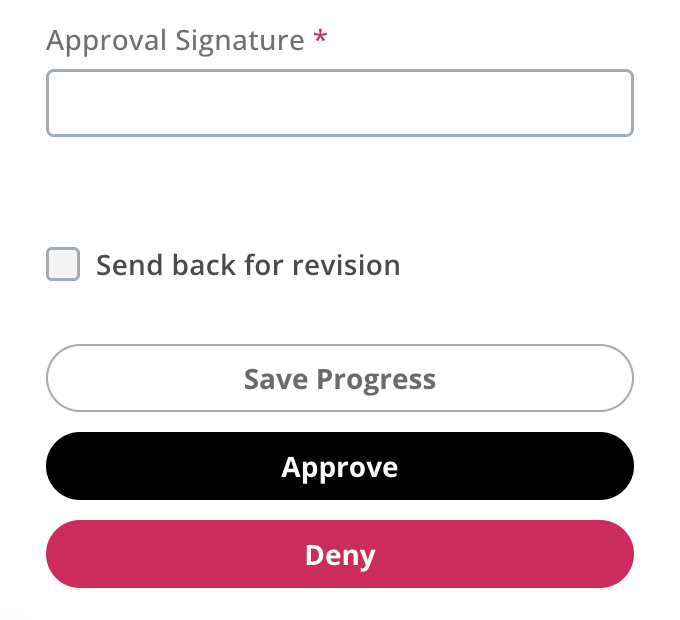
Approve (or Submit) sends it to the next step, or finishes it as Completed.
Deny (or Reject) usually ends it as Rejected. Some forms send it back to the person who submitted it instead.
Save Progress, when a form has it enabled, it keeps your work without moving the submission along.
Once you act, the submission leaves your Home page. Only the current assignee can act on a submission, so if one reached you by mistake, ask your Droplet administrator to reassign it.
If a submission comes back to you
Some forms let an approver send a submission back for changes. It shows up on your Home page again, usually with an email saying what to fix. Open it, make the changes, and submit it again. It picks up its route from there.
A submission marked Rejected is finished and can't be reopened by you. If you still need what you asked for, check with the approver, then start a new submission.
Emails you'll get
Your organization chooses which emails each form sends, but these are the common ones:
It's your turn: a link to a submission that's now assigned to you.
Updates on your own submissions, such as when one is approved or denied.
Reminders about something that's still waiting on you.
Links in these emails are tied to you. If you forward one, it won't open for the other person. To hand work to someone else, ask your Droplet administrator to reassign it.
You can turn off email notifications on your Account page, but then you'd only find new assignments by checking Home. Most people should leave them on.
Going away?
Turn on Out of Office on your Account page and pick a backup. While you're out, new assignments that would come to you automatically go to your backup instead. If you can't choose a backup, your role doesn't include it, so ask your Droplet administrator. See Set Out of Office with a backup assignee.
Getting help
Questions about a form, like what to enter, who approves it, or why it went where it did: ask your Droplet administrator or whoever owns the form. They set it up, so they can explain it and change it.
Can't sign in: see Reset your password or regain access.
An "Unauthorized Access" message: see Fix an "Unauthorized Access" error.
Something looks broken: try a current browser (see Supported browsers) or clear your cache and cookies. If that doesn't fix it, email support@droplet.io with the form name and a screenshot.
Common questions
Can I change my answers after I submit?
Not on your own. Once you submit, your answers are locked. Ask the person it's with to send it back to you, or ask your Droplet administrator for help.
Can I cancel a submission?
There's no cancel button for the person who submitted it. Ask the current approver to deny it, or ask your Droplet administrator to archive it.
Why did my submission skip a step?
Some steps only run when they apply. In the example above, orders under $250 that aren't tech equipment skip the principal. Your administrator can tell you how a specific form decides.
Who can see what I submit?
The people assigned to its steps, plus anyone your organization has given wider access, usually administrators and the office that handles that form.
I was told something was assigned to me, but I didn't get an email.
Check your Home page first: assignments always show up there, even if an email is delayed or filtered. Then check your spam folder, and make sure email notifications are on in your account settings.
Several people need to approve at once. How does that work?
Some forms send a submission to several people at the same time. It moves on once they've all approved. If any one of them denies it, it doesn't wait for the others.
Can I use Droplet on my phone?
Yes. Droplet runs in your browser, so you can fill out and approve forms on a phone or tablet with a current browser. Nothing to install.