Use datasets
Store and manage shared data like locations, contacts, and budget codes that your forms can reference dynamically.

What are datasets?
Datasets are collections of structured data that your forms can reference. Instead of hard-coding lists of schools, department contacts, or budget codes into each form, you store that data in a dataset and let your forms pull from it. When the data changes, you update the dataset once and every connected form reflects the change automatically.
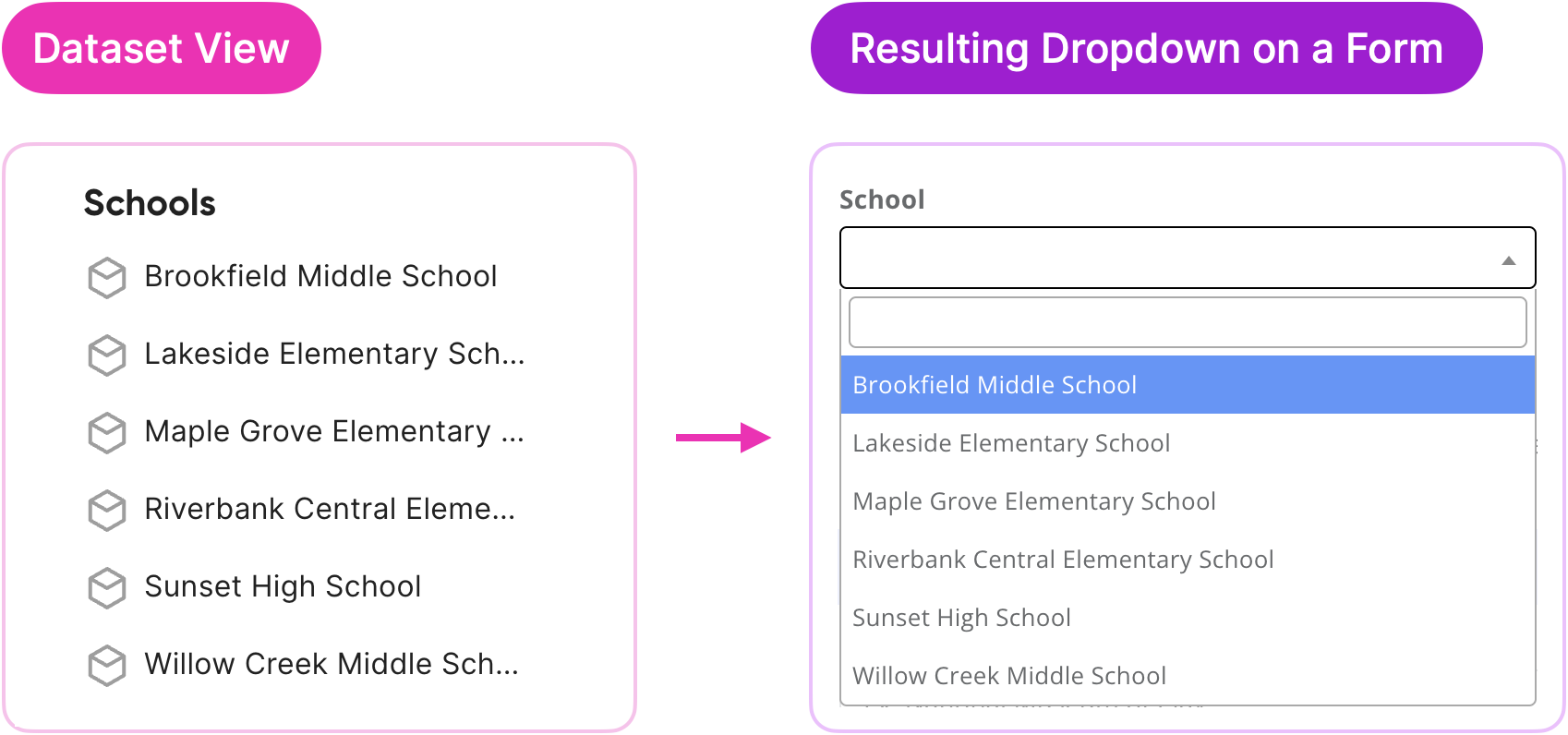
One dataset can power multiple forms. Update the dataset once, and all connected forms reflect the changes.
Common uses
- Populate dropdown options
- Populate dropdowns, radio buttons, and checkboxes with dynamic lists like locations, departments, or job titles.
- Route workflow assignments
- Assign approvers based on specific criteria like location, department, or role.
- Keep data consistent
- Ensure consistent use of data across all forms, keeping information current and accurate across your organization.
Common examples
Schools and departments - Populate dropdowns with location names and automatically assign the appropriate reviewers for those locations
Employee directory - Connect general information about employees like name, email, work location, and supervisor contact information
Budget codes - List your organization's budget codes to ensure submitters connect submissions with the right line item
Salary schedules - Match salary information with specific job categories and steps for HR forms
Create a dataset
Click Datasets in the left-hand navigation menu.
Click + Dataset.
Give your dataset a clear, descriptive name (for example, "All Schools") and add a description.
Choose how to create your dataset:
Upload file: Import data from a spreadsheet or CSV. The first column becomes the key identifier for each record.
Create manually: Build your dataset by adding records one at a time using the visual editor, or by editing the code directly in the code editor.
Click Create. Droplet creates a draft version automatically.
Add or refine your data using the visual editor.
Click Save as you work, then click Publish when ready.
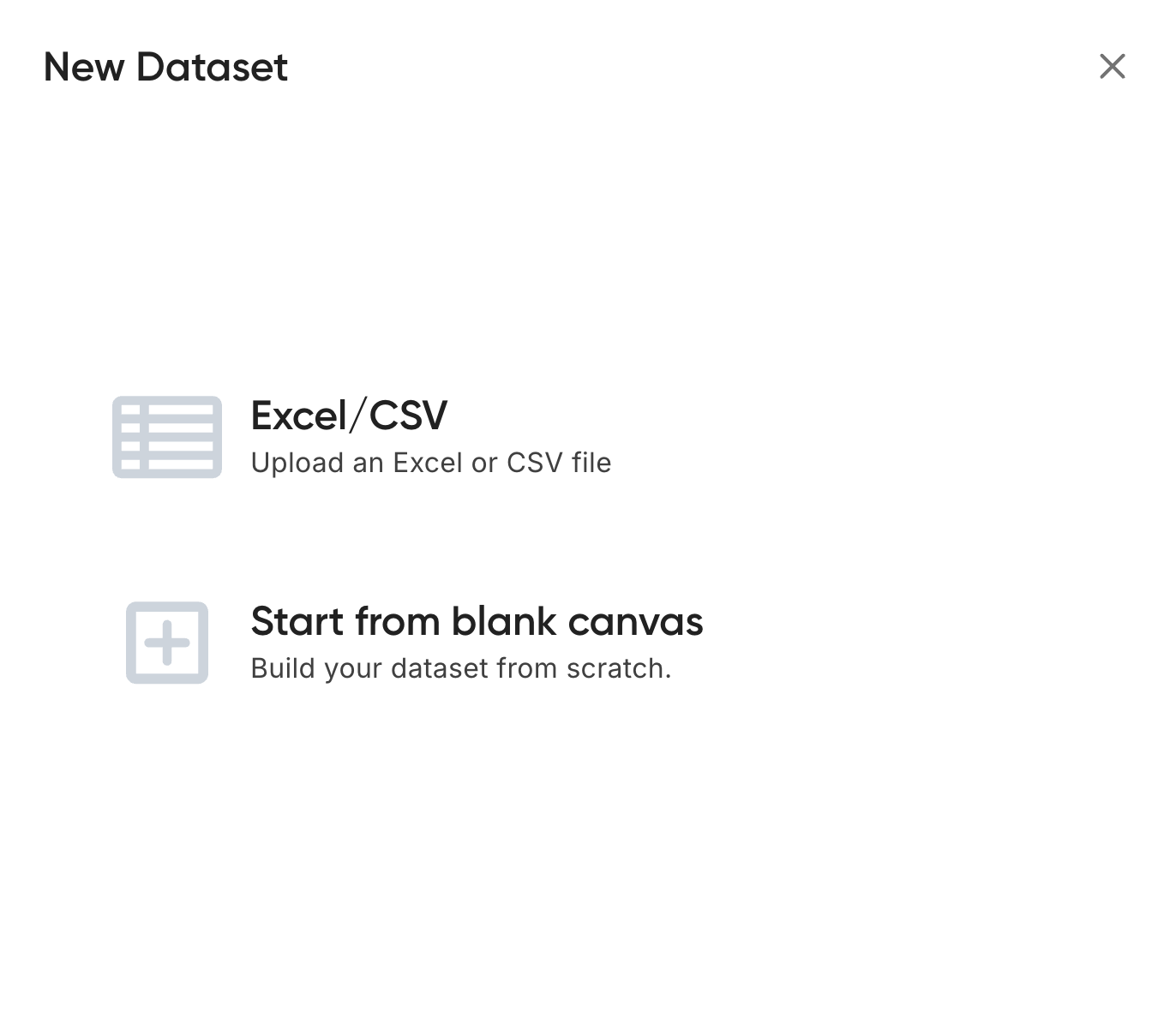
Choose to upload existing data from a file or create a dataset manually from scratch.
When uploading a file, ensure your first column contains unique identifiers that make sense as keys (like school codes, employee IDs, or department names). This column will be used to reference specific records in your forms.
Do not include sensitive or personally identifiable information in your datasets. Dataset data is loaded in the background when a form references it.
Connect a dataset to a form
In the Form Builder, click the three-dot menu in the upper-right corner and select Manage Datasets.
Select one or more datasets to connect to the form.
Click Apply.
Each connected dataset is automatically assigned a case-sensitive dataset key (similar to a field ID) that you'll use to reference the dataset in formulas and expressions.
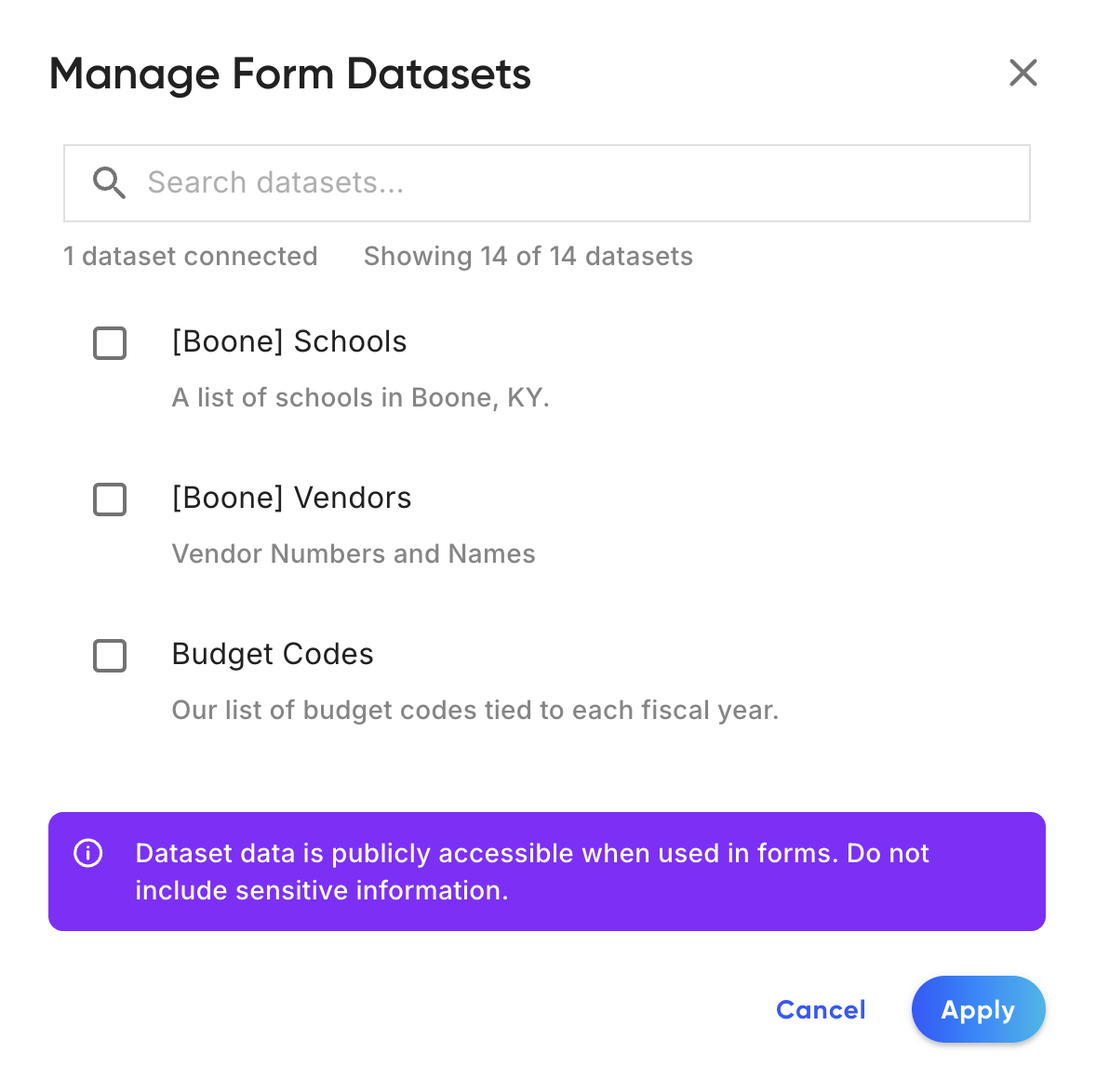
Connect datasets to your form from the three-dot menu in the Form Builder.
Datasets can be referenced throughout all steps of a form submission. For example, a salary schedules dataset can be referenced to find the annual salary and later route to the correct HR representative. Multiple datasets can be used in one form - you can link an employee's ID number with their salary information and budget code.
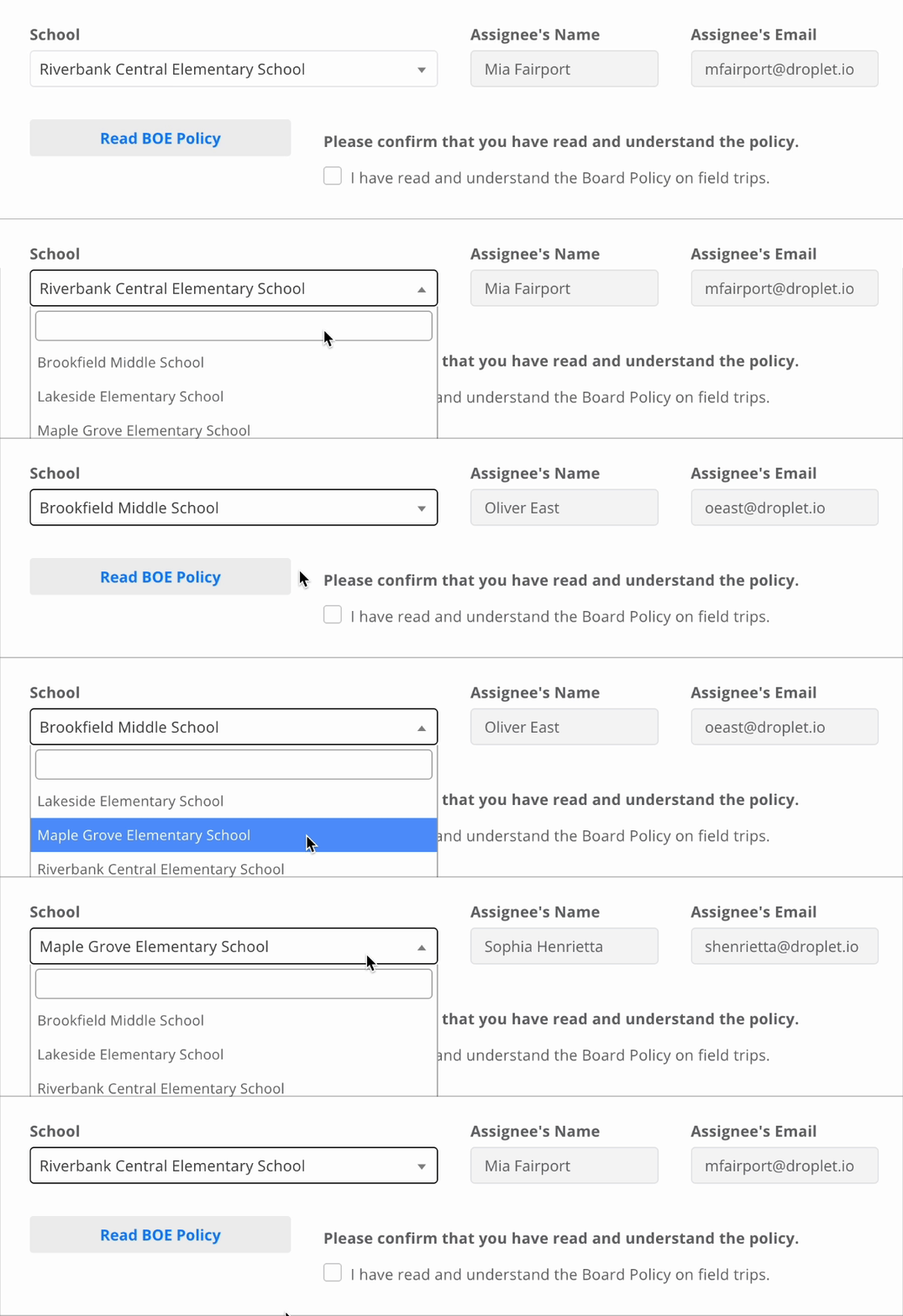
Once connected, your form fields can pull options dynamically from the dataset.
Reference dataset values
Once connected, you can reference dataset values in formulas, Show/Hide Field Rules, and workflow assignments using the dataset key:
- Populate dropdown options
Object.keys(schools)pulls all keys from the "schools" dataset as dropdown options.- Look up a value
schools[school].principaluses the selected school from a dropdown component to return the principal's name from the dataset.- Dynamic workflow assignment
schools[school]returns an object with name and email properties, which Droplet uses to assign the workflow step to the correct person.
Auto-fill fields from a selection
The most useful thing a lookup can do is fill in other fields for the submitter when they make a choice. For example, when someone picks a school, the form can fill in that school's address, principal, and contact email automatically.
Add a Dropdown (or Single Choice) component whose options come from the dataset using Object.keys(schools). Note its component ID, for example school.
For every value you want to fill in, add a Computed component and set its formula to read that property from the selected record.
Each Computed field looks up the record keyed by the dropdown's value:
schools[school].address          // a top-level value
schools[school].principal.email  // a value nested inside the record
As the submitter changes the dropdown, every Computed field updates instantly, so one selection can populate the rest of the form. The same lookup can also feed a notification or route a workflow step.
Use dot notation that matches how your records are structured. Values can be nested, so if a record stores principal as an object (as in the school directory template below), reference schools[school].principal.email to reach the email inside it.
Update a dataset
Go to the Datasets page and click Edit on the dataset.
Click the version number and select Create New Draft.
Make your changes and save as you go.
Click Publish when ready. Forms that don't specify a version will automatically use the latest published version.

Dataset versioning lets you make changes safely before publishing updates to connected forms.
You can switch between the Visual Editor and Code Editor using the toggle in the upper-right corner. The Visual Editor is easier for most users, while the Code Editor gives you direct access to the raw JSON data.
Access to manage datasets should be limited to users who require it to prevent unauthorized changes. Regular updates to datasets ensure they remain current and accurate for all forms that reference them.
Review or share a dataset outside Droplet
Droplet does not export datasets, but the Share Check can turn the Code Editor's JSON into a spreadsheet for a colleague to review in Excel, bring the edited spreadsheet back as JSON, or scrub names and emails before you pass a dataset to another district.
Dataset templates
Use these templates as starting points when creating datasets manually in the code editor. Copy and paste the JSON structure, then replace the example data with your own.
School directory
A dataset containing school information with principals and administrative assistants:
{
  "Lincoln Elementary": {
    "name": "Lincoln Elementary School",
    "address": "123 Oak Street, Springfield, IL 62701",
    "phone": "(217) 555-0101",
    "principal": {
      "name": "Sarah Johnson",
      "email": "sarah.johnson@springfield.edu"
    },
    "admin_assistant": {
      "name": "Maria Rodriguez",
      "email": "maria.rodriguez@springfield.edu"
    }
  },
  "Roosevelt Middle": {
    "name": "Roosevelt Middle School",
    "address": "456 Maple Avenue, Springfield, IL 62702",
    "phone": "(217) 555-0102",
    "principal": {
      "name": "Michael Chen",
      "email": "michael.chen@springfield.edu"
    },
    "admin_assistant": {
      "name": "Jennifer Smith",
      "email": "jennifer.smith@springfield.edu"
    }
  },
  "Washington High": {
    "name": "Washington High School",
    "address": "789 Pine Boulevard, Springfield, IL 62703",
    "phone": "(217) 555-0103",
    "principal": {
      "name": "David Thompson",
      "email": "david.thompson@springfield.edu"
    },
    "admin_assistant": {
      "name": "Lisa Chang",
      "email": "lisa.chang@springfield.edu"
    }
  }
}
With this dataset connected under the key schools and a school dropdown component, populate the options and look up details for the chosen school:
// Populate the dropdown's options
Object.keys(schools)

// Look up values for the selected school
schools[school].address           // School address
schools[school].principal.name    // Principal's name
schools[school].principal.email   // Principal's email
Department contacts
A dataset for department contacts with supervisors and assistants:
{
  "Human Resources": {
    "department": "Human Resources",
    "location": "Administration Building, Room 201",
    "phone": "(217) 555-0201",
    "supervisor": {
      "name": "Amanda Davis",
      "email": "amanda.davis@district.edu"
    },
    "assistant": {
      "name": "Robert Wilson",
      "email": "robert.wilson@district.edu"
    }
  },
  "Finance": {
    "department": "Finance Department",
    "location": "Administration Building, Room 105",
    "phone": "(217) 555-0202",
    "supervisor": {
      "name": "Kevin Martinez",
      "email": "kevin.martinez@district.edu"
    },
    "assistant": {
      "name": "Nicole Brown",
      "email": "nicole.brown@district.edu"
    }
  },
  "Technology": {
    "department": "Information Technology",
    "location": "Technology Center, Room 10",
    "phone": "(217) 555-0203",
    "supervisor": {
      "name": "Rachel Green",
      "email": "rachel.green@district.edu"
    },
    "assistant": {
      "name": "Mark Johnson",
      "email": "mark.johnson@district.edu"
    }
  }
}
With this dataset connected under the key departments and a department dropdown component, populate the options and look up details for the chosen department:
// Populate the dropdown's options
Object.keys(departments)

// Look up values for the selected department
departments[department].location          // Office location
departments[department].supervisor.name   // Supervisor's name
departments[department].supervisor.email  // Supervisor's email
Troubleshooting
My dataset dropdown is empty. Why?
Three things must be true for a form to see dataset values: the dataset has to be published (saving a draft is not enough), it has to be connected to the form through Manage Datasets, and your field has to reference the correct dataset key (for example Object.keys(schools)). If any one is missing, the options come back empty.
My lookup returns nothing or the wrong value.
Dataset keys are case-sensitive. A lookup like schools[school] only resolves when the selected value matches a key in the dataset exactly, including capitalization and spacing. Double-check the dataset key, the property names you are referencing, and that the looked-up value matches a record key exactly.
What happens when I update or delete a dataset that forms already use?
Publishing an updated dataset takes effect immediately for any form using the latest version, so review your changes before publishing. Removing a dataset, or disconnecting it from a form, stops its references from resolving, so dropdowns go empty and lookups return nothing. Check which forms reference a dataset before deleting it. Note: Updating a dataset does not update submissions that are currently in-progress. To do this, please review how to update a dataset version here.
Related: Filter datasets and the Datasets API for managing datasets programmatically.