Use computed and identifier components
Auto-calculate values, generate unique IDs, and record timestamps without any input from the submitter.

Computed
The Computed component displays a value calculated automatically from a formula. The submitter cannot edit it - the value updates in real time as other fields change.
Whether you’re performing simple calculations like adding two inputs together or complex operations like calculating the number of business days between two dates (excluding weekends and holidays), the Computed Component helps you derive and use new information based on data entered in your form.
Use it for totals, workflow routing based on conditions, concatenated strings, conditional messages, and any derived value.
Properties
- Label
- The text displayed above the computed value.
- Visibility
- Set the field to Hidden when the value is only needed for logic or workflow routing, not for the submitter to see.
- Formula
- Open the Formula Logic editor (in the Rules section) to write the expression. To learn more about creating formulas, see here. Or rely on Droplet AI for assistance - just type out what you would like it to do. For example: multiply the quantity by the unit price.
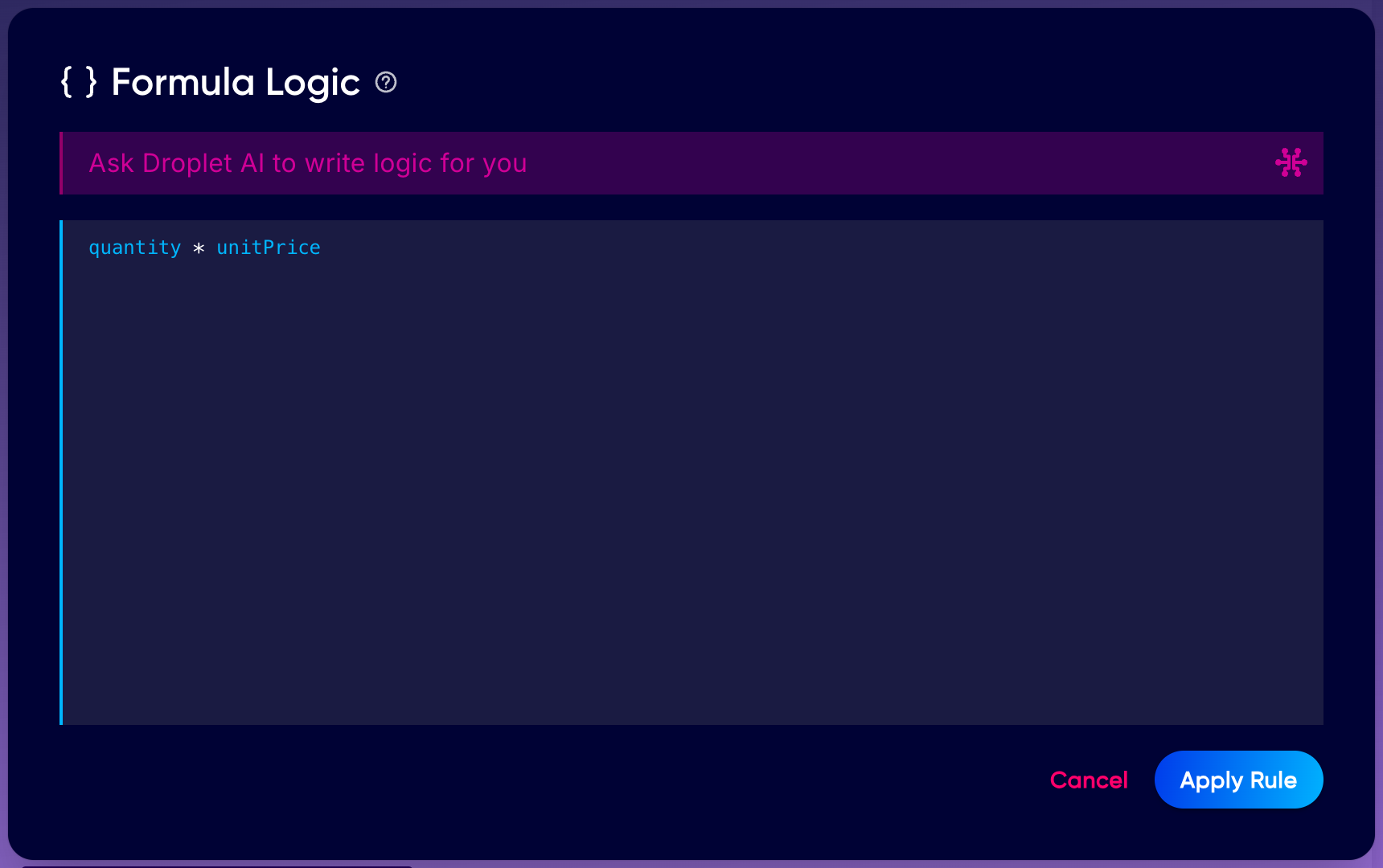
The Formula Logic editor. You can write the expression yourself, or use "Ask Droplet AI to write logic for you" to generate it from a plain-English description.
Common formula examples
quantity * unitPrice - multiply two fields
firstName + ' ' + lastName - combine text fields
mileage * 0.67 - calculate reimbursement from mileage
score >= 80 ? 'Pass' : 'Fail' - show different text based on a value (a ternary: condition ? valueIfTrue : valueIfFalse)
Automatic Calculations for the User
Use Computed fields to show users the result of a calculation in real time.

Workflow Routing Based on Complex Conditions
Hide the Computed Component and use its result in the background to help determine workflow routing.

Hidden computed fields are powerful for workflow routing. Create a hidden computed field that evaluates a condition, then use that field's value to decide which workflow step runs next.
Advanced formulas with IIFE expressions
For calculations that need multiple steps, variables, or branching beyond a single ternary, use an IIFE (Immediately Invoked Function Expression) - a block of logic wrapped in a function that runs immediately and returns a result:
(() => {
  // Your logic goes here
  // Use variables, if/else, loops, etc.
  return result
})()
For example, a tiered discount based on quantity:
(() => {
  if (quantity >= 100) return unitPrice * quantity * 0.8
  if (quantity >= 50) return unitPrice * quantity * 0.9
  return unitPrice * quantity
})()
The outer (() => { ... })() creates a function and calls it immediately. Inside, you can use if/else, declare variables with const or let, and return the final value.
IIFE expressions are still supported, but formula evaluation is now hardened against unsafe constructs. eval and the Function constructor (including new Function('...')) are blocked, so any formula that builds and runs code from a string will fail to evaluate. Write the logic directly inside the IIFE instead.
IIFE expressions are an advanced technique. For most computed fields, a simple formula like quantity * unitPrice or a ternary is all you need.
Identifier
The Identifier component generates a unique reference value for each submission. The submitter enters nothing - the value is created when the submission starts. Use it as a tracking or reference number.
Properties
- Label
- The text displayed above the identifier - typically "Submission ID" or "Reference Number."
- Auto
- When enabled, Droplet generates the identifier automatically for every submission.
- Text
- The value or format for the identifier. Combine it with the Formula Logic editor when you need custom generation logic. You can use the helper function getSecquenceId() to generate a number and integrate it into a custom expression (i.e., 'HS' + getSequenceId() would create unique IDs like HS1, HS2, HS3, etc.)
Identifiers are unique within a form. Two different forms may produce the same number, but within a single form no two submissions share an identifier.
Timestamp
The Timestamp component automatically records when a submission is created or updated. Unlike the Date/Time Picker (which the submitter fills in), the Timestamp captures the moment programmatically and is always read-only.
Properties
- Label
- The text displayed above the timestamp value.
- Type
- Whether the value records the full Date & Time or just the Date.
Timestamps cannot be changed by the submitter or a reviewer. This is the canonical home for the Timestamp component - it is referenced from the date, time, and signature guide.