Take actions on submissions
Assign, remind, archive, export, and re-version submissions using the Actions menu on the Submissions page.

NewMy Assignments, My submissions, and All Submissions used to be separate nav items; they are now one Submissions page, and the scoping lives in the views instead.
Access the Actions menu
Go to the Submissions page.
Click Select, then check the box next to one or more submissions (or choose Select Page / Select All Pages).
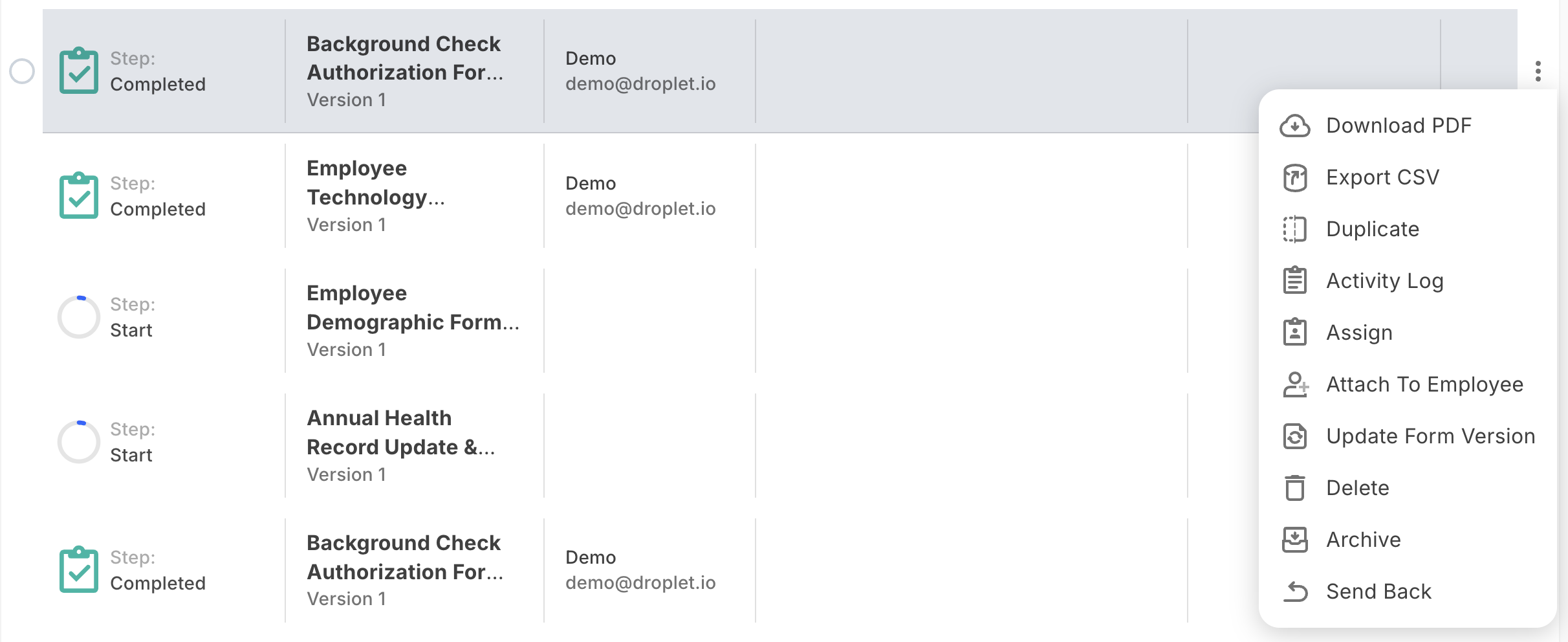
Click Actions at the top right of the page to see the available options.

You may not see every action listed above. The options available depend on your role and permissions, and on what you have selected. An action greys out when it does not apply to the current selection (for example, Export CSV needs submissions from a single form). Hoever over a greyed-out action to see why it is unavailable.
Available actions
- Download PDF
- Save the selected submission(s) as a PDF. A single submission downloads as one PDF file; multiple submissions download together as a ZIP folder. The PDF captures the submission as it currently appears, so it is a good way to archive a record outside Droplet or share it with someone who does not have an account. PDF typography and rendering now match the web form fill more closely, so fonts and colors in the exported file look much closer to the submission on screen.
- Export CSV
- Export one or more submissions from the same form to an Excel spreadsheet or CSV file, with one row per submission and a column per field. Use it for reporting, analysis, or bulk review. Because the columns come from a single form's fields, Export CSV is only available when every selected submission is from the same form.
- Duplicate
- Create a new draft submission pre-filled with the selected submission's data. Handy for resubmitting a similar request without re-entering everything. Available one submission at a time.
- Assign
- Transfer the selected submission(s) to another team member while keeping the submission at its current workflow step. Search by name or email, or manually enter an external contact.
- Unassign
- Remove the current assignee from the selected submission(s). The submission stays at its current workflow step but will not progress until someone is reassigned.
- Remind
- Send a reminder email to the current assignee of the selected submission(s). Droplet drafts a professional reminder you can customize before sending. Supports bulk reminders.
- Send Back
- Return the selected submission to any previous workflow step, reassigning it to whoever handled it at that step originally. Available one submission at a time. Inside an open submission, Send Back is its own button in the header rather than an item in the three-dot menu. Send Back can also be used to Unreject and move previously rejected submission(s) back into the step where they were originally rejected, so work can continue
- Activity Log
- View a timeline of everything that has happened on a submission: assignments, workflow steps, notifications, rejections, version updates, and more. Available one submission at a time.
- Archive
- Mark the selected submission(s) as archived. Archived submissions become inactive and cannot be interacted with until unarchived.
- Unarchive
- Restore previously archived submissions to active status. To find archived submissions, use the status dropdown in the toolbar above the results and choose Archived.
- Update Form Version
- Re-point the selected submissions to a newer published version of their form, so they pick up the new layout, fields, or logic. Powerful, but it changes in-flight records: read Update Form Version before using it.
- Update Dataset Version
- Re-point the selected submissions to a newer published version of a connected dataset, so dataset-driven values and calculations recompute. High blast radius: read Update Dataset Version before using it.
Reassign a submission
Select the submission(s) you want to reassign.
Click Actions and choose Assign.
Search for a Droplet user by name or email, or manually enter a name and email for an external contact.
Click Assign to confirm.
Send back to a previous step
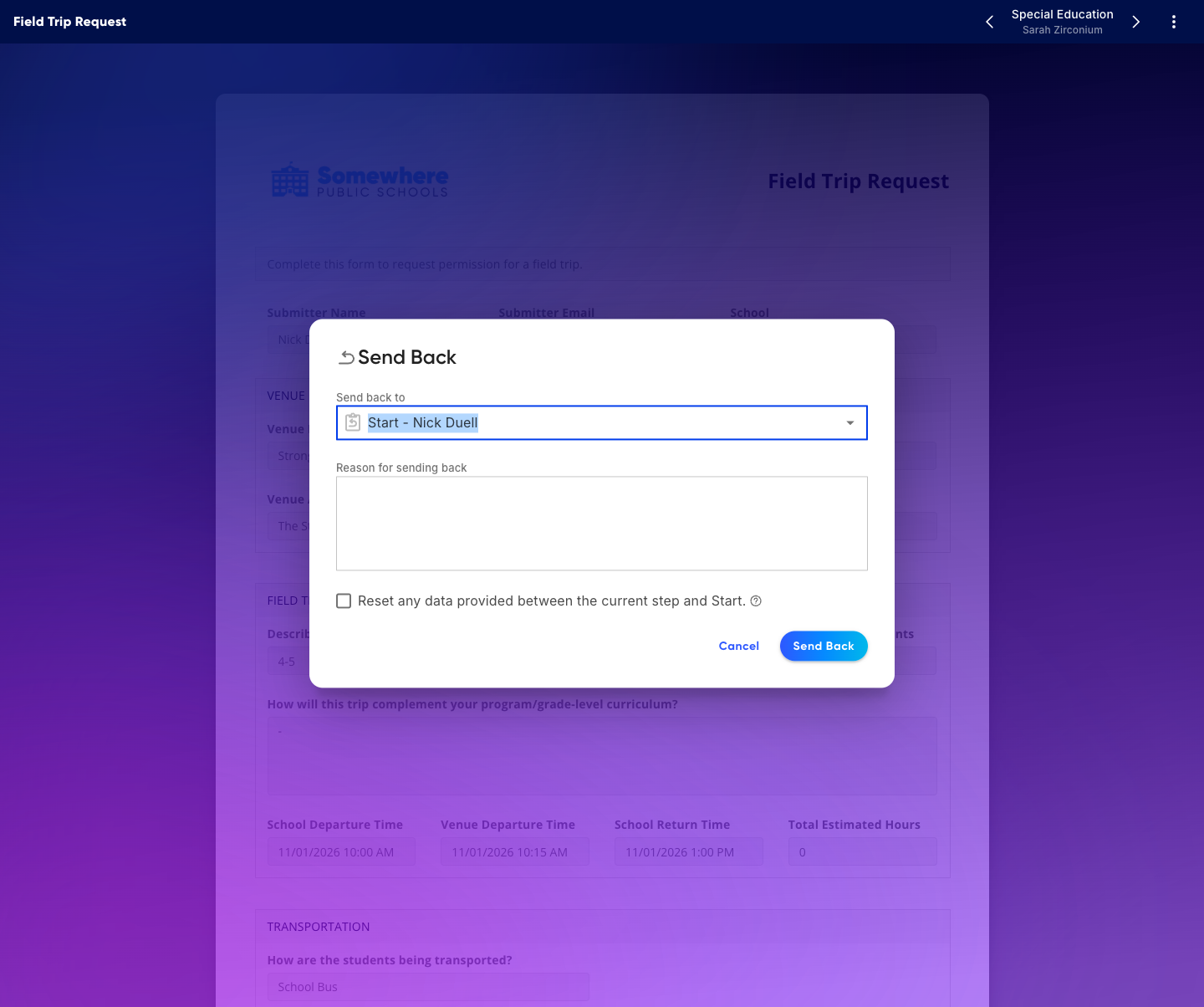
Send Back returns a submission to any previous workflow step, automatically reassigning it to whoever handled it at that step originally. When sending back, you choose the step, add a reason, and decide whether to reset the data entered between the current step and the step you are returning to.
Select the submission you want to send back.
Click Actions and choose Send Back.
Choose which previous step to return the submission to, and add a reason.
Click Send Back to confirm.
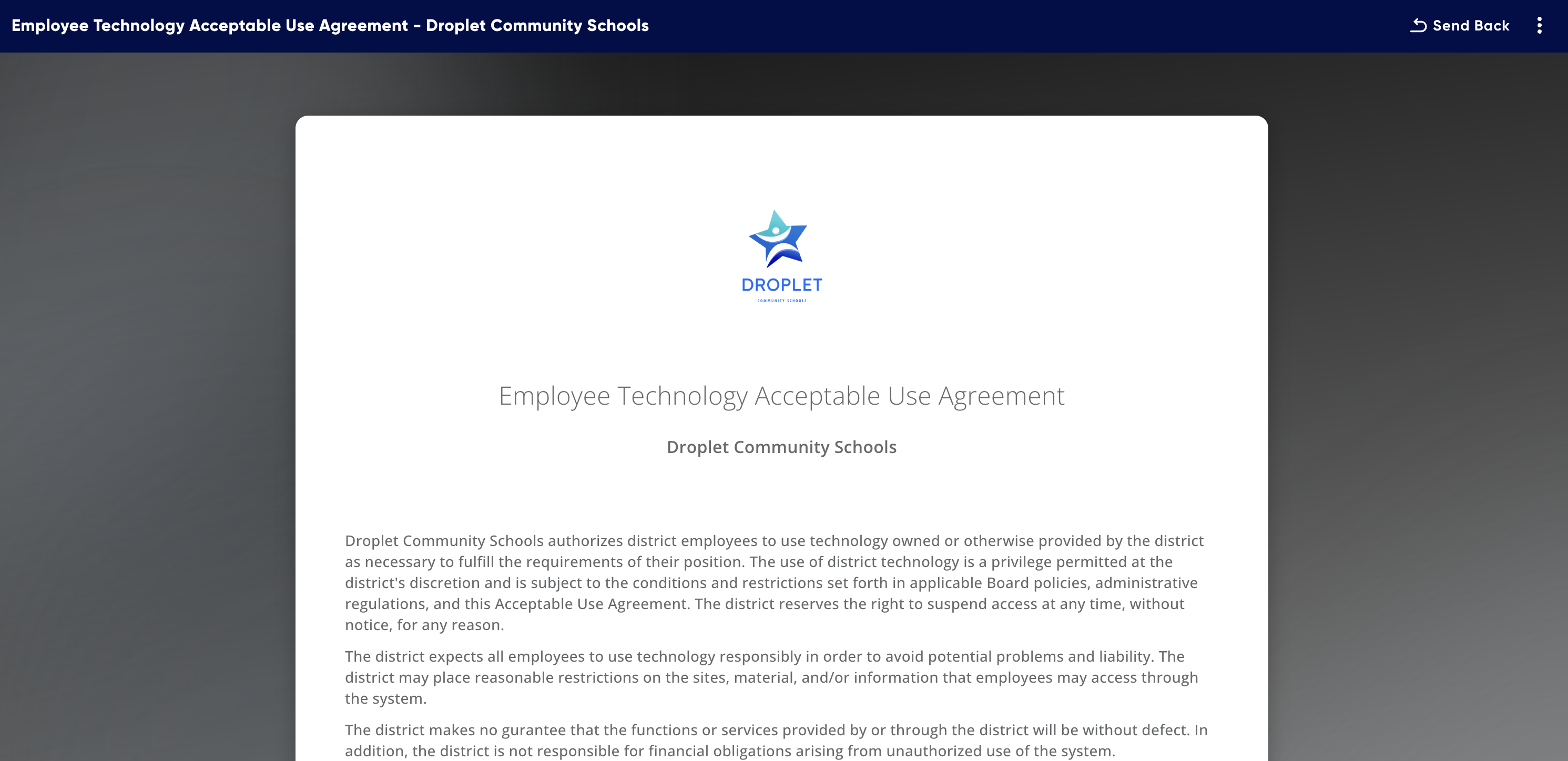
Send Back is also available from within a submission. Open any submission and click the Send Back button in the header at the top right. It is a dedicated header button now, so you no longer need to open the three-dot menu to find it.
Providing a reason for sending a submission back ensures clear communication of edits that need to be made. This reason will be included in the email notifying the assignee. If you have a reason block built into the form, this will populate so the assignee can see it on the form itself.
How data resets work
When you send back a submission, what happens to the data depends on when the submission was created:
Newer submissions: the data resets to exactly what it was when it reached that previous step. Changes made in later steps are undone.
Older submissions: the data is unchanged. Only the workflow step and assignee are updated.
You need the Send Back permission, under Submissions, as part of your role to use this action.
Send a reminder
On the Submissions page, use the search and filter controls in the toolbar above the results to find submissions that need attention (for example, in-progress submissions that haven't moved recently). The Beginning on and Ending on date filters narrow the list to a date range, and Assigned To and Submitted By are available here in any view. If you run the same filter regularly, save it as a view so you can return to it in one click.
Select the submission(s) and click Actions › Remind.
Review the auto-generated reminder email. Click Edit Email to personalize it.
Click Send Reminder Email.
View the activity log
Select a single submission and click Actions › Activity Log (or open the submission and use its three-dot menu, which still holds Activity Log). The log shows a complete timeline of every event on the submission, including assignments, workflow step transitions, notifications, archive/unarchive events, rejections, and version updates.
Update Form Version
Update Form Version re-points the selected submissions to a newer published version of their form. It is most useful when you have improved a form and want existing in-flight submissions to pick up the change. Use it carefully: it does not migrate data or reconcile workflow state.
No data migration. A submission's stored answers are not touched. If the new version renamed a field's key, changed a field's type (for example text to dropdown), or removed a field, the old answer simply stays in storage. The end user sees:
Renamed or removed fields appear blank on the new version.
Retyped fields can show stale values that no longer make sense, and may fail validation the next time the user saves.
The data is not deleted, so reverting to the old version (by re-pointing back to it) generally restores the original display.
Workflow position is not reconciled. The submission's current step, assignee, parallel-step state, and previously-assigned history are not changed. If the new version renamed, removed, or restructured the step the submission is sitting on, the submission can become "stuck" on a step that no longer exists, and the current-step pill, reminders, send-back targets, and parallel-step UI can show stale or empty information.
Status is also not realigned: if step IDs or statuses changed meaning between versions, the submission's status (Not Started / In Progress / Completed) can become inconsistent with the new workflow, and there is no automatic recomputation.
Tags re-evaluate in the background. The action kicks off a job that recomputes tags using the new version's tag expressions, so custom-column tag values can be briefly stale on the listing screen right after the update. This is normal and self-heals.
When to use it Update Form Version is most reliable for additive changes: new optional fields, layout-only tweaks, corrected help text, or added optional workflow branches. Treat field renames, retypes, removals, or workflow restructures as a different scenario, those usually warrant new submissions on a new form rather than an in-place version update. Avoid pushing a version update onto submissions that are mid-workflow if the new version reorganized the workflow steps.
Update Dataset Version
Update Dataset Version re-points the selected submissions to a newer published version of a connected dataset, so dataset-driven values and calculations recompute against the new data. This is the point of the feature, and also its biggest risk.
Dataset rows are matched by key only. When a dataset is republished, rows are matched only by their option key. A new version that removes rows an earlier submission selected, or re-keys rows (for example if the dataset was rebuilt rather than edited), leaves the stored selection pointing at a key that no longer exists, so the field displays as blank on next load. If a row keeps its key but changes its displayed label, the selection still resolves but the user now sees the new value, which could be a useful correction or a confusing surprise.
Before you re-pin to a new dataset version, look at what changed in that version. Removed or re-keyed rows are the biggest source of "where did my submission's answer go?" tickets.
Calculations and conditional logic re-resolve immediately. Any field that does math against the dataset (totals, lookups, eligibility checks) or any "if the dataset row says X then..." workflow logic recomputes against the new values the next time the form loads. A single re-pin can change many derived fields, route the workflow differently, or flip an approval condition.
Test first Re-pin a small test batch first, open one of the submissions, and verify the calculations look right before running the action on the full population.
Update Dataset Version has no audit trail today. If you need accountability, restrict it to a small, trusted (power-user) role.
If a Dataset is newly added to a form after a submission is already in progress, the submission won't have space for that dataset to be added later and cannot be updated.
Best practices for re-versioning
Test on a small batch first. Both actions can have surprising downstream effects (re-routed workflow, blanked dataset answers, recomputed totals). Sanity-check 1 to 5 submissions before running on hundreds.
Additive changes are safest. Update Form Version is most reliable for new optional fields, layout, or help-text changes. Renames, retypes, removals, and workflow restructures usually warrant new submissions on a new form.
Confirm the dataset is row-compatible. Update Dataset Version assumes the new version still has the same row keys. Removed or re-keyed rows silently blank previously stored selections.
They are two separate actions. Updating the form version does not update dataset pins, and vice versa. To snap submissions to the latest of everything, run both.
Run during low-traffic windows. Both take effect immediately for anyone who has the submission open and reloads, so a mid-workflow assignee's screen can change underneath them.
Keep the old version published until you are confident. Reverting either action means re-running it pointed at the old version. If the old version has been archived in the meantime, the easy revert path is gone.
Avoid running on completed submissions unless there is a deliberate compliance reason. These features are designed for in-flight work; touching completed records may invalidate their preserved state.
Why can't I see certain actions?
Your available actions depend on your role and permissions, and on what you have selected. Some actions only work on a single submission, and some (like Export CSV, Update Form Version, and Update Dataset Version) need every selected submission to be from the same form. If an action is greyed out, hover over it to see why. Contact your Droplet administrator if you need additional access.
Can I take actions on multiple submissions at once?
Yes. Most actions, including Assign, Remind, Archive, and Export CSV, support bulk selection. Duplicate, Send Back, and Activity Log are available one submission at a time.
Where did My Assignments and My Submissions go?
They are now built-in views on the single Submissions page, listed alongside any views you have saved. You can rename them and change their filters, then save over them, but you cannot delete them. Old /assignments and /submitted bookmarks still work and land on the same filtered results.
What happens when I archive a submission?
The submission becomes inactive and is removed from your default view. It is not deleted: filter for Archived submissions in the toolbar above the results and use Unarchive to restore it.
Where did Send Back go inside a submission?
Send Back moved out of the three-dot menu and is now a button in the submission header at the top right. The three-dot menu still holds the other in-submission actions, including Activity Log.
What's the difference between Send Back and Reject?
Send Back returns the submission to a previous workflow step and reassigns it to the original handler, keeping the workflow active. Reject moves the submission to a rejected status, typically ending the workflow.
Will updating a form or dataset version change my submitters' answers?
Neither action migrates stored answers. Update Form Version leaves data in place (so renamed or removed fields show blank), and Update Dataset Version can blank a selection if its dataset row was removed or re-keyed. Always test on a few submissions first.