Troubleshoot Document Management and AI results
Find the cause of upload, filing, search and access problems, and know what to send support if you need help.

Start with the symptom
| What you see | Go to |
|---|---|
| A file says Failed in Uploads | Upload problems |
| A document is in the wrong folder or has the wrong name | Filing problems |
| A value Droplet read is wrong | Wrong values |
| You can't find a document you uploaded | Can't find a document |
| You can't see Docs, or an option is missing | Access problems |
Upload problems
Open Uploads in the left panel and read the message under the file name.
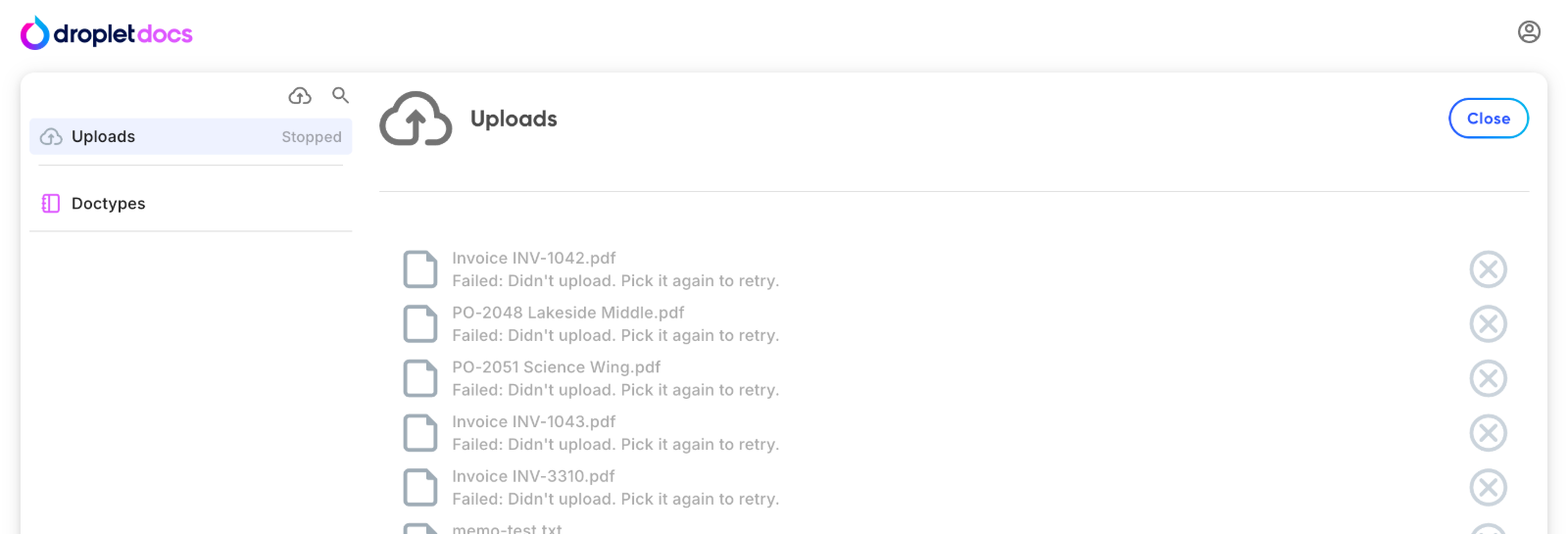
Failed files stay in the list with the reason, and the Uploads row shows Stopped.
- Didn't upload. Pick it again to retry.
- The page was closed or reloaded while the file was still uploading. Upload the file again.
- Upload failed. Please try again.
- Droplet couldn't accept the file. Try again in a few minutes. If it keeps failing, contact support with the file name and the time.
- The file type or size isn't accepted
- Docs accepts PDFs, JPEG and PNG images and text files up to 20 MB each. Save other formats as PDF, and split very large scans into smaller files.
Droplet retries temporary processing problems on its own, so a file may sit in Processing a little longer before it finishes.
Filing problems
- Check the doctype. Open the document and look at its doctype. If it is wrong, change it from the details panel.
- Check the values the sorting path uses. A wrong vendor or year sends the document to the wrong folder. Correct the value, and check the result.
- Check the doctype itself. If many documents land in the wrong place the same way, the sorting path or a field's box on the sample needs adjusting. See Organize documents with sorting paths and file names.
Wrong values
Droplet reads each document with AI, and AI can misread. Faint or crooked scans, handwriting, unusual layouts and dense tables are the most common causes. Always compare important values, such as amounts, dates and ID numbers, with the page.
- Correct the value in the details panel. See Correct a value.
- If the same field is wrong on many documents, check that field's box on the doctype's sample covers the value and not its label.
- Rescan blurry paper at a higher quality and upload the clearer copy.
Can't find a document
- Check Uploads: it may still be processing, or it may have failed.
- Check Needs Review: it may be waiting for a doctype or a missing value.
- Check Recently Uploaded, then search for a distinctive value such as an invoice number, with no filters on.
Don't upload the file again until you have checked all three. A second upload creates a second document.
Access problems
- No Docs in the left menu: Document Management isn't turned on for your organization, or your role has no Documents permission.
- Can't upload, edit or delete: your role is missing Create, Update or Delete on the Documents permission.
- Can't create or change doctypes: your role is missing the Document Types permission.
- A shared link won't open: the person needs to sign in to your organization and have access to Docs.
Ask your Droplet admin to check the role. See Manage access and share document links. If someone can see documents they shouldn't, tell your admin and Droplet support right away.
Questions about AI and your data
For Droplet's current statement on how documents are processed and stored, ask your Droplet account contact or email support@droplet.io before uploading sensitive records.
Contact support
Email support@droplet.io and include:
- Your organization and what you were trying to do.
- The document or file name, or a link to the document.
- The exact message you saw, and roughly when, with your time zone.
- What you have already checked.
Don't attach sensitive documents to your first email. Support will tell you how to send one if it is needed. See Get help with Droplet for more ways to reach us.