Organize documents with sorting paths and file names
Tell Droplet which folders to file each kind of document in and what to call it, using values read from the document itself.

What a sorting path is
A sorting path is the filing directions for a doctype. It works like addressing envelopes with a mail merge: some parts are the same on every envelope, and some are blanks filled in for each recipient. In a sorting path, the fixed parts are folder names you type, and the blanks are fields Droplet fills in from each document.
Each sorting path also has a document name, built the same way. Together they decide where a document lands and what it is called there.
| Recipe | Result for invoice INV-1042 | |
|---|---|---|
| Sorting path | Invoices / Fiscal Year [Fiscal Year] / [Vendor] | Invoices / Fiscal Year 2026 / Example Office Supply |
| Document name | [Invoice Number] - [Vendor] | INV-1042 - Example Office Supply |
The next invoice from a different vendor or year lands in its own folder automatically. Droplet creates the folder the first time a document needs it.
Where to set it up
Sorting paths live in the left panel of the doctype builder. Open a doctype from the Doctypes page (three-dot menu, then Edit Doctype), or keep going while you create one. For a new doctype, Droplet suggests a first path and document name from the sample, which you can keep, change or replace.
In the panel, plain text is a fixed folder. Purple italic text is a field that Droplet fills in from each document.
Build a path
Click the first folder in the path (or Choose Folder on a new path). Pick an existing folder from the list, type in Find Folder to search, or click Create New Folder.
Click Choose Folder below the last level, then Create New Folder.
In Create New Folder, click the plus icon at the right of Folder Name and pick a field. It appears as a grey chip. You can type text around it, so Fiscal Year plus the Fiscal Year field becomes Fiscal Year 2026. Set the field's Data Type and Format under Dynamic Field Definitions, then click Create Folder.
Two to four levels is usually enough. Fixed folders work best near the top, with field-based folders below them.
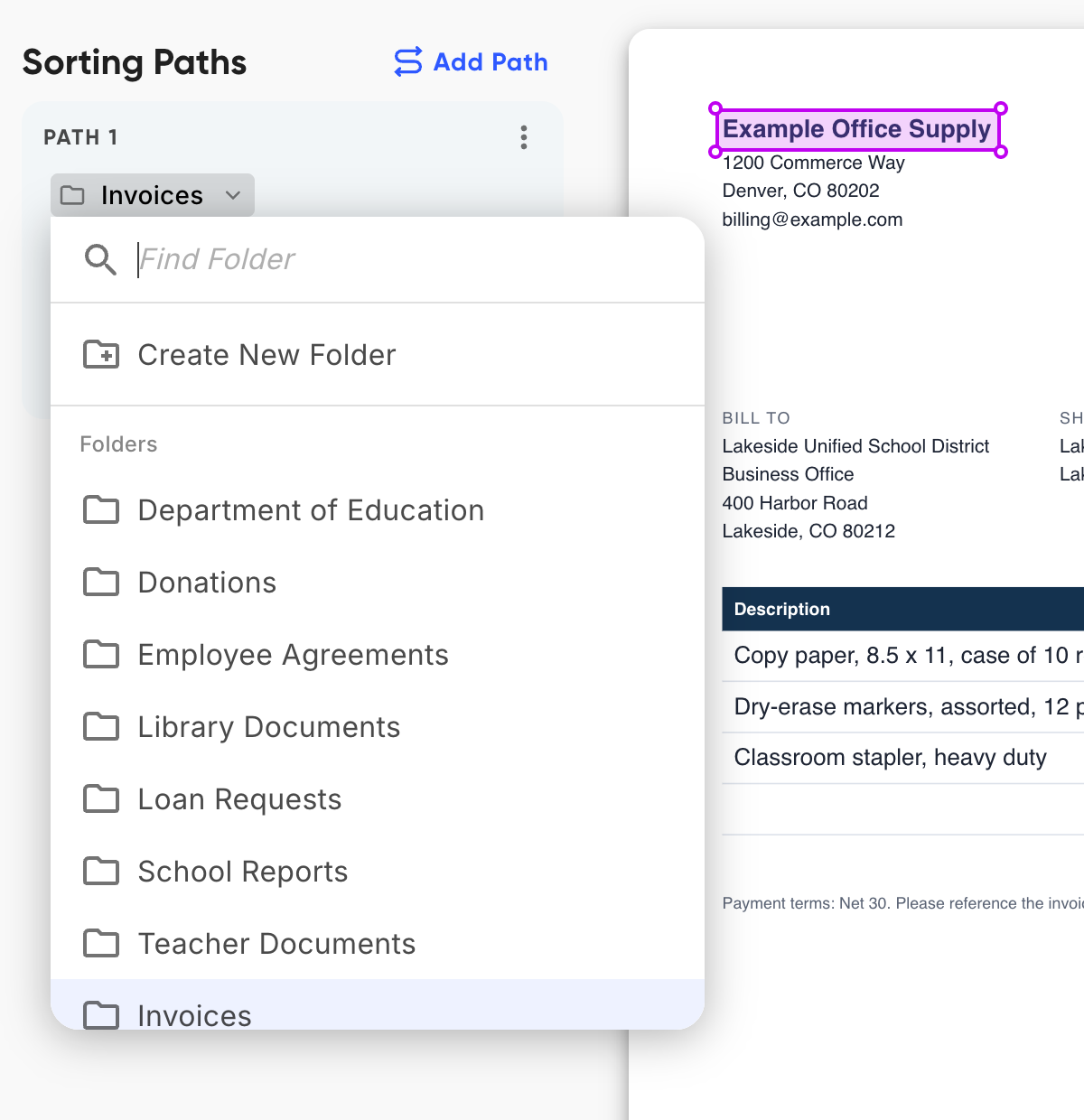
Pick an existing folder, search for one, or create a new one.
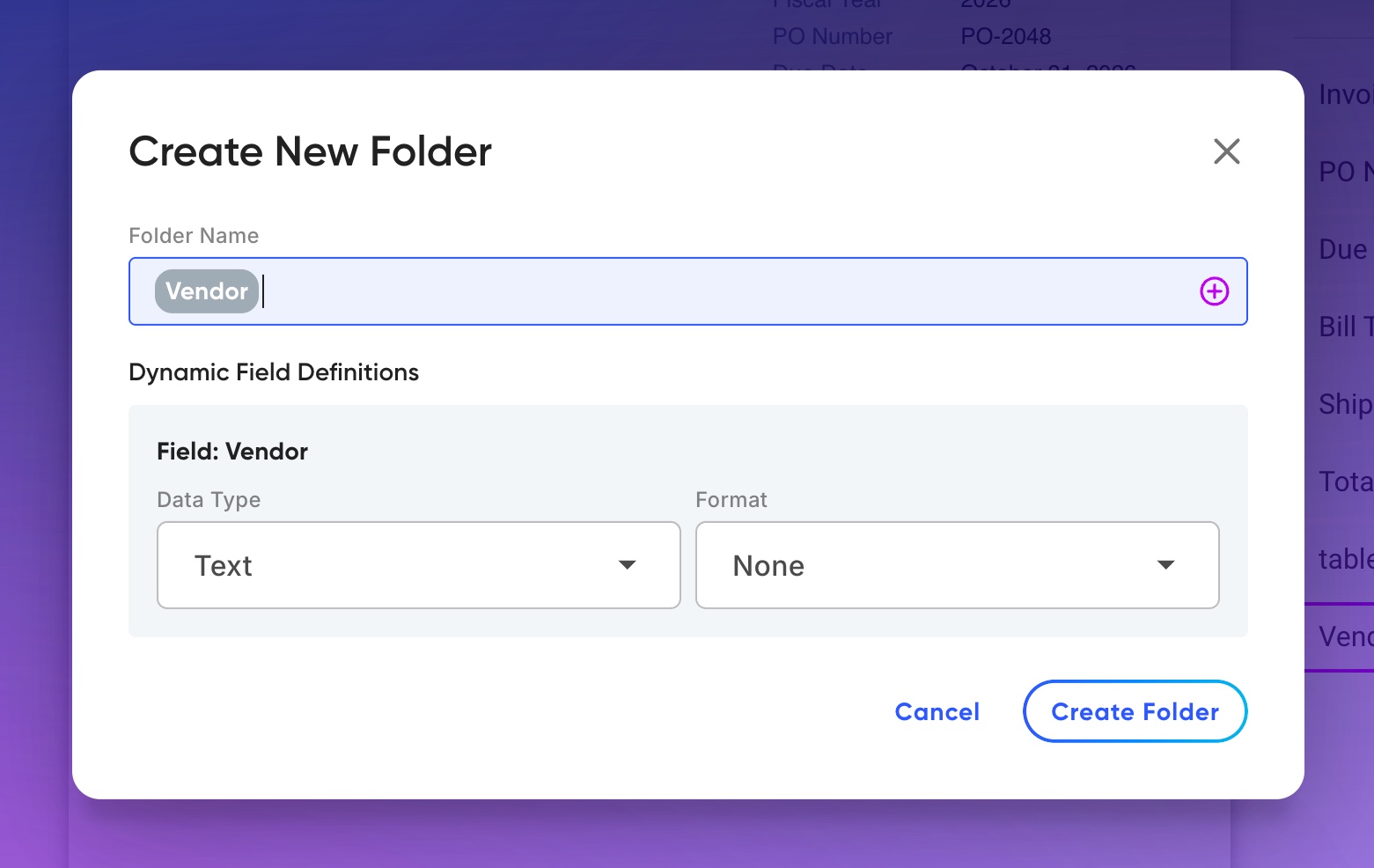
A field-based folder: each vendor gets its own folder.
Format dates and names
Formats change how a field's value appears in a folder or document name without changing the stored value.
| Data Type | Formats | Good for |
|---|---|---|
| Date | Date - DD MMM YYYY, Date - YYYY MM DD, Date - YYYY, Date - YY, Date - MM | Year or month folders from a date (Date - YYYY), and names that sort in date order (Date - YYYY MM DD) |
| Text | Full Name - LN, FN, First Name - 2 Character, Last Name - 2 Character | Filing people by last name, or alphabetical drawer-style folders |
| Number | Number - 1,234, Number - 1234.56, Number - 1,234.56, Number - 01, Number - 001, Number - 0001 | Amounts with separators, and numbers padded with zeros so folders sort in order (Number - 001 shows 7 as 007) |
Name the documents
Click the pencil next to the name line at the bottom of a path to open Edit Document Name. Type fixed text, and click the plus icon to add fields. A new path starts with Uploaded file name, which keeps the name the file had on your computer. Click Save when you are done.

This name turns invoice INV-1042 into INV-1042 - Example Office Supply.
- Include a value that tells similar documents apart, such as an invoice number, so two documents in the same folder never share a name.
- To take a field out, select its chip and press Backspace. Pressing Enter on a chip renames it instead.
File a document in more than one place
Click Add Path when people look for the same document in different ways, such as by year in Finance and by vendor in Purchasing. Each path has its own folders and its own document name. Use the three-dot menu on a path to Duplicate Path or Delete Path.
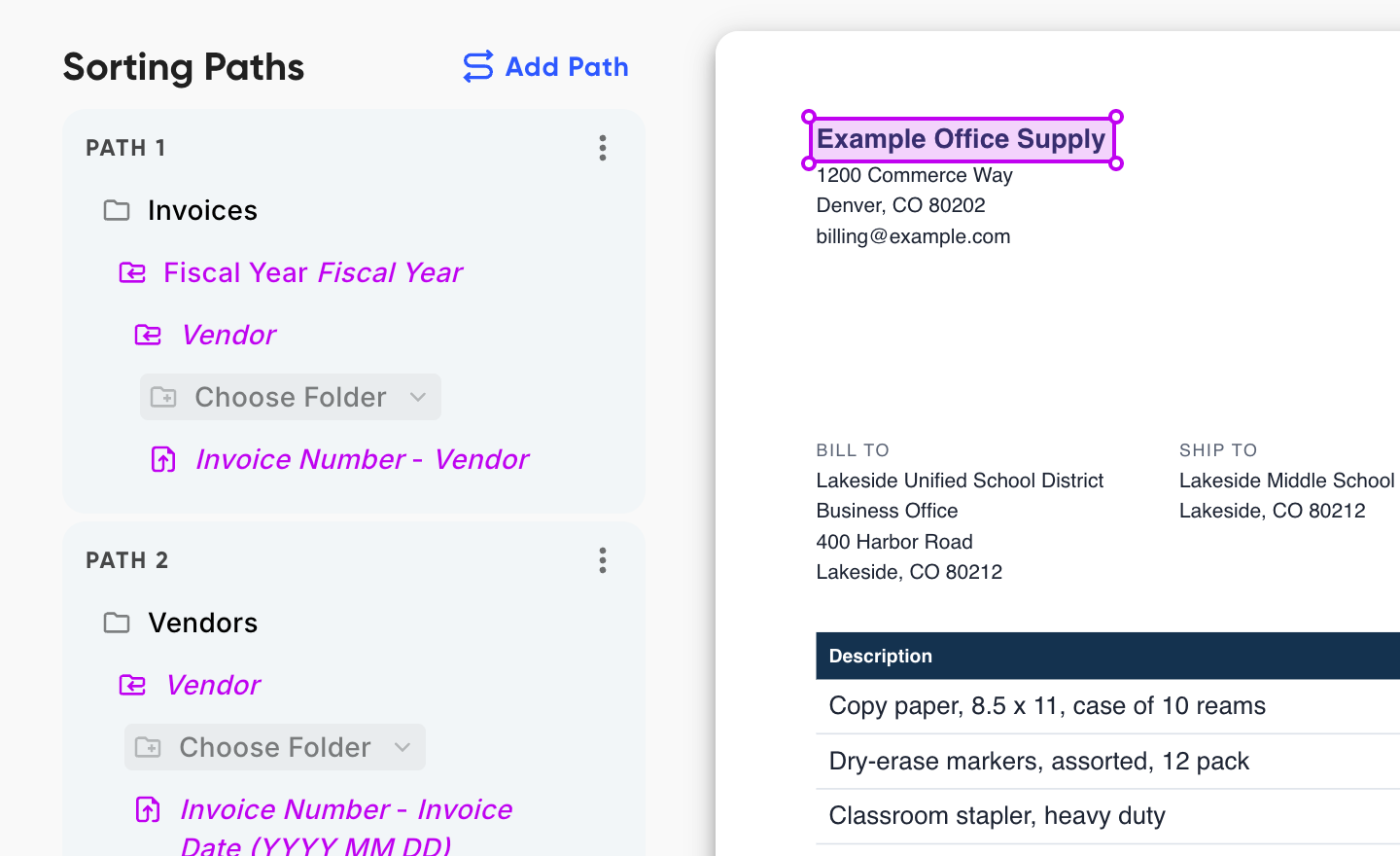
Path 1 files by year, then vendor. Path 2 files by vendor and names each document with its invoice date.
When a value is missing
If a document doesn't have a value a path needs, such as an invoice with no vendor, Droplet can't file it on that path. The document waits in Needs Review so someone can fill in the value from the page. See Resolve documents in Needs Review.
Change a path later
Edit the doctype and change the path or name, then click Done. New documents follow the new directions. Documents that are already filed stay where they are, so plan the structure before uploading a large batch.
Fields used in a path or name are locked in the field list. To remove such a field from the doctype, take it out of the path or name first.
More examples
| Paperwork | Sorting path | Document name |
|---|---|---|
| Purchase orders | Purchasing / [Order Date: Date - YYYY] / [Department] | [PO Number] - [Vendor] |
| Personnel records | HR / Personnel Files / [Employee Name: Full Name - LN, FN] | [Record Type] - [Effective Date: Date - YYYY MM DD] |
| Field trip forms | Field Trips / [School] / [Trip Date: Date - YYYY] | [Trip Date: Date - YYYY MM DD] - [Destination] |