Create a doctype and configure its fields
Show Droplet one example of a kind of paperwork. It learns what to read from every document like it and where to file it.

What a doctype is
A doctype is a kind of paperwork your organization handles, like Invoice, Purchase Order or Mileage Reimbursement Claim. It is not a file type: an invoice is the Invoice doctype whether it arrives as a PDF or a photo.
Creating a doctype is like training a new records clerk with one good example. You show Droplet a sample invoice, confirm which details matter (invoice number, vendor, fiscal year) and say where invoices are filed. Droplet then applies the same instructions to every invoice it receives. One doctype covers every document of that kind, so you create Invoice once, not once per invoice.
Before you start
- Your role needs the Document Types permission with Create to add a doctype and Update to change one. See Manage access and share document links.
- Pick one sample PDF. Use a typical, readable example with every detail filled in. Faint, crooked or half-blank scans lead to weaker suggestions.
- Prefer a sample without sensitive personal information, since everyone who can edit the doctype will see it.
Create the doctype
In Docs, select Doctypes in the left panel, then click + Doctype.
Drag your PDF into the New Doctype window, or click Browse and choose it.
The window closes and your sample appears at the top of the Doctypes page marked Processing. Droplet reads it in the background, so you can keep working. When it shows Completed, click Continue in Builder.
Droplet suggests a name from the sample. Name the kind of paperwork, such as Invoice, not one document (Invoice INV-1042). Click Continue and the builder opens.

A new doctype starts from one existing PDF.

When Droplet has finished reading the sample, continue in the builder.

Droplet suggests a name. Change it to the kind of paperwork your team would recognize.
Get to know the builder
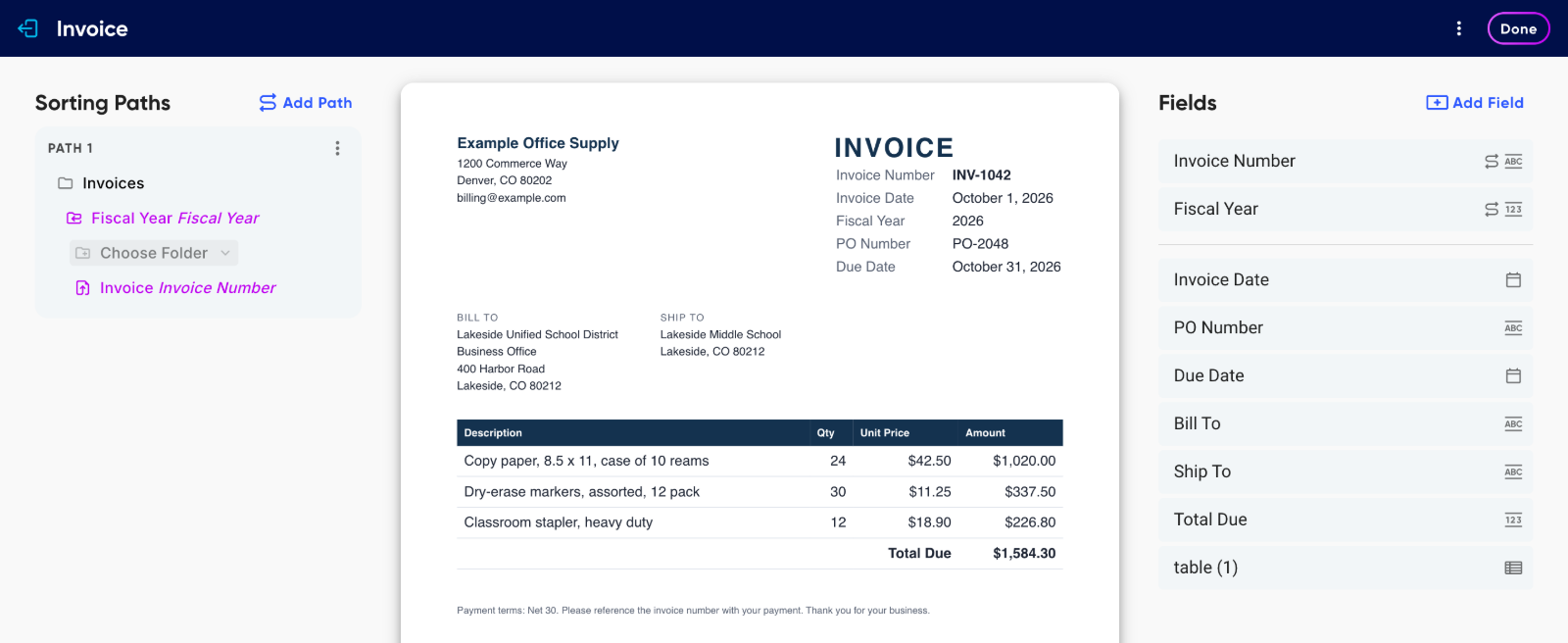
Droplet fills in all three panels with suggestions from your sample. Treat them as a first draft.
- Sorting Paths (left)
- Where documents of this kind are filed and what they are named. Droplet suggests a first path. See Organize documents with sorting paths and file names.
- Sample (middle)
- The example you uploaded, with every page.
- Fields (right)
- The details Droplet reads from each document of this kind, such as Invoice Number or Due Date. Each field remembers where it sits on the sample.
Review the suggested fields
Keep the fields people will search for, file by or need to see at a glance, and remove the rest. For each field:
- Check where it is read from. Point at a field to see its purple box on the sample. Make sure the box covers the value, not the label beside it or a whole table.
- Move or resize its box. Select the field, then drag the box, or drag a corner to resize it. Boxes can sit on any page of the sample.
- Rename it. Click the name and type. Use the words your team uses.
- Set its type. Click the icon at the right of the field and choose Text, Date, Number or True/False. Tables Droplet finds on the sample appear as Table fields.
- Reorder or remove it. Drag the handle on the left to reorder, or click the trash icon on the right to remove.
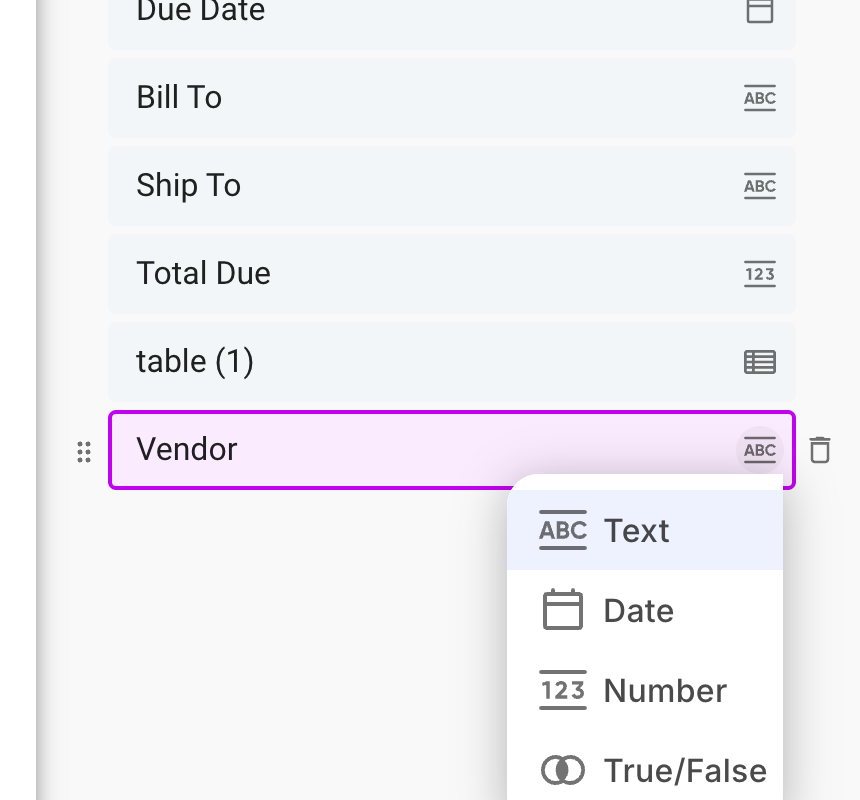
Pick the type that matches the value. Dates and numbers can then be formatted in folder and document names.
Add a field Droplet missed
Click Add Field. A new field appears at the bottom of the list with a box on the sample page you are looking at. Type the field's name, then drag the box onto the value and resize it to fit.

Droplet didn't suggest the vendor, so a Vendor field was added and its box placed over the company name.
Why some fields are locked
A field used in a sorting path or document name moves to the top of the list and shows a path icon. It has no drag handle or trash icon, so it can't be removed while something depends on it. To remove one, first take it out of the path or name that uses it.
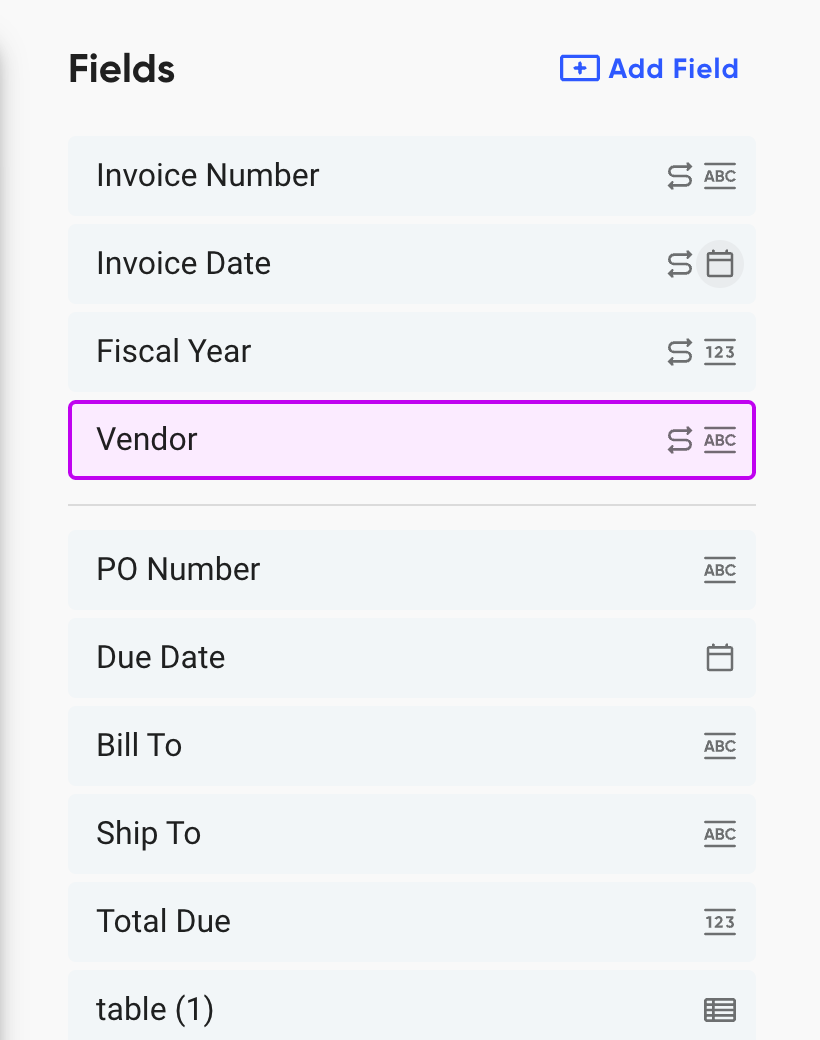
These four fields are used for filing, so they are grouped at the top and locked.
Finish the doctype
- Set where documents are filed and how they are named. See Organize documents with sorting paths and file names.
- Click Done at the top right. The doctype is now active. On the Doctypes page it shows its sorting path under its name. Doctypes that haven't been finished show a Draft label instead.
- Upload three to five typical documents of this kind. Open each one and compare the values with the page, then check its name and folder. Adjust the doctype before uploading a large batch.
Edit or delete a doctype later
On the Doctypes page, click the three-dot menu on a doctype's row and choose Edit Doctype or Delete.

Changes apply to documents Droplet files after you save. Documents that are already filed are not moved, so check a few after any change.

Common questions
Do I need a separate doctype for each vendor or layout?
Usually not. Make one doctype per kind of paperwork. If documents with a very different layout keep coming out wrong, a separate doctype for that layout can help.
Can I create a doctype from a photo or image?
The New Doctype window takes one PDF. Everyday uploads can be PDFs, images or text files.
Why did Droplet suggest different fields than I expected?
Suggestions come from reading your sample and can vary from one sample to the next. You have the final say: rename, add and remove fields until the list matches what your team needs.