Upload documents and track processing
Add files to Docs and follow each one until it is filed or waiting for review.

Before you start
- Your role needs the Documents permission with Create. See Manage access and share document links.
- You can upload PDFs, images (JPEG and PNG) and text files, up to 20 MB each. Scanned paper and phone photos work as long as the page is readable.
- Droplet files a document automatically only when it matches a finished doctype. If your organization hasn't set any up yet, start with Create a doctype and configure its fields.
Upload files
In Docs, click the cloud icon at the top of the left panel.
Drag files into the window, or click Browse and select them. You can select many files at once. You can also drop files anywhere in Docs.
An Uploads row appears in the left panel. Select it to see every file and its status.
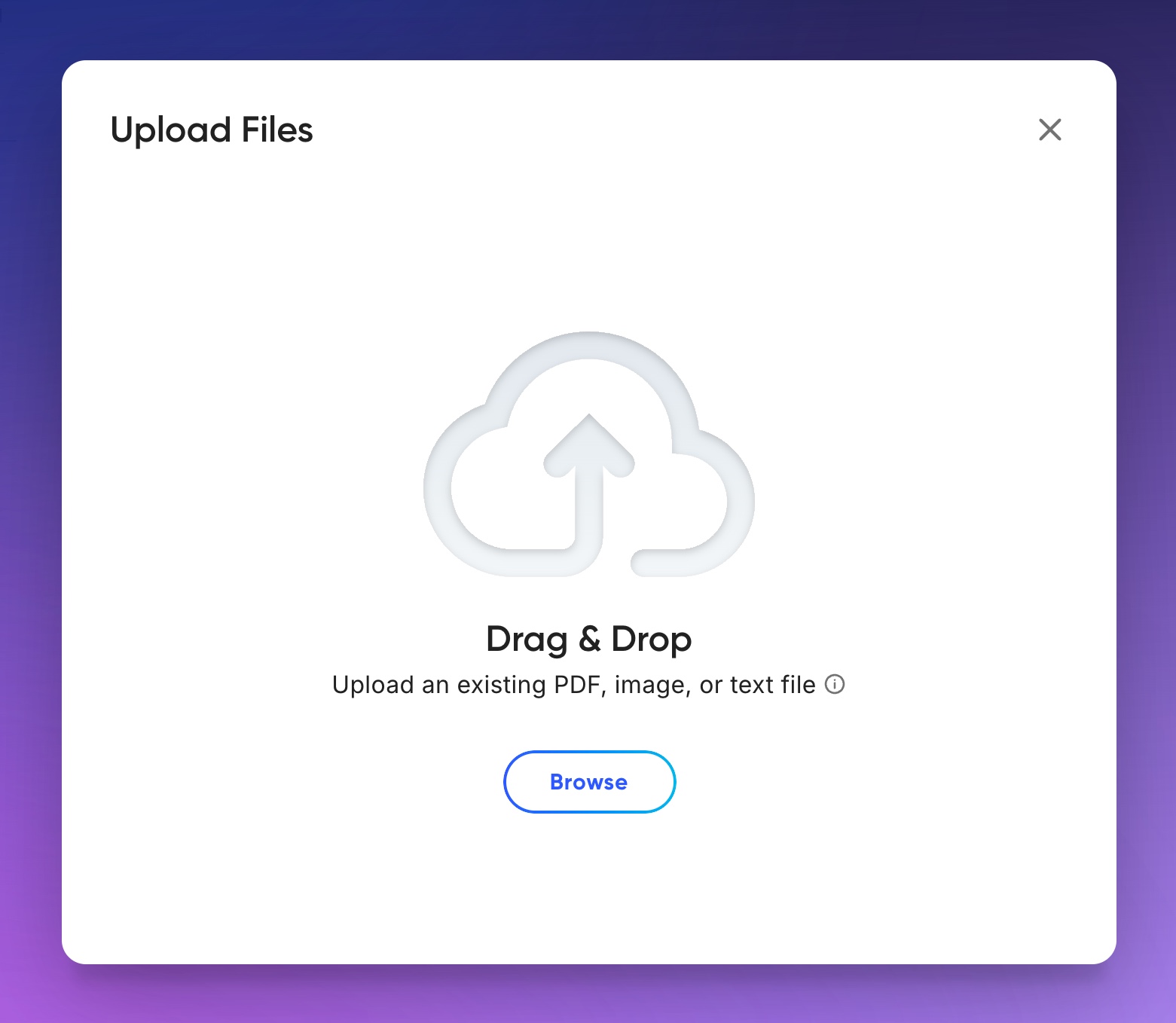
Drop files in, or browse for them.
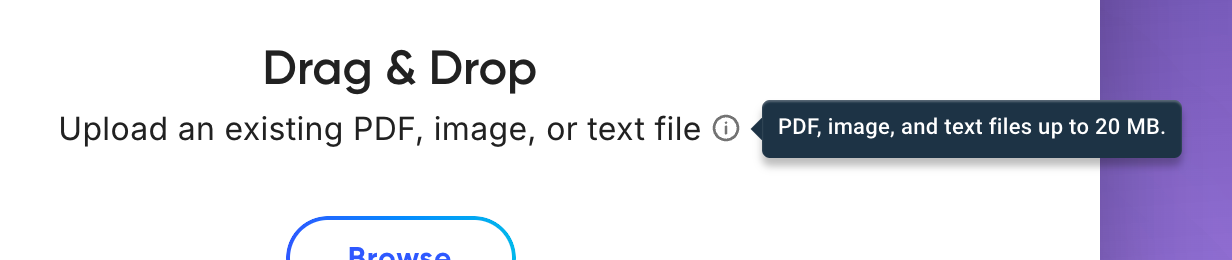
Point at the info icon to see the accepted files.
Track each file in Uploads
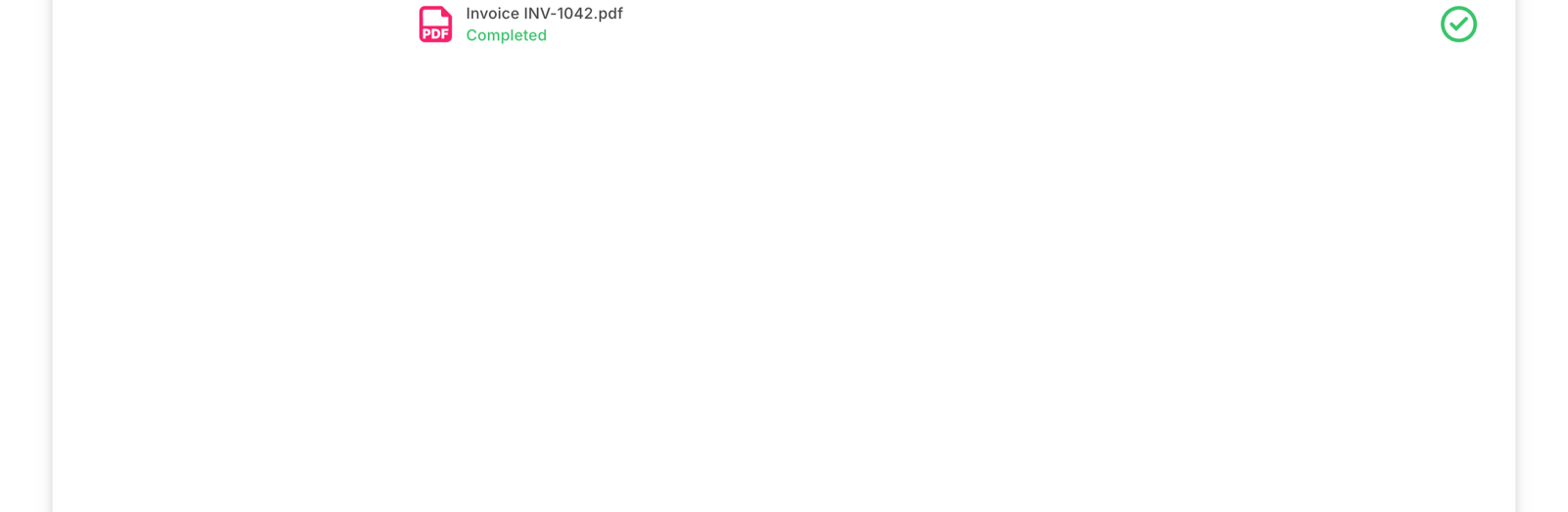
Each file shows its status. Click Close to go back to your folders.
| Status | What it means | What to do |
|---|---|---|
| Waiting | The file is in line. | Nothing. It starts on its own. |
| Uploading | The file is moving from your computer to Droplet. | Keep the tab open until it finishes. |
| Processing | Droplet is reading the file, matching it to a doctype and filing it. | Nothing. You can leave the page. |
| Completed | Droplet has finished with the file. | Open it to check it, or look in Needs Review if Droplet wasn't sure about it. |
| Failed | The file couldn't be uploaded or read. The message says why. | See upload troubleshooting. |
- Once a file has finished uploading, Droplet keeps processing it even if you close the tab. If you reload or close the tab while a file is still uploading, that file shows Didn't upload. Pick it again to retry.
- If processing fails for a temporary reason, Droplet tries again on its own a few times before marking the file Failed.
What happens next
- Filed
- Droplet matched the file to a doctype, read its values and filed it in every folder its sorting paths call for. It also appears in Recently Uploaded in the left panel.
- Needs Review
- Droplet wasn't sure which doctype it is, or a value it needs for filing is missing. See Resolve documents in Needs Review.
Check your first results
The first time you upload documents of a new doctype, open a few of them. Compare the values in the details panel with the page, and check the document's name and folder. If several documents show the same mistake, fix the doctype instead of each document. See Create a doctype and configure its fields.
Common questions
Can I upload Word or Excel files?
Not directly. Save them as PDF first, then upload the PDF.
Should I upload a file again if it seems to be missing?
Check Uploads, Recently Uploaded and Needs Review first. Uploading the same file again creates a second document.
Does uploading connect a scanner or a shared drive?
No. Uploading adds the files you pick. Scan to PDF first, then upload the files.