Get started with Document Management
Learn the three ideas behind Document Management (doctypes, sorting paths and Needs Review), then pick your first task.

What Document Management does
Document Management lives in the Docs area of Droplet. It keeps your organization's paperwork in one place and does the filing for you. You upload a file, and Droplet works out what kind of paperwork it is, reads the details you care about, gives it a clear name and puts it in the right folder. If Droplet isn't sure about something, the document waits in Needs Review until a person checks it.
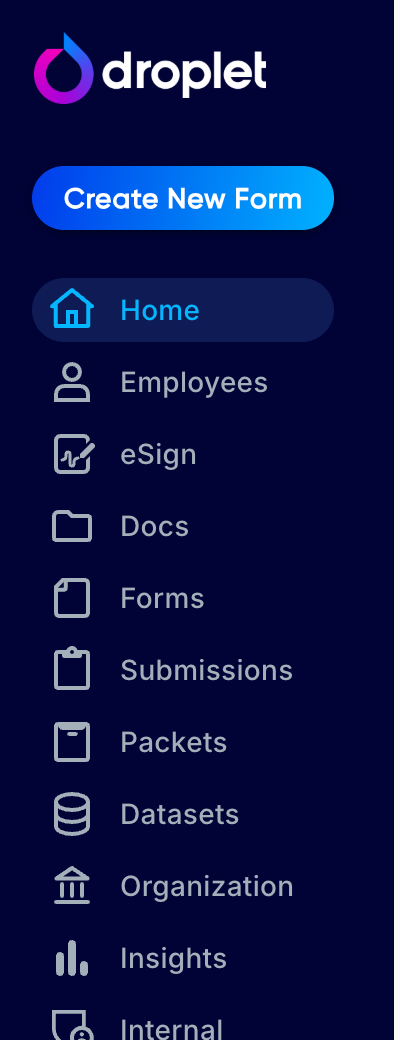
Open Docs from the left menu in Droplet.
Three ideas to know
Doctypes: what kind of paperwork is this?
A doctype is a kind of paperwork your organization handles, such as Invoice, Purchase Order, Mileage Reimbursement Claim or Library Gift Form.
Think of a doctype as the way you would train a new records clerk. You hand them one example invoice and say: "This is an invoice. The invoice number is up here, the vendor is here and the total is down here. File invoices under Invoices, then the fiscal year, then the vendor." From then on, whenever an invoice arrives, the clerk recognizes it, copies down those details and files it in the right drawer. A doctype is that example plus those instructions, written down so Droplet can follow them for every document.
| Term | Question it answers | Example |
|---|---|---|
| File type | What format is the file? | PDF, JPEG, PNG |
| Doctype | What kind of paperwork is it? | Invoice |
| Fields | Which details does Droplet read from it? | Invoice Number, Vendor, Fiscal Year |
| Folder | Where is it filed? | Invoices / Fiscal Year 2026 / Example Office Supply |
Sorting paths: where does it go?
A sorting path is the filing directions that belong to a doctype. It works like a mail merge for folders: some parts are fixed, and some are blanks that Droplet fills in from each document. The path Invoices / Fiscal Year [Fiscal Year] / [Vendor] files invoice INV-1042 in Invoices / Fiscal Year 2026 / Example Office Supply. Each path also names the document, so it arrives as INV-1042 - Example Office Supply instead of scan_0042.pdf.
A doctype can have more than one sorting path, for example one by year and one by vendor. The document then shows up in both folders, but it is still one document, not two copies.
Needs Review: what should a person check?
When Droplet can't tell which doctype a document is, finds what looks like a new kind of paperwork, or can't find a value a sorting path needs, the document goes to Needs Review instead of being filed. A Needs Review row appears in the left panel of Docs whenever something is waiting.
Follow one invoice from upload to folder
An admin creates an Invoice doctype from one sample invoice, checks the fields Droplet suggests and sets the sorting path. See Create a doctype and configure its fields.
Someone uploads a batch of invoices and watches each one move through Uploads.
Droplet recognizes each file as an Invoice, reads its invoice number, vendor and fiscal year, and files it with a clear name. Anything it can't settle goes to Needs Review.
Anyone with access can open the folder, or search for INV-1042 and open the document from the results.
Find your way around Docs
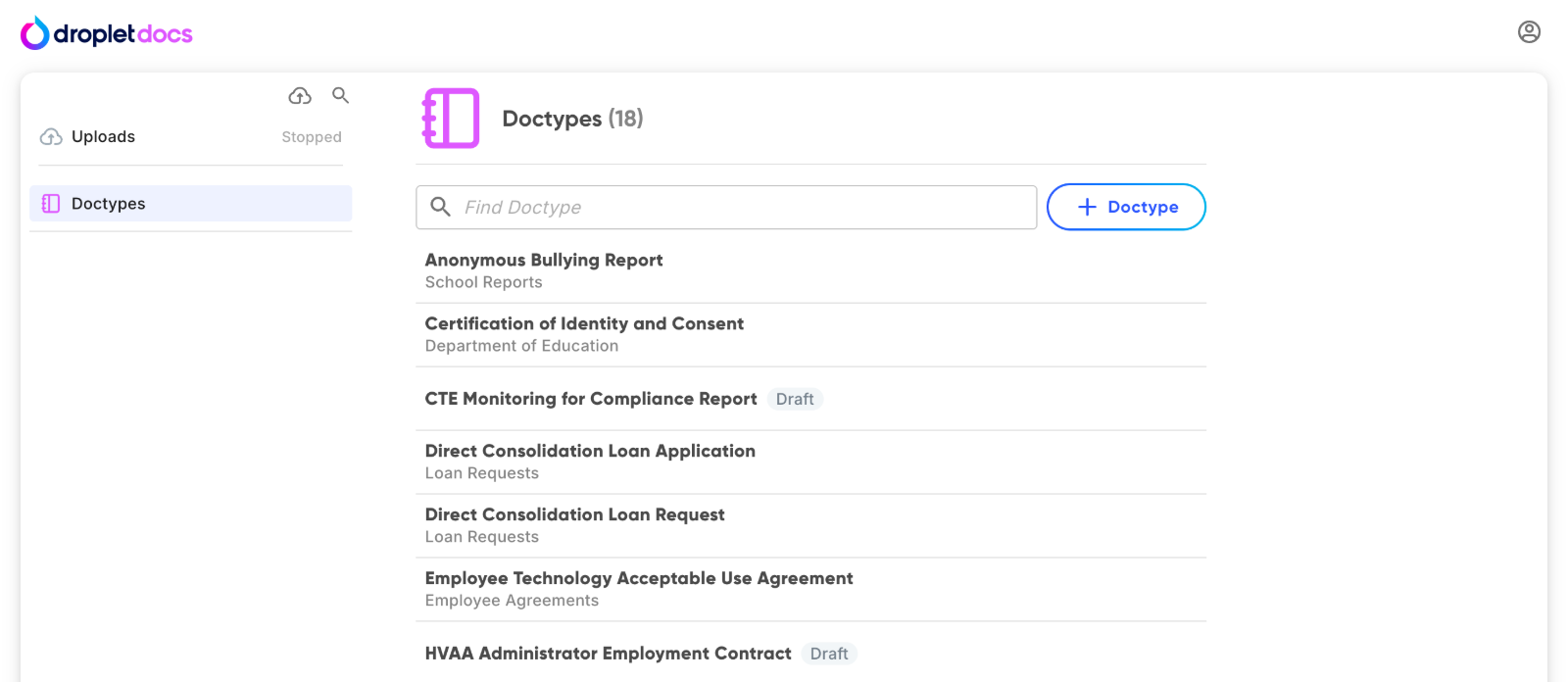
The left panel holds upload, search and your folders. Here it shows the Doctypes page.
- Upload (cloud icon)
- Adds files. You can select many at once.
- Search (magnifying glass)
- Finds documents by name, contents or field values, with filters for doctype, upload date and folder.
- Uploads
- Shows the progress of files you have uploaded.
- Needs Review
- Appears when documents or suggested doctypes are waiting for a person.
- Recently Uploaded
- Lists your latest uploads so you can check them.
- Doctypes
- Lists every doctype in your organization. Admins create and edit them here.
- Folders
- Your folder tree. A folder shows here once a document has been filed in it.
Choose your starting point
| You want to | Start here |
|---|---|
| Set up Document Management for your organization | Create a doctype and configure its fields, then Organize documents with sorting paths and file names |
| Give people the right access | Manage access and share document links |
| Add files | Upload documents and track processing |
| Check what Droplet wasn't sure about | Resolve documents in Needs Review |
| Find or correct a document | Find, view, and update documents |
Common questions
I don't see Docs in Droplet. Why?
Either Document Management isn't turned on for your organization yet, or your role doesn't include the Documents permission. Ask your Droplet admin.
Do folders control who can see a document?
No. Folders organize documents. Access comes from the Documents permission on a person's role. See Manage access and share document links before you add sensitive records.
Does correcting a value change my original file?
No. Field values are the details Droplet stores alongside the file. Correcting one updates those details, and the file stays as it was uploaded.