Roles and access
Roles control what each person can see and do in Droplet. This article covers the preset roles, how to create your own, and how to assign one or more roles to a user.
How roles work
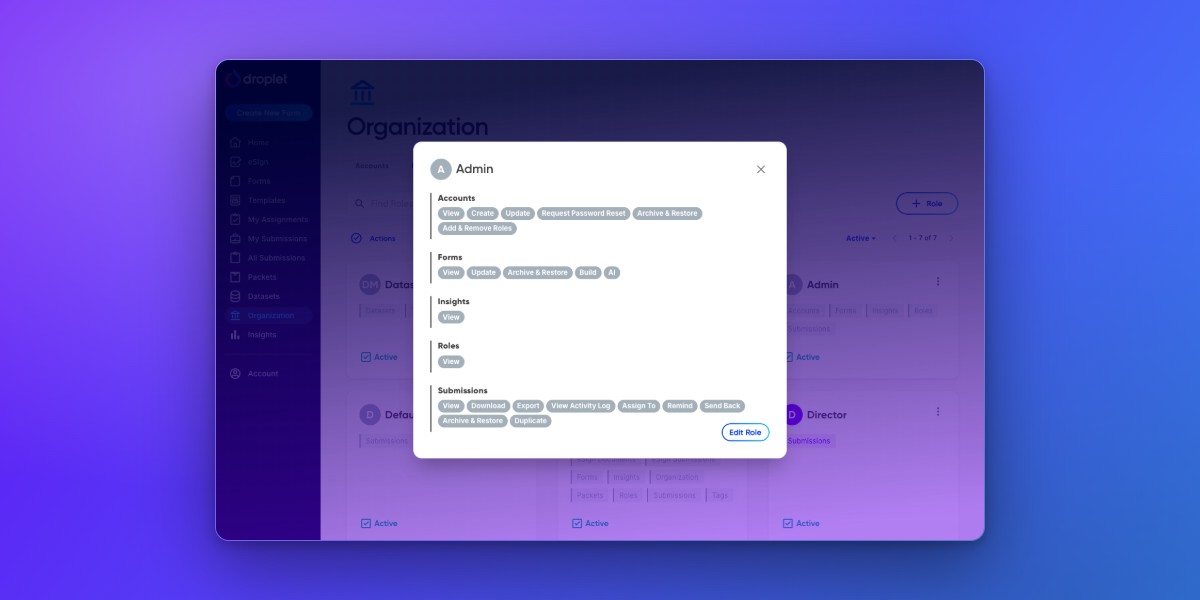
A role is a named set of permissions, grouped into categories like Accounts, Forms, and Submissions (see Permission categories below). You manage everything from Organization: the Roles tab is where you define roles, and the Accounts tab is where you assign them.
Two things are worth knowing up front:
- Every new user automatically gets the Default role.
- Roles are additive. You can give one user several roles, and they get the combined permissions of all of them.
The preset roles
Droplet comes with five preset roles, listed here from highest access to lowest:
- Owner
- Unrestricted access to everything in Droplet. Cannot be edited, duplicated, or archived. When Droplet introduces new features or permissions, the Owner role receives them automatically. Assign this only to your top-level administrator.
- Admin
- Broad access to see and manage most submissions across the platform. Ideal for users who handle platform operations but do not need Owner-level authority.
- Form Builder
- Can build new forms and edit existing ones. Assign this only to users responsible for form development or maintenance, to prevent changes that could disrupt data collection. If you want builders to work only on their own forms, duplicate this role and add a "Created By This Person" condition to its Forms permissions.
- Dataset Manager
- Can create, update, and manage datasets. Datasets often drive form routing and key functionality, so changes can immediately affect how your forms behave. Assign this only to users who understand how datasets work.
- Default
- Basic access assigned to every new user automatically. Default users can view only the submissions they initiated and the submissions currently assigned to them.
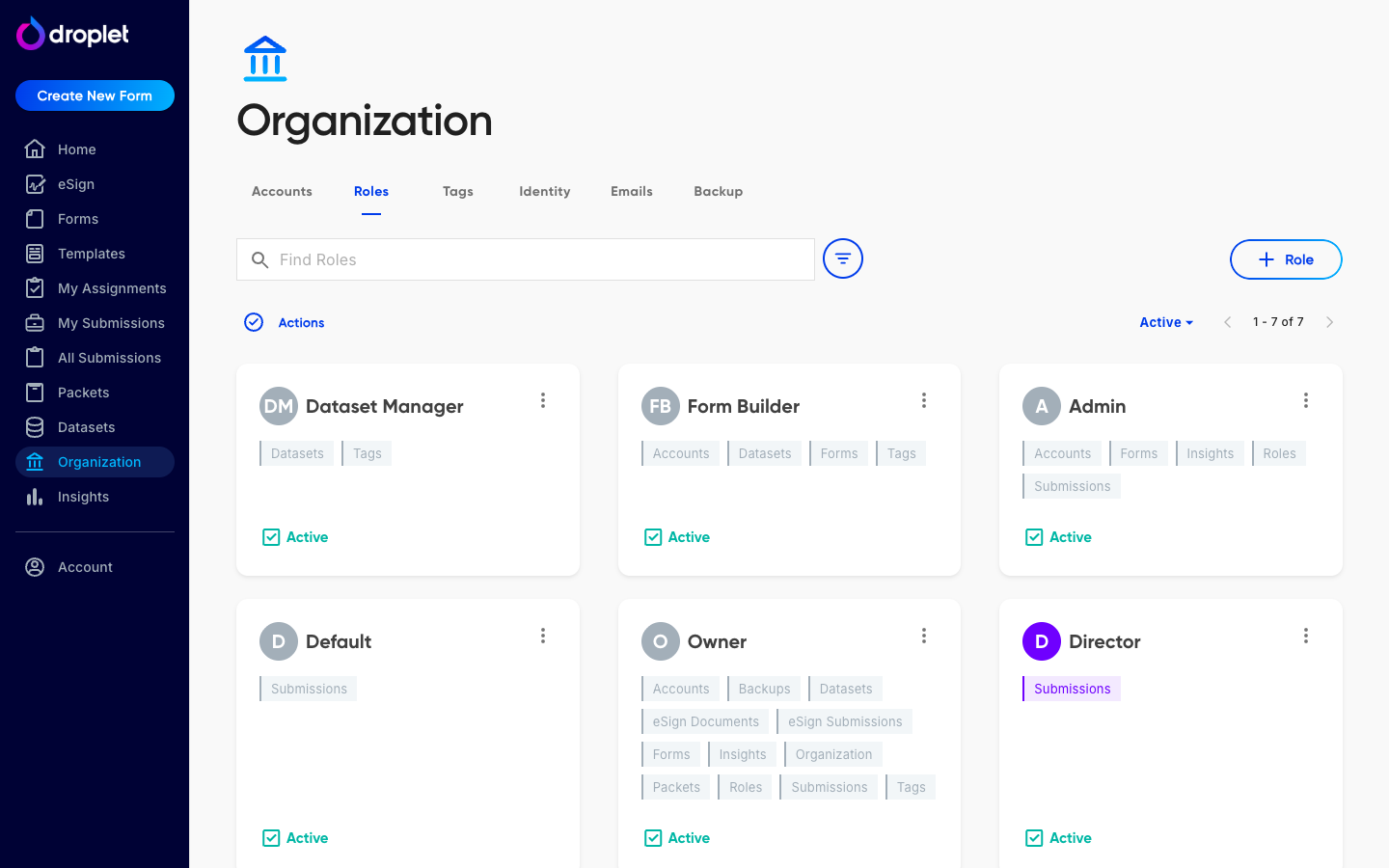
Organization › Roles lists the preset roles alongside any custom roles you create.
The Default role
The Default role is the foundation of Droplet's permission model. Every account has it, and all new users receive it when they are added to your organization.
Default users see an All Submissions area in their menu, but only their own submissions and submissions assigned to them appear there.
Default also acts as a fallback: if every other role is removed from a user, they keep Default-level access.
Permission categories
Each role grants permissions across a set of categories. Within a category you turn on individual actions (such as View, Create, Update, or Archive & Restore), and most categories also have an All option that grants every current and future action in that category, including ones Droplet adds later.
| Category | Controls |
|---|---|
| Accounts | Create, view, update, and archive user accounts; reset passwords; add and remove roles. |
| Roles | View and manage the roles themselves. |
| Forms | View, build, update, and archive forms, plus Bulk Submit and AI assistance. |
| Submissions | View, download, export, assign, remind, send back, and archive submissions, and view the activity log. |
| Insights | View form analytics and metrics on the Insights page. |
| Datasets | Create, update, and manage datasets. |
| Packets | View, create, and manage packet templates and packets. |
| Tags | Manage the tags used to organize forms, submissions, and accounts. |
| Organization | Manage organization settings such as single sign-on (SSO) and login. |
| Backups | Manage data backups (see Back up your data). |
| eSign Documents | Manage eSign documents. |
| eSign Submissions | Manage submissions made through eSign documents. |
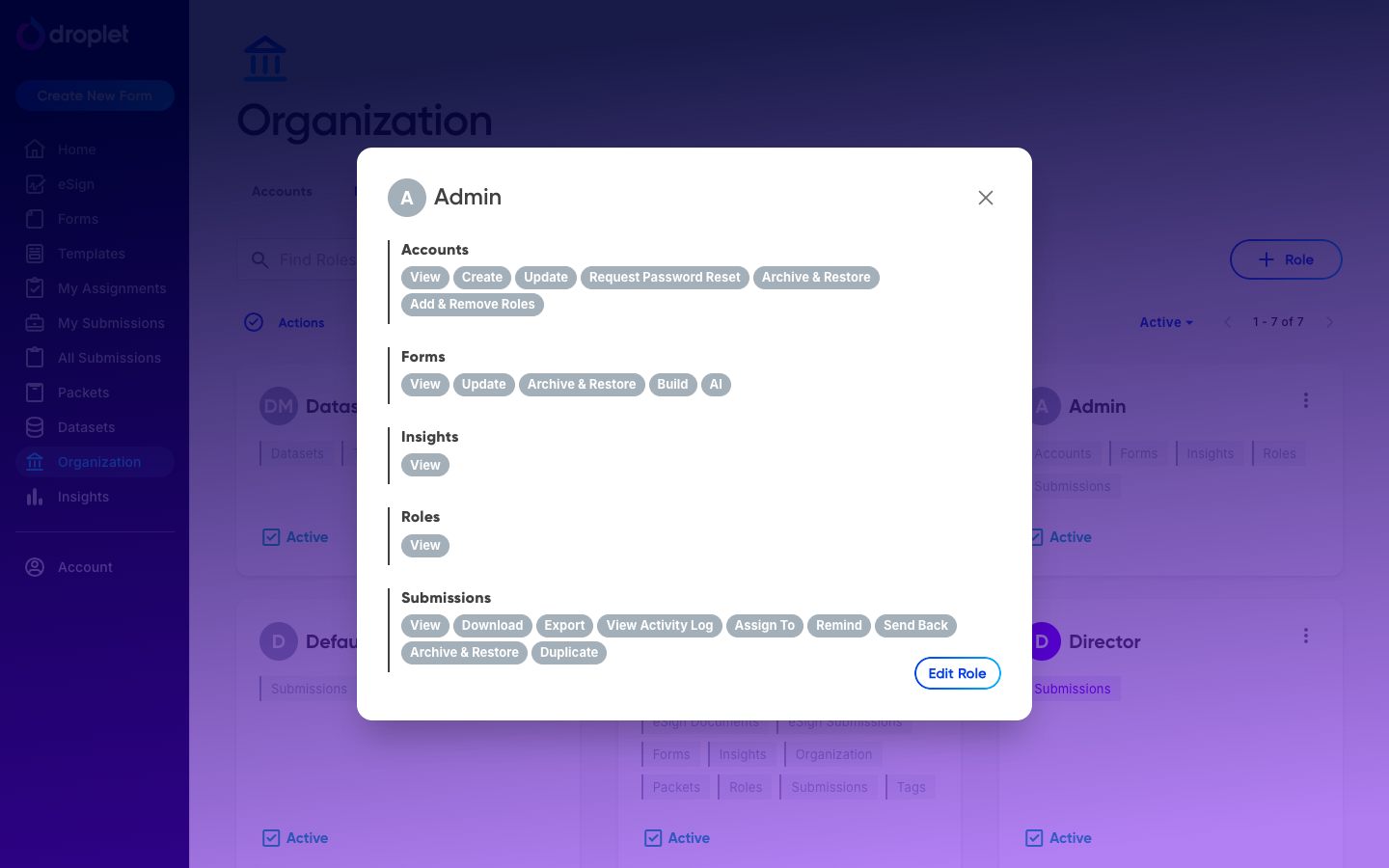
Open a role to see its permissions by category. Use Edit Role to change them, or Duplicate to start a new role from it.
Create or duplicate a role
When the presets do not fit, create a custom role:
- Go to Organization and open the Roles tab.
- Click Role at the top right to add a new role.
- Give the role a name and description.
- Turn on the permissions it should have, category by category.
- Click Save.
Edit or archive a role
- Go to Organization and open the Roles tab.
- Click a role to open it, then click Edit Role.
- Adjust the permissions and click Save.
To remove a role, open its More actions menu and choose Archive. Archiving removes the role from anyone who has it and takes it off your roles list. The Owner role cannot be edited, duplicated, or archived.
Assign roles to a user
- Go to Organization and open the Accounts tab.
- Find the user, open their more options menu, and choose Manage Roles.
- Check every role the user should have. You can select more than one.
- Click Save Roles.
Changes take effect immediately, the user does not need to log out and back in. A user's permissions are the combination of every role they hold.
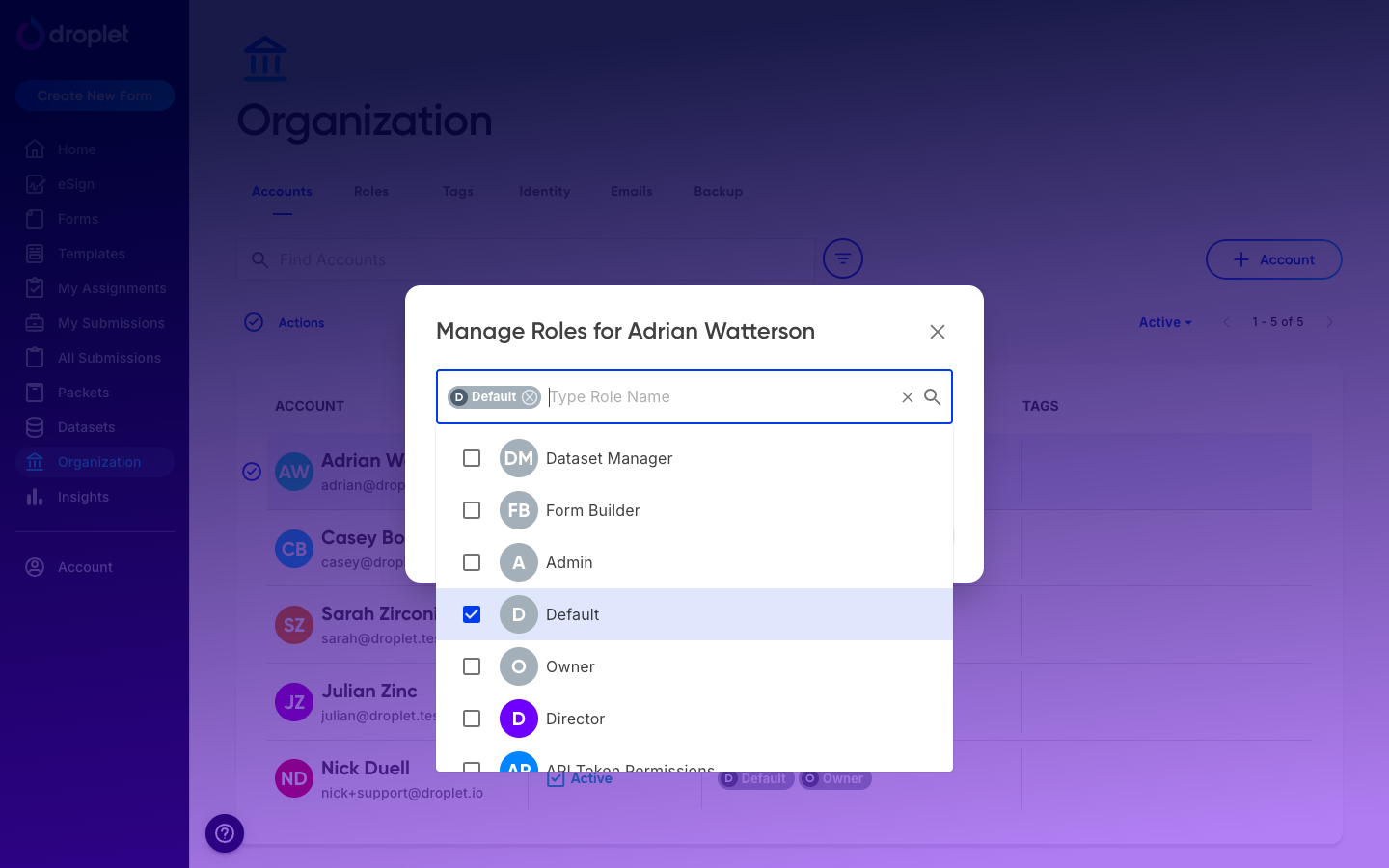
Manage Roles lets you give a user one or more roles. Their access is the combination of all checked roles.
Assign roles in bulk
- On the Accounts tab, select users with the checkboxes.
- Open the Actions menu above the list and choose the role action.
Limit access for specific users
If a user needs different access than a role provides, you have a few options:
- Give them an additional role that adds the permissions they need (roles are additive).
- Create a custom role with exactly the permissions needed and assign it.
- Use permission conditions to restrict a permission within a role, for example limiting Submissions › View to only the submissions a user initiated or is assigned.
- Scope form building to a person's own work with a "Created By This Person" condition on a role's Forms permissions, so they can only edit the forms they built.
Common setups
A few patterns org owners reach for often, all built with permission conditions on a role's permissions:
- Scope people to their own group's submissions. Tag accounts and submissions, then add a "Tag Matches Account Tag" condition so, for example, a principal only sees their school's submissions. See Scope submissions by tag.
- Let approvers keep access after they act. Add a "Previously Assigned to This Person" condition to Submissions › View so reviewers retain read access to submissions they handled, even after the item moves on. (Adding this to Default gives it to everyone, since Default flows to all new accounts.)
- Limit a role to specific forms. Use a "Form Is One Of" condition to scope a role to one or a few forms.
- Let people manage only the forms they built. Use a "Created By This Person" condition on the Forms permissions so a builder can edit the forms they created and no others. This is handy when several teams build their own forms in the same organization.
- Make a view-only role. Grant Submissions › View and View Activity Log, without Edit, Assign, or Archive.
Frequently asked questions
Can a user have more than one role?
Yes. Roles are additive, so a user with both Default and Form Builder, for example, gets the combined permissions of both.
Can I edit the preset roles?
You can edit Admin, Form Builder, Dataset Manager, and Default. The Owner role cannot be edited, duplicated, or archived.
What role do new users get?
Every new user automatically receives the Default role. You can add more roles to them at any time.
What happens if I remove all of a user's roles?
Default acts as a fallback, so the user keeps Default-level access. Every account always has at least the Default role.
How do I limit what a role can see?
Use permission conditions to narrow a permission, such as limiting Submissions View to a user's own submissions, or limiting Forms permissions to the forms a person created with a "Created By This Person" condition.