Use the Insights page
View submission statistics across your organization or for a specific form, broken down by workflow state.
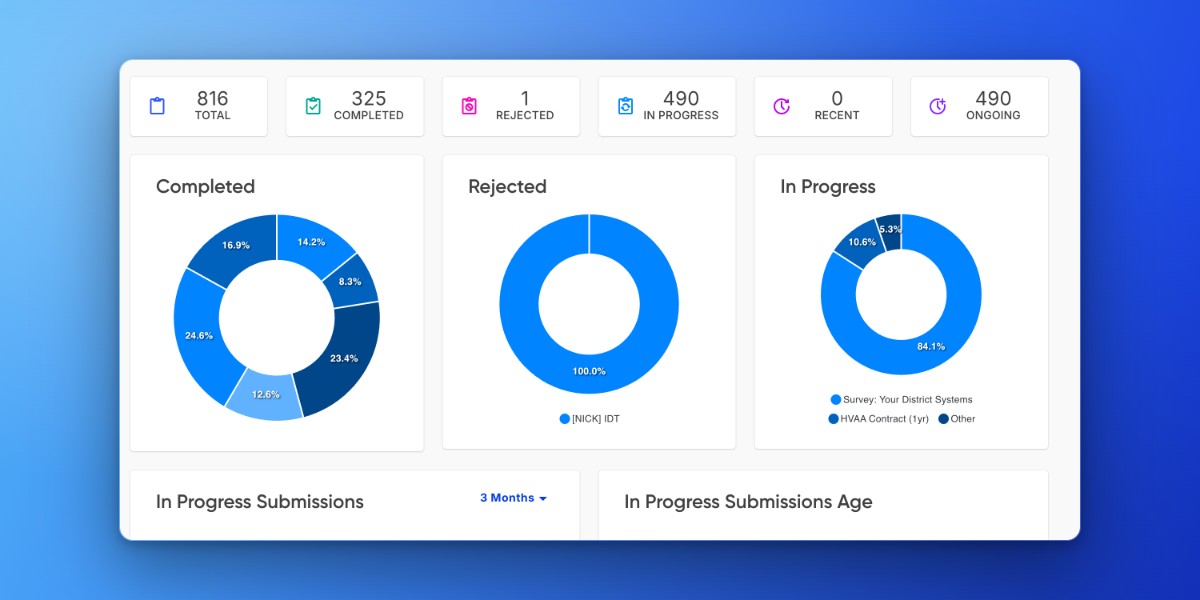
Overview
The Insights page shows how submissions are moving through your workflows. The top row summarizes counts by workflow state. The circle charts break those counts down by form. The line charts at the bottom track submissions currently In Progress over time.
Workflow states
Every submission in Droplet has one of four workflow states.
- In Progress
- The submission is waiting for someone along the workflow to move it forward.
- Completed
- All parties in the workflow have finished. The submission is marked as complete in Droplet.
- Not Started
- The submission is on its first step but has not been moved forward yet. This appears when a submitter saved progress mid-submission or when your organization uses Packets.
- Rejected
- The submission was permanently rejected at a point in the workflow.
Read the Insights page
- Click All Forms in the top-right corner to filter insights to a specific form.
- Click any status tile in the top row to display only submissions in that state.
- Hover over the circle charts to see which form each section represents.
- Review the line charts at the bottom for trends on submissions currently in the In Progress state.
Find stalled submissions
Click Ongoing in the top-right corner of the Insights page. Droplet opens the All Submissions page with filters pre-applied to show only submissions that are still in progress and were started more than one week ago.
From there, use Actions to send reminder emails to submitters who haven't finished.
Frequently asked questions
Why don't I see the Insights page?
Your role may not have access. Contact your district admin to check your permissions.
Why is my submission count different from All Submissions?
Submissions in the Not Started state do not appear on the Insights page. The count only reflects In Progress, Completed, and Rejected submissions.
Can I export data from the Insights page?
Not directly. Click a status tile to open a filtered view in All Submissions, then export from there.