Back up your data
Keeping your own copy of the information people submit is smart practice, for compliance, peace of mind, or moving data into another system. Droplet gives you a few ways to do it, from a quick manual export to a hands-off automated backup. Here is how to pick the right one and set it up.
There are three approaches, depending on how often you need a copy and how hands-on you want to be:
- Export on demand when you just need a copy now and then.
- Automated SFTP backups when you want Droplet to back everything up for you, automatically.
- The API when your engineering team wants to build a custom, scheduled backup.
Export on demand
The quickest way to grab a copy is to export straight from your submissions. Go to All Submissions, select the submissions you want (or select everything), then open the Actions menu to export them to a spreadsheet or download the data.
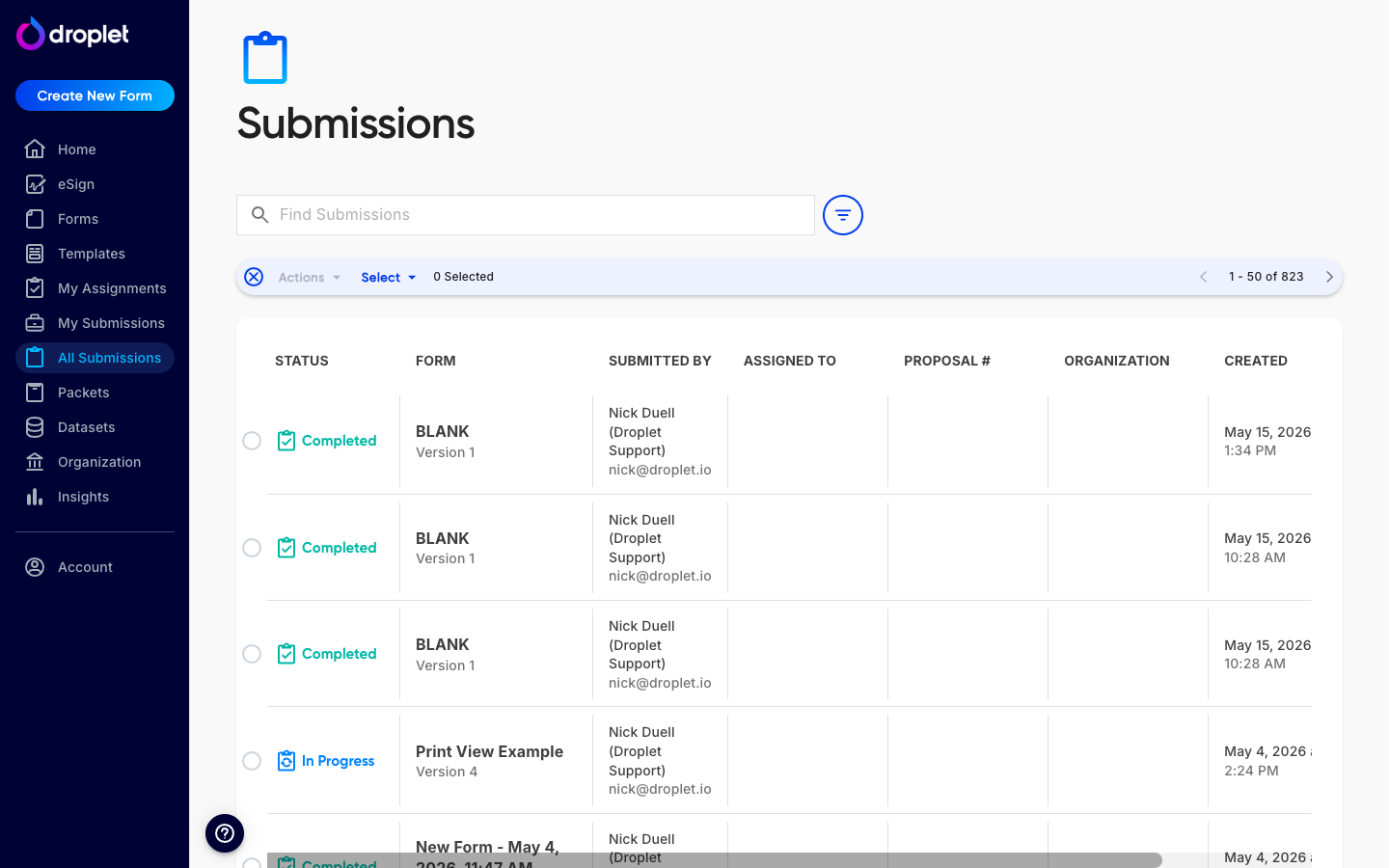
For the full set of options, including file formats and what each one includes, see Export submission data. To save a single submission as a formatted document, see Download a PDF of a submission.
Set up automated SFTP backups
For a backup you do not have to think about, Droplet can automatically push your submission data to your own SFTP server. Once it is on, it runs on its own, no manual exports required.
SFTP backup is organization-wide and all-or-nothing. When it is on, it backs up your whole organization's submission data. There is no option to back up only certain forms.
In the left navigation, go to Organization, then open the Backup tab. You will see the SFTP Configuration panel. (Only organization admins can see this.)
Fill in the Hostname, Username, and Password for the SFTP server that will receive your backups.
Flip SFTP Backup Enabled on. Droplet will begin pushing your organization's submission data to that server automatically.
Leave Enable Backups On New Forms on so any form created later is automatically included in the backup.
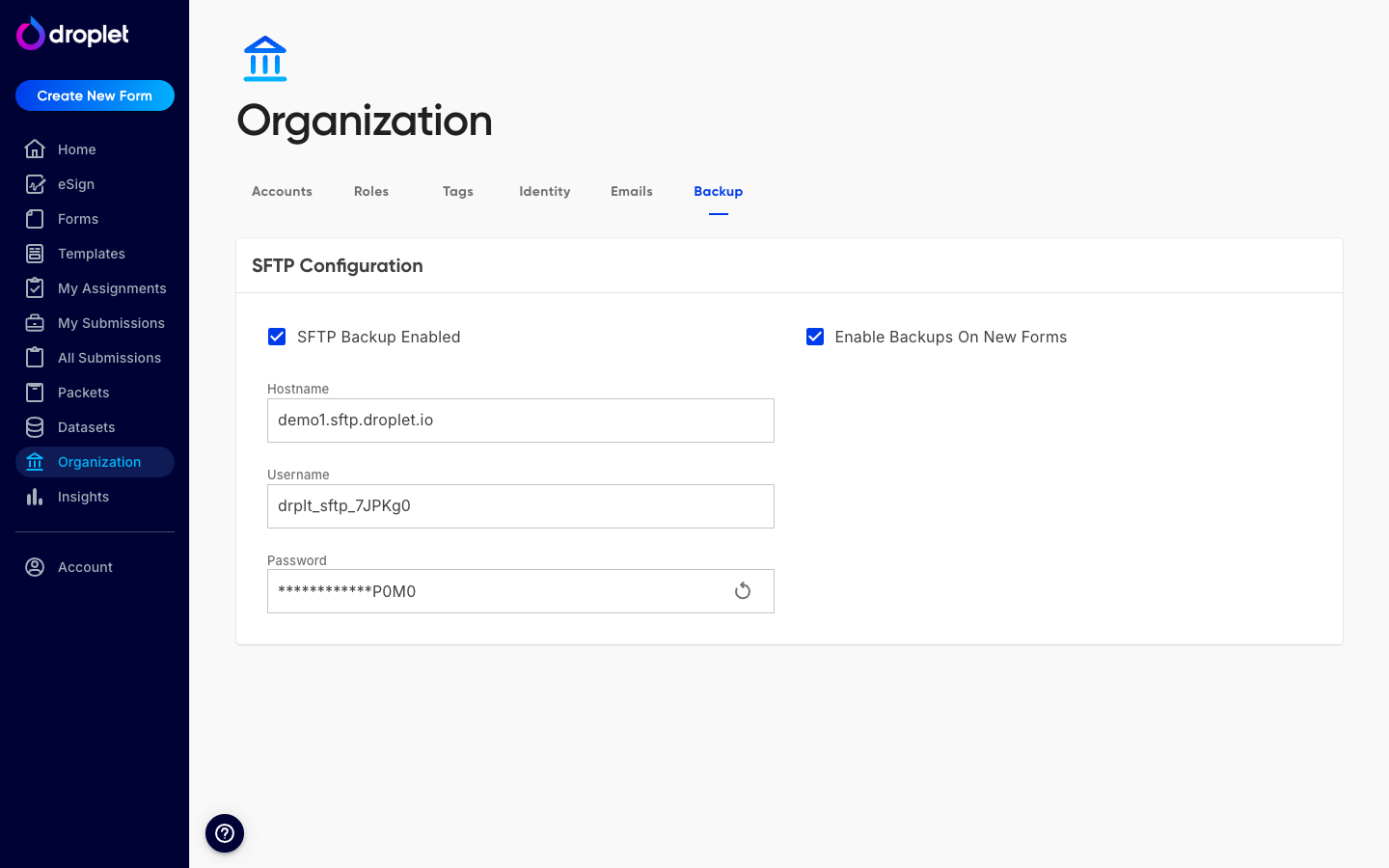
You will need an SFTP server to receive the files. If your organization does not have one, your IT team can usually provision one. Access to this screen is limited to admins with the Organization permission (see Understand preset roles).
Back up with the API
If you have an engineering team, you can build a custom, scheduled backup with the Droplet API. Use the IDs-then-entities pattern to pull full form and submission records, and the submission export and download endpoints to grab spreadsheet or file copies on whatever schedule you choose.
Start with the API overview, then see the Submissions API for the export, download, and PDF endpoints.
Keep a live copy with integrations
Want data mirrored elsewhere in real time rather than on a schedule? Connect a workflow step to Google Sheets, Zapier, Power Automate, or a webhook to copy each submission as it comes in. See Use integrations.