Download a PDF of a submission
Generate a PDF copy of any submission for offline storage, sharing, or record-keeping. Downloaded PDFs now use the same typography, colors, and spacing as the web form fill view, so the printed copy closely matches what you see in Droplet.

Download a submission as PDF
Go to All Submissions, My Submissions, or My Assignments.
Check the box next to one or more submissions.
Click Actions and choose Download.
Configure your download options (see below), then click Download.
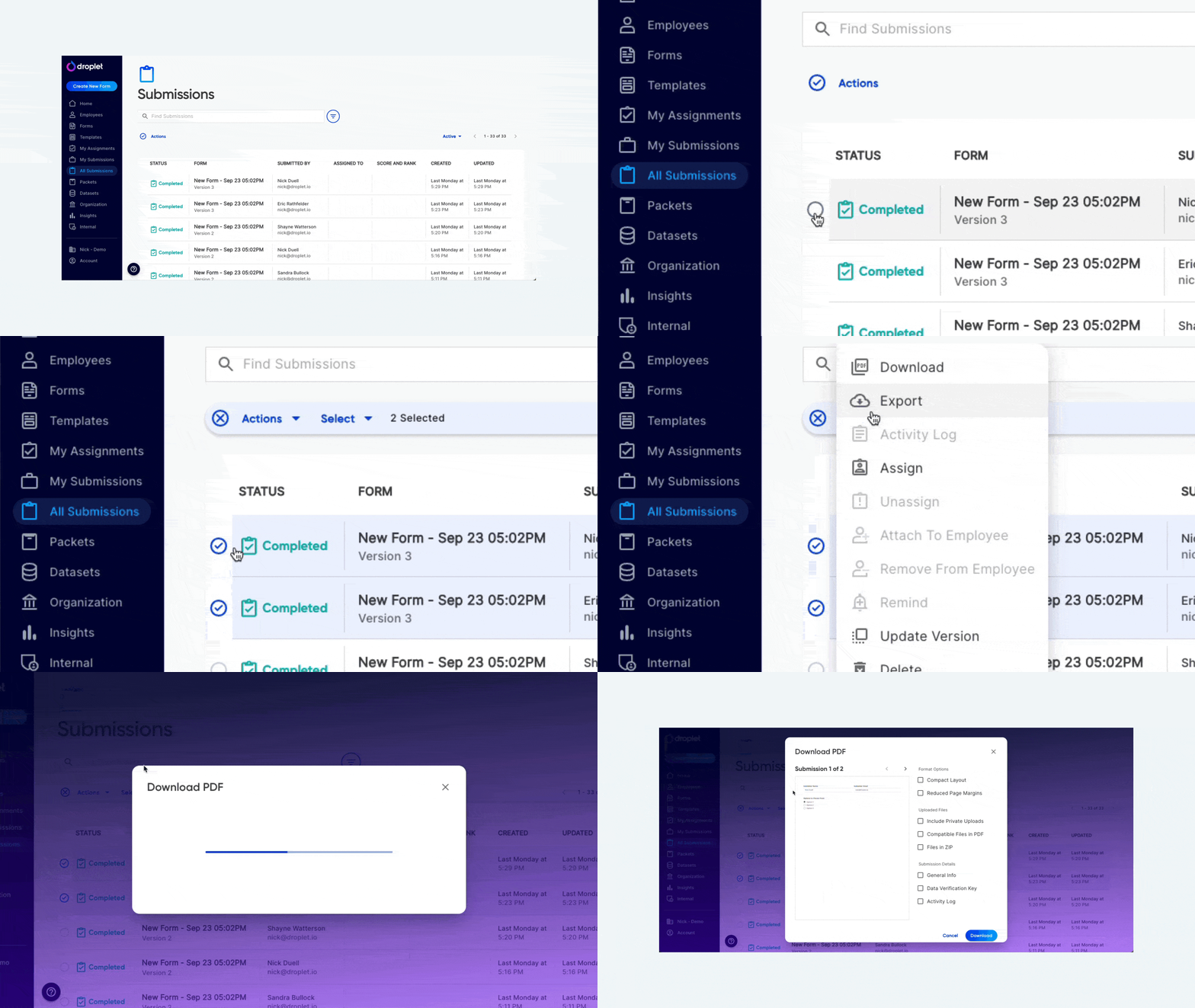
Select submissions, then use Actions → Download to generate a PDF.
A single submission downloads as one PDF file. Multiple submissions (or submissions with uploaded files) download as a ZIP folder.
Download options
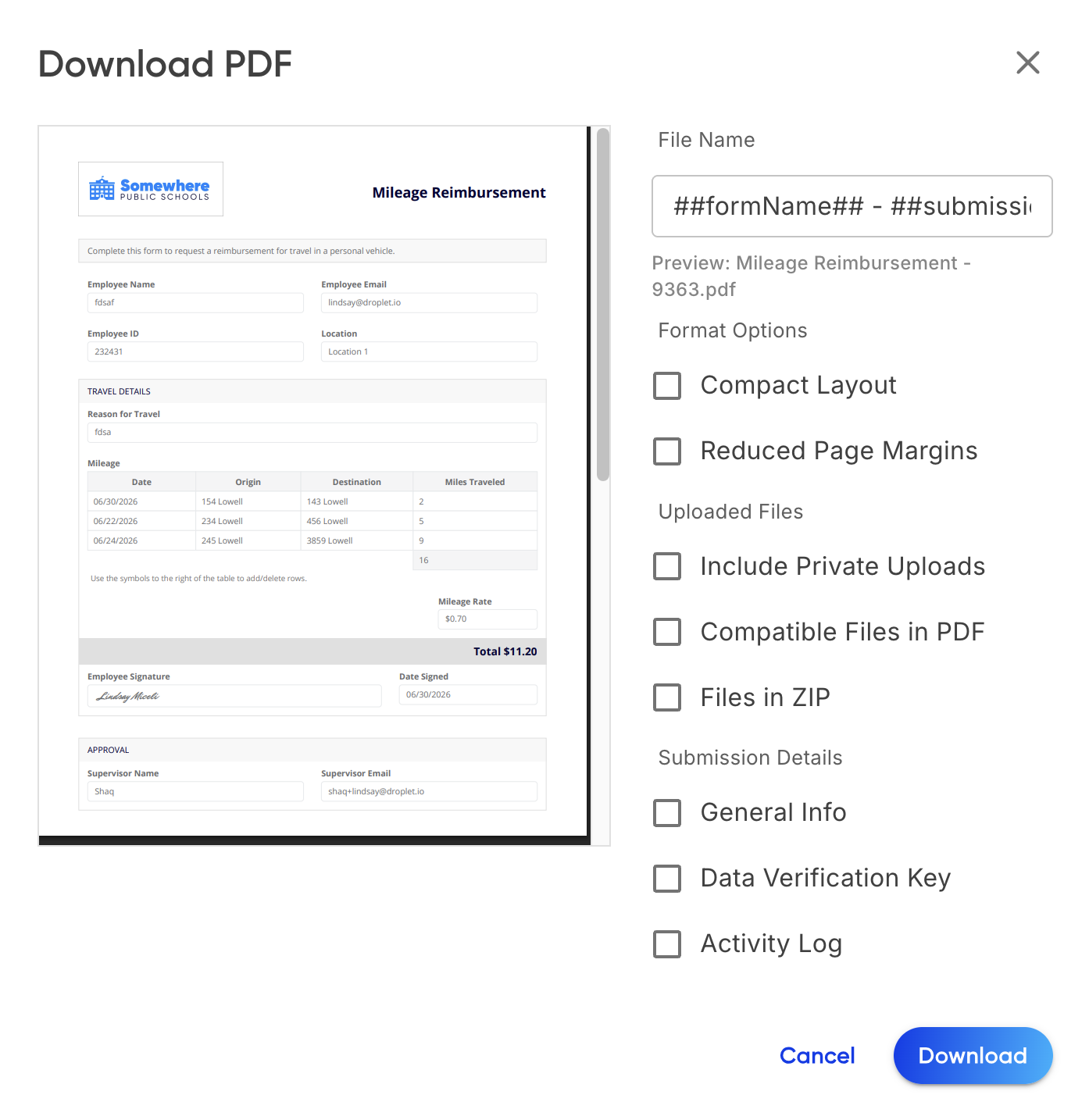
Configure format, file handling, and submission details before downloading.
Format
Updated output
PDF exports now match the web form fill experience for fonts, colors, and spacing. Existing downloads will look different from copies generated before this change, even with the same options selected. Required fields also carry the red asterisk you see on the web form.
- Compact Layout
- Reduces spacing between form elements for a denser PDF, while keeping the same fonts and colors as the web form.
- Reduced Page Margins
- Shrinks page margins to fit more content per page. Text sizing stays consistent with the web form fill view.
Uploaded files
- Include Private Uploads
- Adds clickable links to any files that were uploaded with the submission.
- Compatible Files in PDF
- Merges image files and PDFs directly into the downloaded document.
- Files in ZIP
- Keeps uploaded files as separate items inside the ZIP folder.
To include uploaded files in your download, enable Include Private Uploads along with either Compatible Files in PDF or Files in ZIP.
Filename
- Custom Filename
- Set a custom name for the downloaded PDF file. You can include submission field values to create dynamic filenames - for example, using the submitter's name and form title. If left blank, Droplet uses the default naming format.
Submission details
- General Info
- Includes the submission status, a link to the submission in Droplet, and key timestamps.
- Data Verification Key
- Inserts a unique identifier that updates whenever the submission data changes. Useful for verifying data integrity.
- Activity Log
- Appends the full assignment history with dates, names, and email addresses.
Frequently asked questions
Where does the file download to?
The file downloads automatically to your browser's default download location.
Can I download multiple submissions at once?
Yes. Select multiple submissions before clicking Actions → Download. The result will be a ZIP folder containing one PDF per submission.
Why does my new PDF look different from an older one?
PDF exports were updated to match the web form fill experience, so fonts, colors, and spacing changed. The content and your selected options are the same; only the rendering was refreshed.
What's the difference between Compatible Files in PDF and Files in ZIP?
Compatible Files in PDF merges supported file types (images, PDFs) directly into the submission document. Files in ZIP keeps them as separate files alongside the PDF in a ZIP folder.