Export submission data
Download submission data as an Excel spreadsheet or CSV file for tracking, analysis, or sharing.

New My Assignments, My submissions, and All Submissions used to be separate nav items; they are now one Submissions page, and the scoping lives in the views instead. Saved views remember your filters, search text, and sort order, so you can return to the same set of submissions before each export.
Export submissions
Go to the Submissions page and use the toolbar above the results to search, filter, and sort.
Check the boxes next to the submissions you want to export. Make sure they are all from the same form.
Click Actions at the top right of the results and choose Export CSV from the dropdown menu.
Configure your export options (see below), then click Export to generate and download the file.
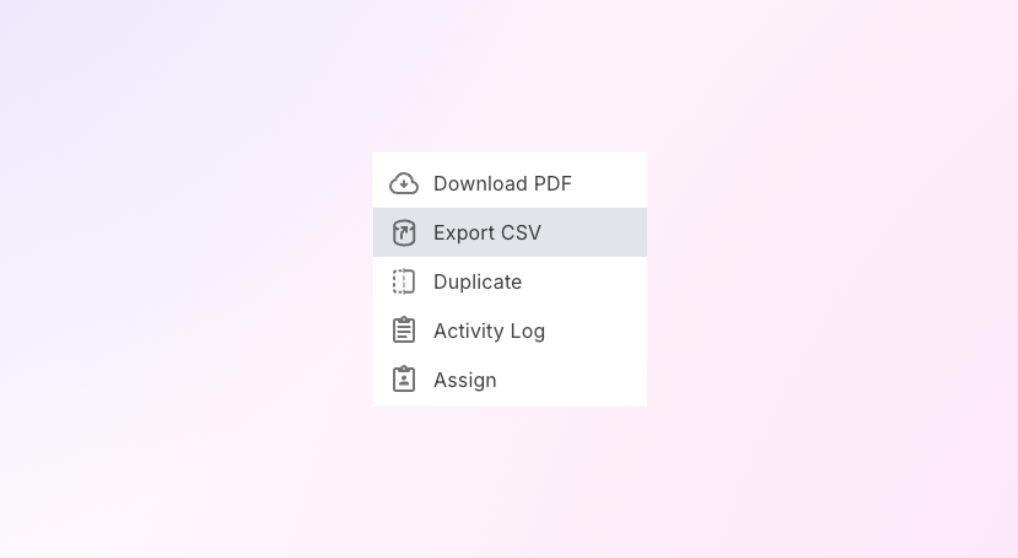
Select submissions, then use the Actions menu at the top right to start an export.
Export options

The export options dialog with all available settings.
- Full Export
- Exports your submission data as a spreadsheet (XLSX) or Comma Separated Values (CSV) file. Best for most users.
- File Name
- Set a custom name for the exported file. If left blank, Droplet uses the form name and export date as the default filename.
- Table Export
- If your form has one or more tables, you have the option to export just the table data from your submissions.
- Inline Table Data
- If your form includes tables, check this box to include all table data in a single column.
- Links to Private Upload Files
- Includes active links to any files that were uploaded with the submission.
- Deselect all Droplet data
- Columns starting with [Droplet] (like Submission ID, Status, and Workflow Step) describe the submission process. Enable this to remove all Droplet-related columns from your export.
- Settings
- Saves your current export configuration for this form so you don't have to reconfigure it next time.
Save Export Settings If you export from the same form regularly, enable save export settings to skip the configuration step on future exports.
Frequently asked questions
Can I export multiple submissions from multiple different forms at once?
No. All selected submissions must be from the same form. To export from multiple forms, run a separate export for each.
Where does the file download to?
The file downloads automatically to your browser's default download location.
Can I export submissions that are still in progress?
Yes, but fields that haven't been completed yet will appear blank in the export.
Can I save the filters I use before an export?
Yes. Set up your search, filters, and sort order in the toolbar above the results, then save them as a named view. Saved views are private to you, and you can update, rename, and delete the ones you create. The built-in My Submissions and My Assignments views can be renamed and saved over with your own filters, but they cannot be deleted.