Tour the Organization settings
Everything that governs your whole Droplet account - people, roles, tags, sign-in, email, and backups - lives under Organization in the top navigation. Here is what each tab does.
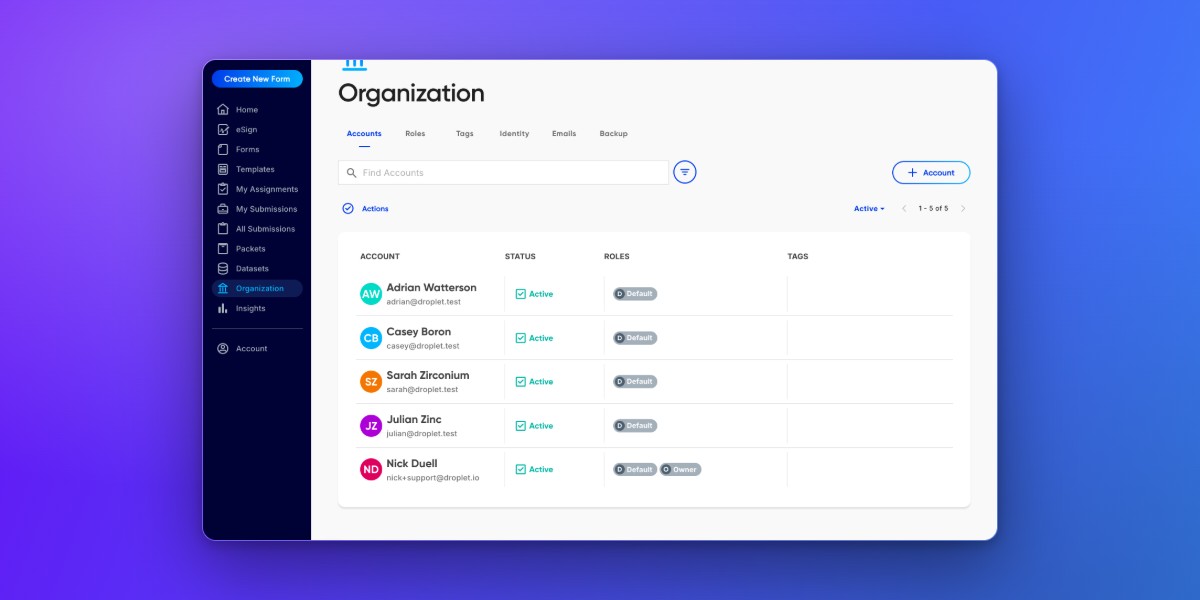
Accounts
The people in your organization. Each row shows the account's name and email, its Status (Active), the Roles it holds, and any Tags assigned to it. Use + Account to add someone, the row menu to assign roles or manage tags, and Actions for bulk operations.
For the full walkthrough of adding people and changing their access, see Manage users in your organization.
Roles
The roles that control what people can see and do. The five presets - Owner, Admin, Form Builder, Dataset Manager, and Default - appear here alongside any custom roles you create. Use + Role to create one, or the row menu to edit, duplicate, or archive it.
Roles are additive - a person can hold more than one. See Roles and access for the full model, and Use permission conditions to narrow what a role can see.
Tags
Account tags are name/value labels you attach to accounts. The Tags tab is where you define the tag names available in your organization, each with a Status and an optional Feature. Tags drive filtering and power permission conditions like "Tag Matches Account Tag."
To put tags to work scoping who sees what, see Scope submissions by tag.
Identity
How people sign in to your organization. From here you can:
Turn on Allow Any Email Domain (Wildcard) to let accounts be created for users from any domain.
See your organization's Droplet domain.
Manage the Password sign-in method.
Use Set up SSO to configure single sign-on.
Emails
Configure a Custom Sending Domain so Droplet notifications come from your own "From" address instead of the default. Setting this up involves DNS verification - contact Droplet support to customize the sending address.
Backup
Set up automatic backups of your submission data over SFTP. Enter the Hostname, Username, and Password for your SFTP destination, and turn on Enable Backups On New Forms to include new forms automatically.
For the full picture of exporting and protecting your data, see Back up your data.