Manage users in your organization
Add, update, deactivate, and reactivate user accounts in your Droplet organization.
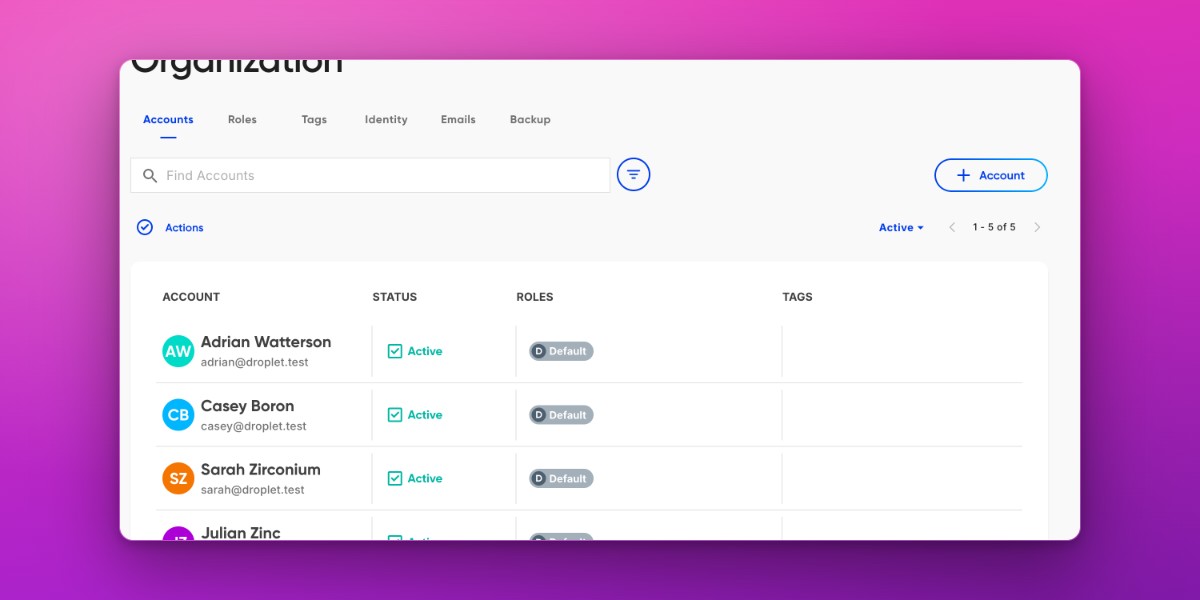
View user accounts
If you have the right permissions, you can view and manage user accounts by clicking Organization in the left-hand navigation menu. The Accounts tab lists all users in your organization.
Add accounts
SSO users
If your organization has Single Sign-On (SSO) configured, users can log in at app.droplet.io with their work email. Their account is created automatically - no manual setup required.
Manual account creation
Whether or not SSO is enabled, you can manually add user accounts:
- Go to the Organization page.
- Click + Account.
- Enter the user's name and email address.
- Click Create Account.
The new user will receive an email invitation to complete their account setup.
Manage roles
Roles define what a user can see and do in Droplet. Every new user is automatically assigned the Default role. You can change a user's role at any time from their account profile on the Organization page.
Find and filter accounts
- Go to the Organization page and make sure you're on the Accounts tab.
- Use the search box at the top to search by name or email.
- Click Filters to narrow results by role or tag.
Deactivate and reactivate accounts
Deactivate an account
If a user no longer needs access to Droplet:
- Go to the Organization page.
- Check the box next to the user's name.
- Click Actions and choose Deactivate.
Reactivate an account
- On the Organization page, change the Active dropdown to Inactive to view deactivated accounts.
- Check the box next to the user you want to restore.
- Click Actions and choose Activate.