Directory Sync
Directory Sync keeps your Droplet accounts in step with the identity provider your organization already uses, such as Active Directory, Entra ID, or Google Workspace. It brings each person's directory information into Droplet automatically, so you can autofill forms with trusted data and assign roles without hand-entering anything.
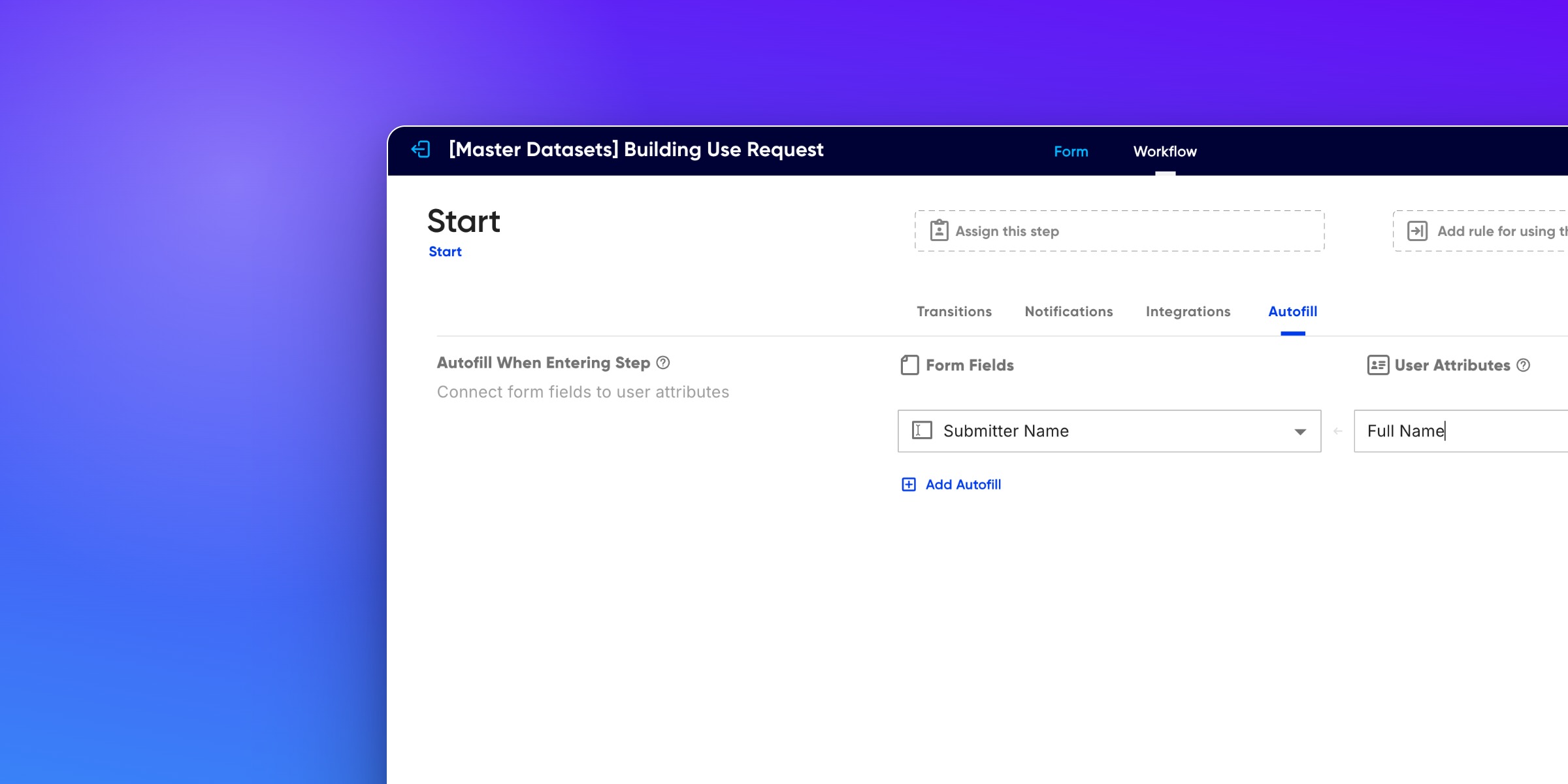
Once Directory Sync is connected, Droplet pulls two kinds of information from your directory for every account: attributes (such as job title, department, and manager) and group memberships. Attributes power form autofill; groups drive automatic role assignment. This article covers how the sync works, how to view and manage attributes, and how to autofill forms with them. To turn group memberships and attributes into roles, see Map roles with Directory Sync.
How Directory Sync works
After your IdP is connected, Droplet keeps accounts current as your directory changes. Directory information is applied whenever an account is created, which includes accounts created through single sign-on (SSO) for the first time (known as just-in-time, or JIT, provisioning) and any other new account, as long as the email matches a synced user in your directory.
Turn on Directory Sync
Directory Sync is enabled by connecting your identity provider, which Droplet Support helps you configure. In broad strokes:
- Contact Droplet Support to start the connection for your IdP (for example Active Directory, Entra ID, or Google Workspace).
- Droplet works with you to establish the sync so your users, their attributes, and their groups flow into Droplet.
- Once it is live, new accounts pick up directory data automatically. You manage related settings on the Identity tab under Organization.
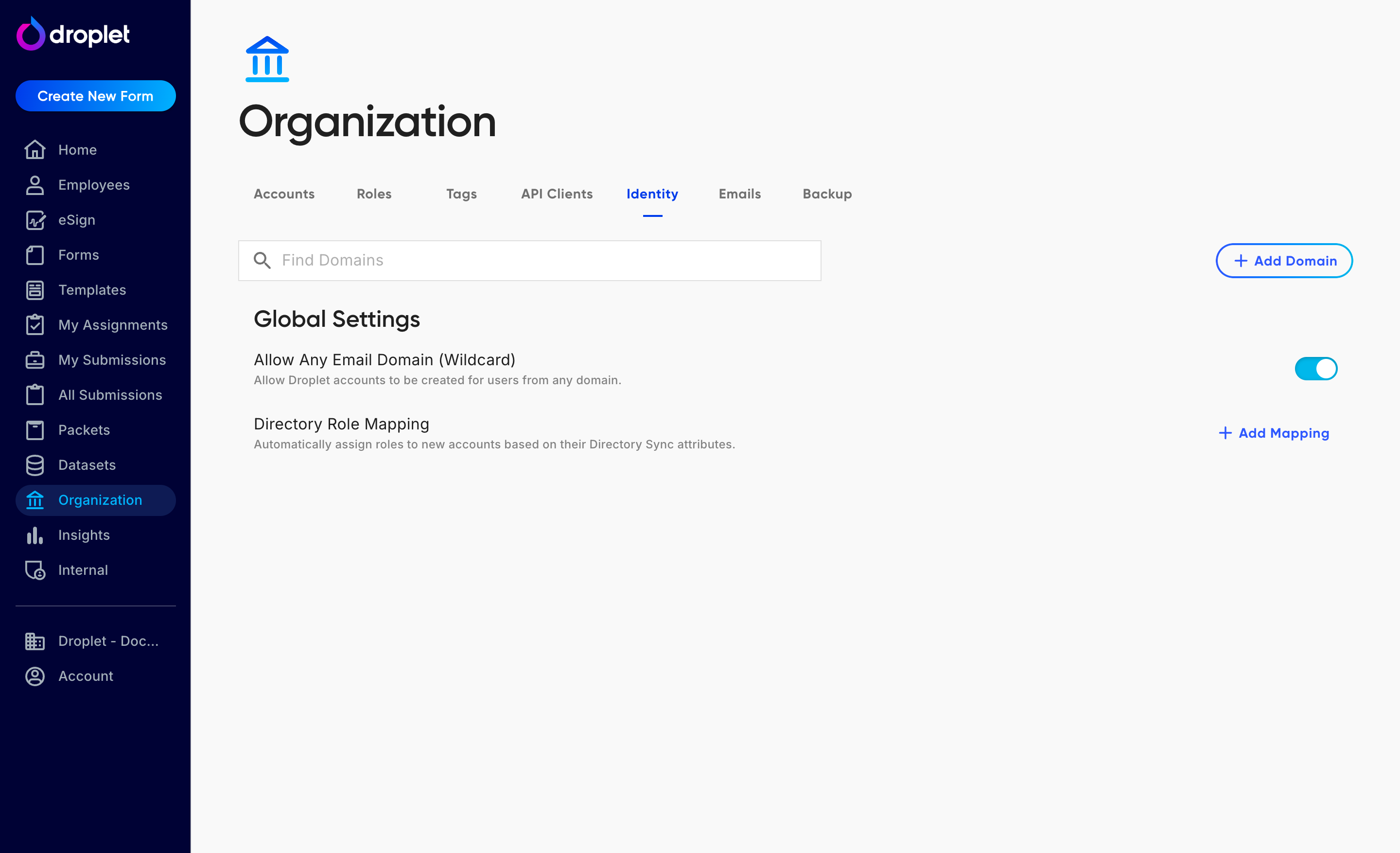
Organization › Identity is home for directory settings, including Directory Role Mapping.
View and manage user attributes
Attributes synced from your directory populate each account automatically. You can also view them, and set or override them by hand, from the account's Manage Attributes panel.
- Go to Organization and open the Accounts tab.
- Find the user, open their more options menu, and choose Manage Attributes.
- Review or edit the attribute fields, then click Save.
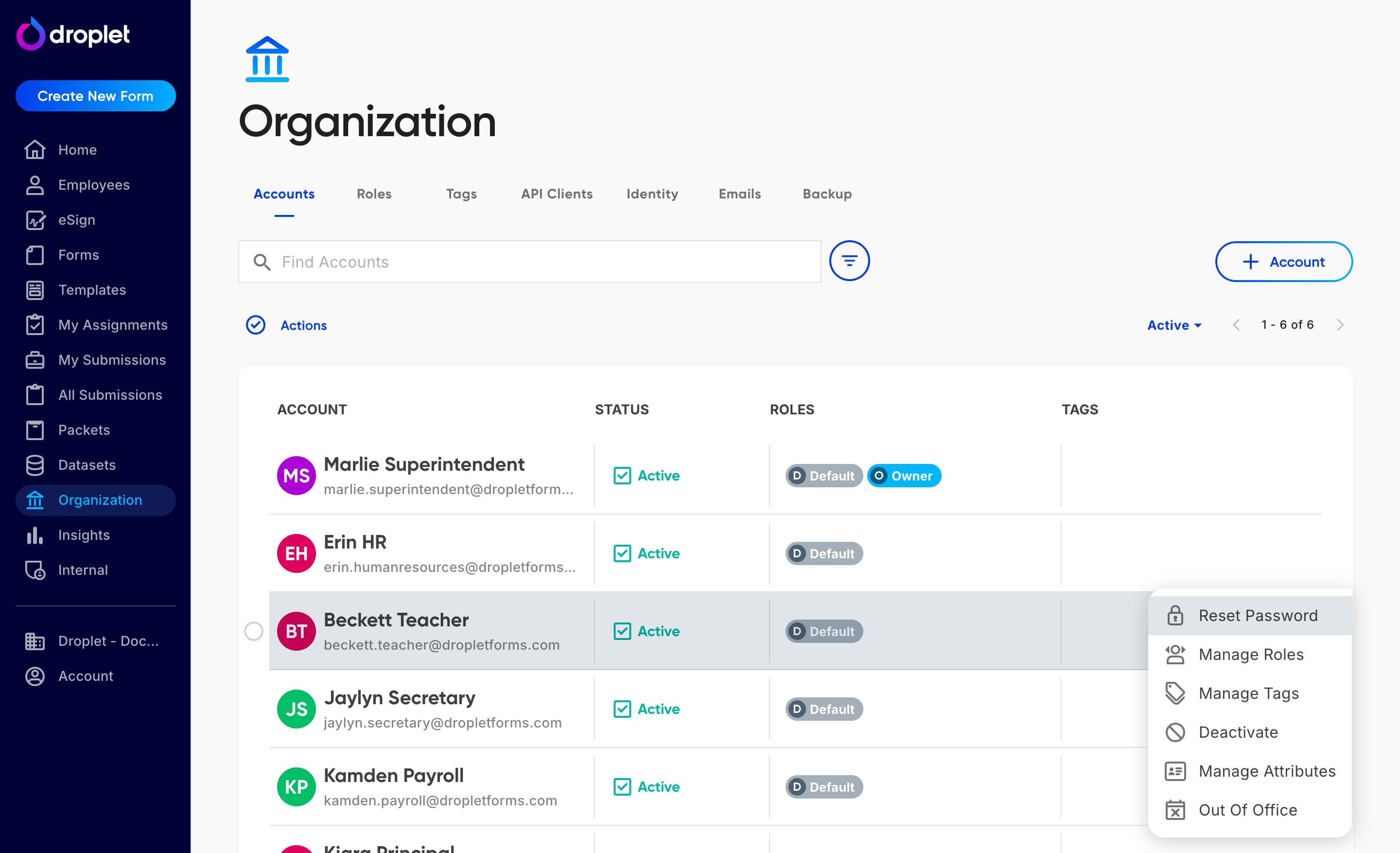
Manage Attributes lives in each account's more options menu on the Accounts tab.
The panel covers identity fields (name, email, username), employment fields such as Job Title, Department Name, Division Name, Cost Center Name, Employee Type, Manager Email, and Employment Start Date, address fields, and nine Custom Attribute slots for anything specific to your organization.
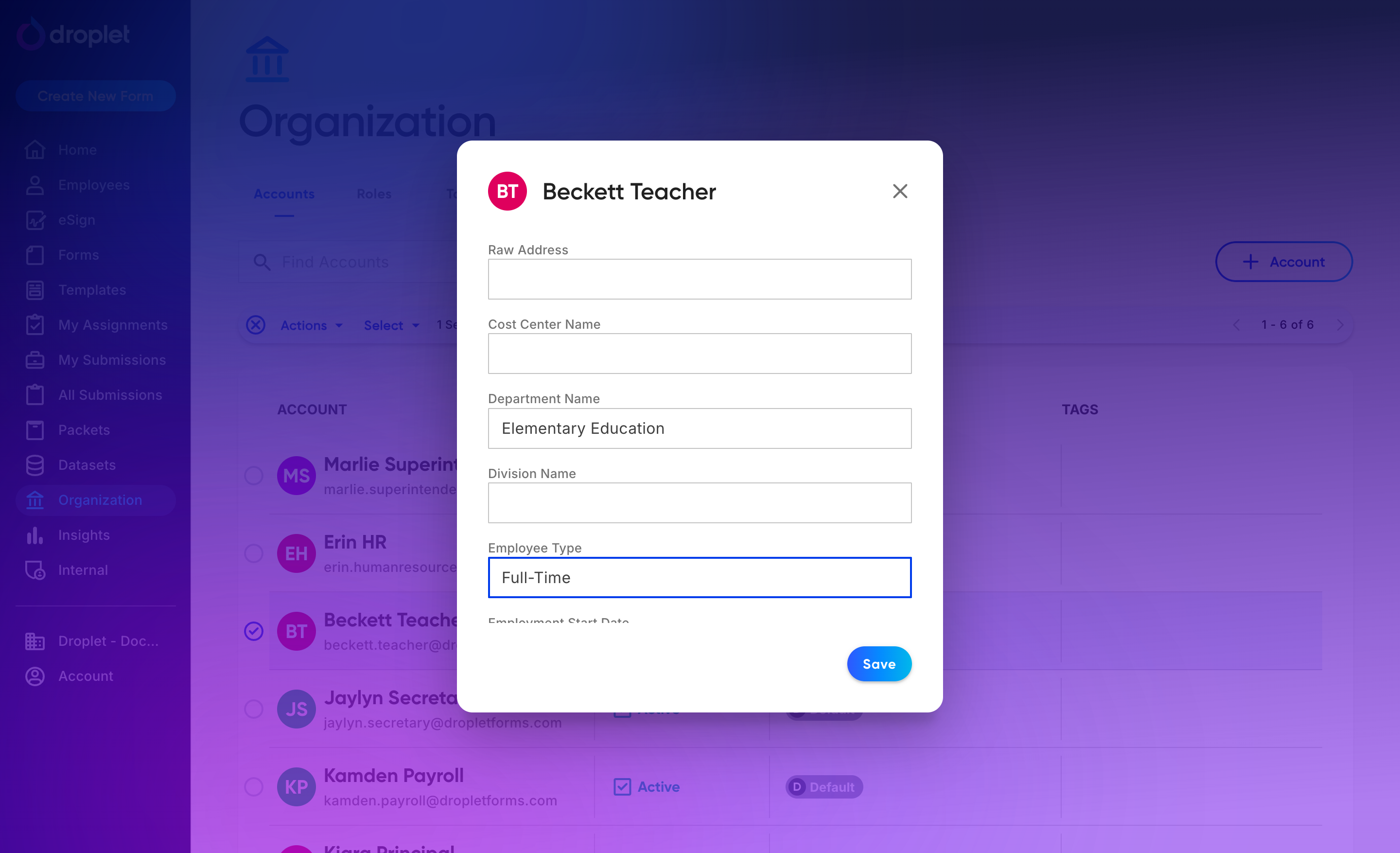
Attributes sync from your directory, and you can also set them manually here.
Autofill form fields with attributes
Once accounts carry attributes, you can pre-fill form fields with them so submitters do not retype information Droplet already knows. Autofill is configured per workflow step, and it fills fields the moment a person enters that step.
- Open the form in the editor and make sure the fields you want to autofill exist in your layout.
- Click the Workflow tab.
- Select a workflow step (usually the Start step) and click Edit Step.
- Open the Autofill tab.
- Under Form Fields, choose a field; under User Attributes, choose the attribute to pull from.
- Click Add Autofill to map another field, and repeat as needed. Save the form when you are done.
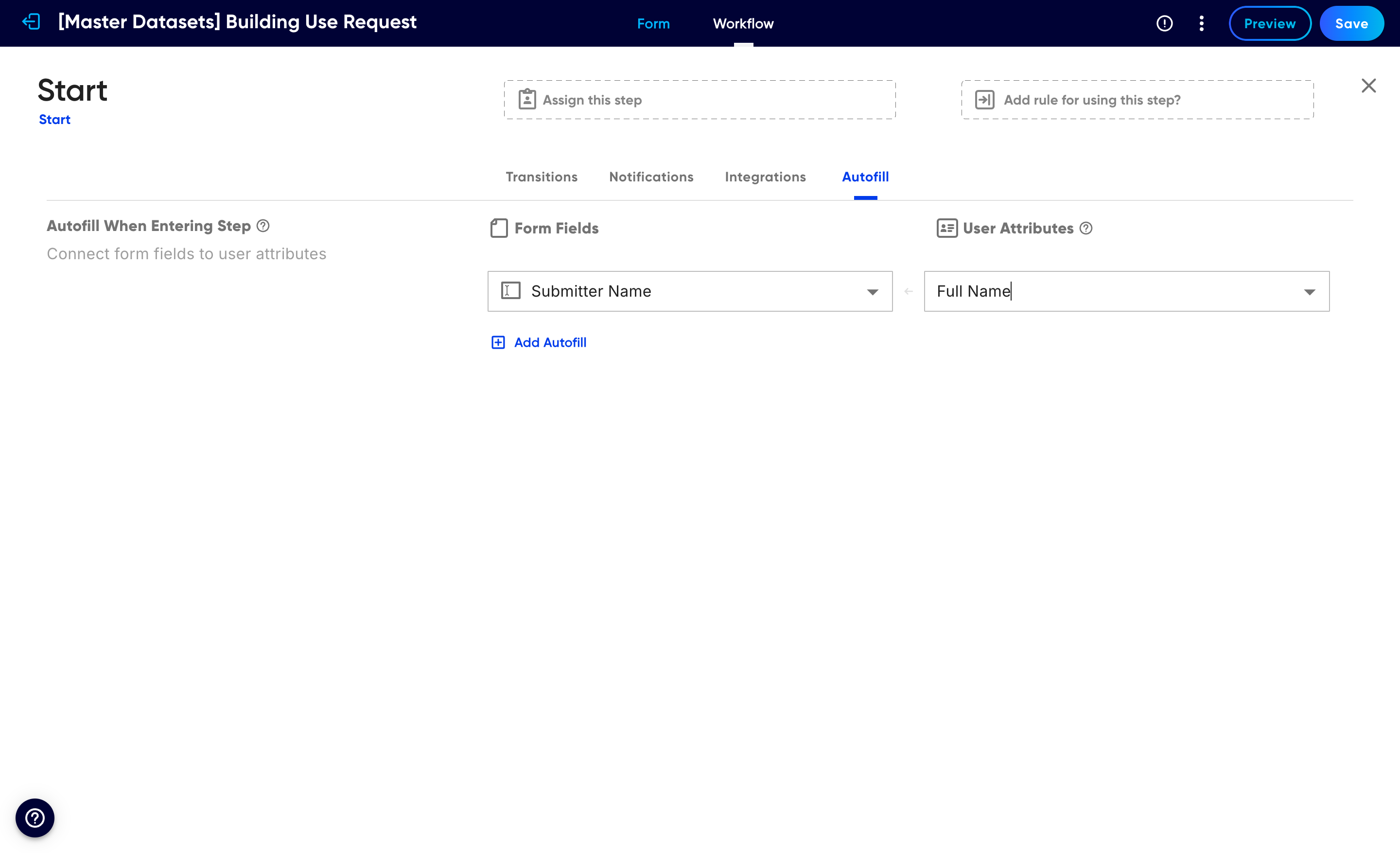
On a step's Autofill tab, connect each form field to the user attribute it should pull from.
Autofill draws from the account entering the step, so it is most useful on the Start step (the submitter) and on any assigned step where you want to stamp in the assignee's details. If you need to pre-fill from a link instead of from account attributes, see Prefill form fields with URL parameters.
Groups and automatic roles
Alongside attributes, Directory Sync brings in each person's group memberships. Groups are how most districts prefer to manage access, so Droplet can turn them (and attributes) into roles automatically as accounts are created. Set that up in Map roles with Directory Sync.
Frequently asked questions
Which identity providers are supported?
Directory Sync works with common providers such as Active Directory, Entra ID, and Google Workspace. Connecting your provider is handled with Droplet Support.
Do I have to use SSO to use Directory Sync?
No. Directory data applies to accounts created through SSO for the first time and to any other new account, as long as the email matches a synced user in your directory.
What is the difference between attributes and groups?
Attributes are individual fields on an account, like Job Title or Department Name, and are used to autofill forms. Groups are directory group memberships and are used to map roles. Droplet tracks them separately.
Can I set attributes for a user who is not in my directory?
Yes. Open the account's more options menu on the Accounts tab and choose Manage Attributes to enter values by hand.
Why is a form field not autofilling?
Check that the field is mapped on the correct step's Autofill tab and that the entering account actually has a value for that attribute. Autofill only fills from the account entering the step.