Map roles with Directory Sync
Directory role mapping assigns roles to new accounts automatically, based on the attributes and group memberships that come from your identity provider. Define the rules once and stop hand-assigning permissions one account at a time.
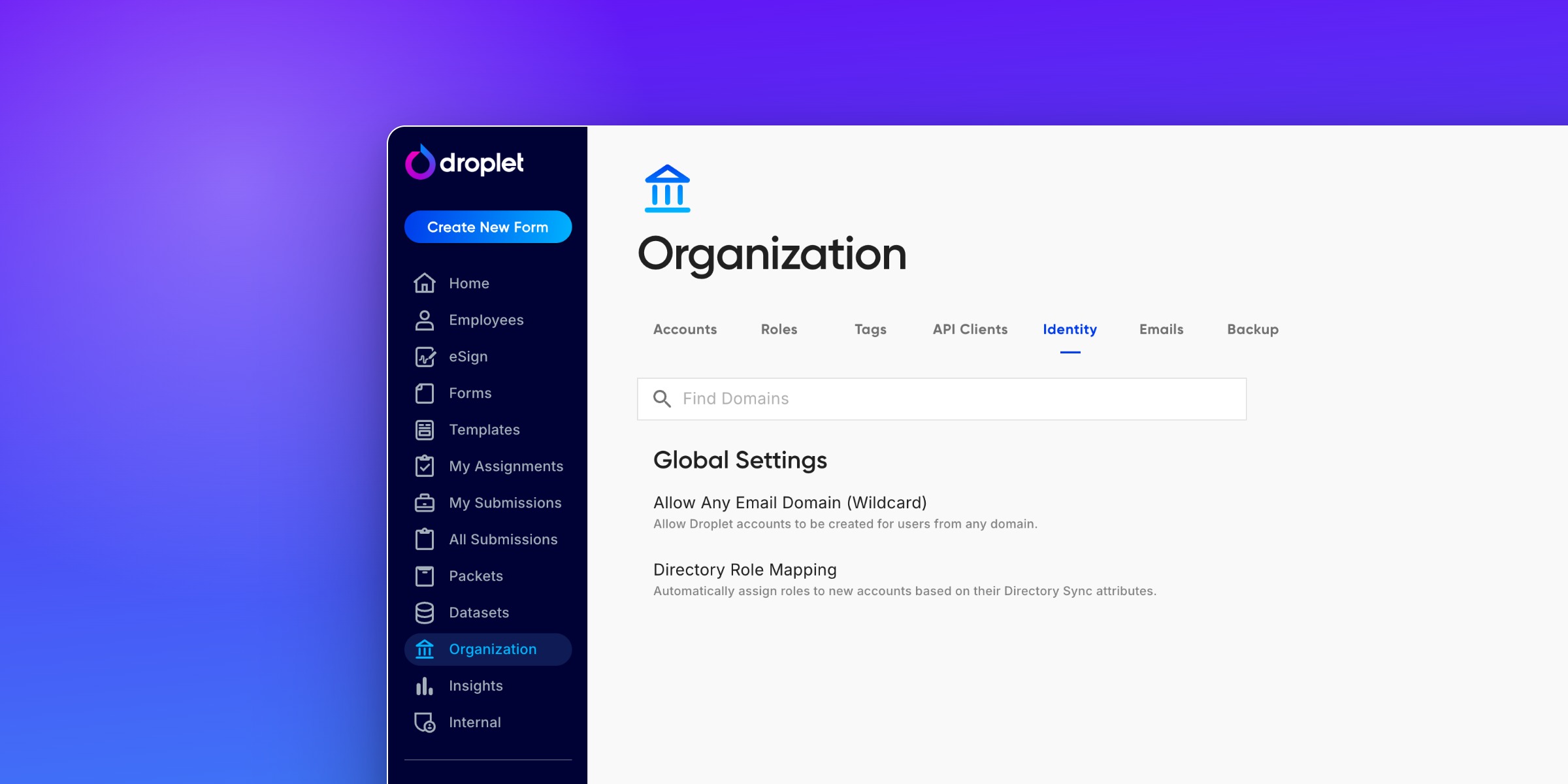
When a new account is created, Droplet checks your mapping rules and applies the roles from every rule that matches. This works for accounts created through single sign-on (SSO) for the first time and for any other new account, as long as Directory Sync is enabled and the account's email matches a synced user in your directory.
Map by group or by attribute
You can build rules on either kind of directory data:
- Groups
- Map roles by directory group membership. This is how most districts prefer to manage access, since a person's groups usually already reflect what they should be able to do.
- Attributes
- Map roles by an individual attribute such as Job Title, Department Name, Division Name, Employee Type, or one of your Custom Attributes.
Add a role mapping
- Go to Organization and open the Identity tab.
- Under Global Settings, find Directory Role Mapping and click Add Mapping.
- Under When the following is true, choose an attribute (or Groups), pick the operator, and enter the value or values to match. For groups, enter one or more group names, separated by commas.
- Under Assign these roles, select one or more roles to grant when the rule matches.
- Click Save.
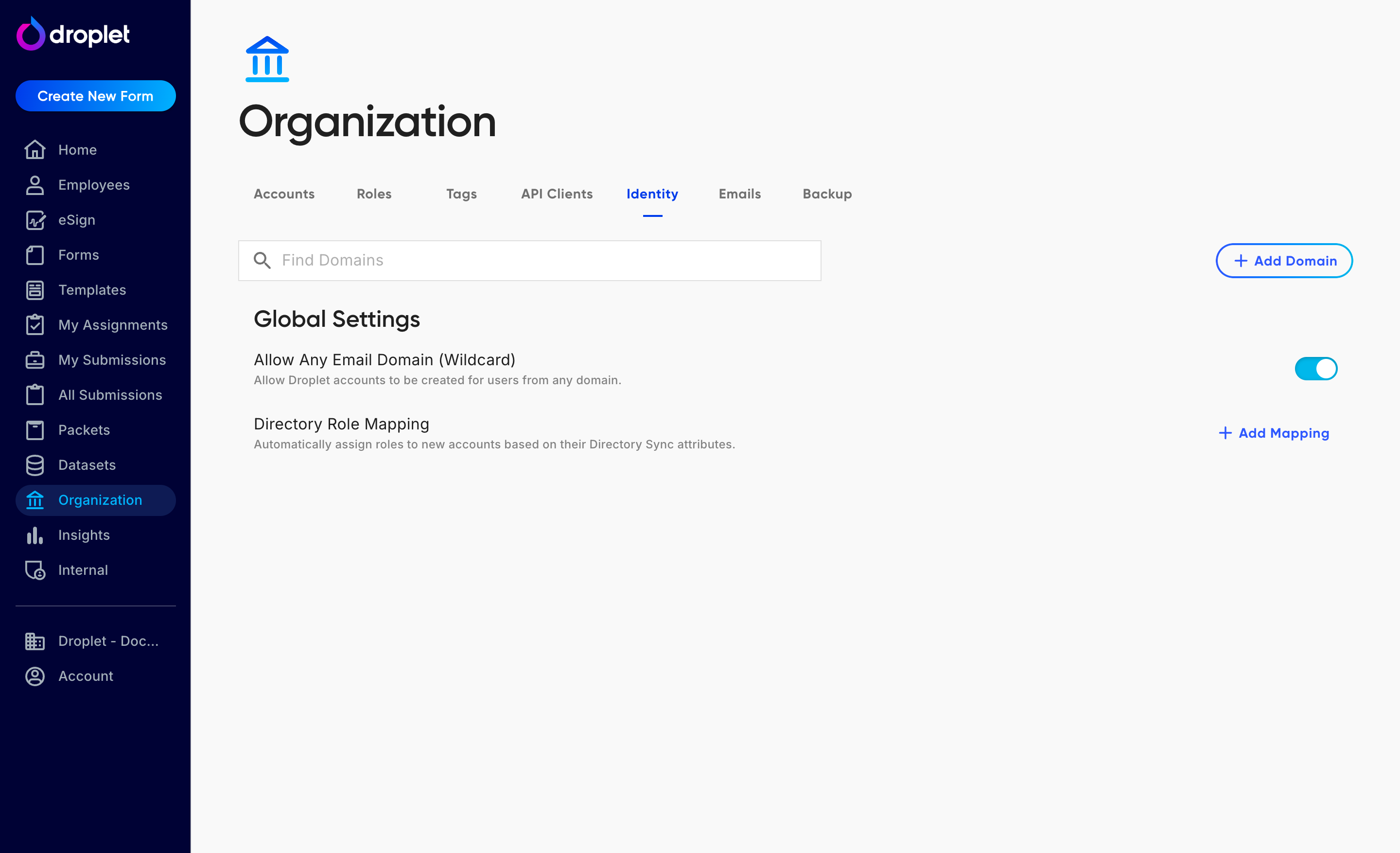
Directory Role Mapping lives under Global Settings on Organization › Identity.
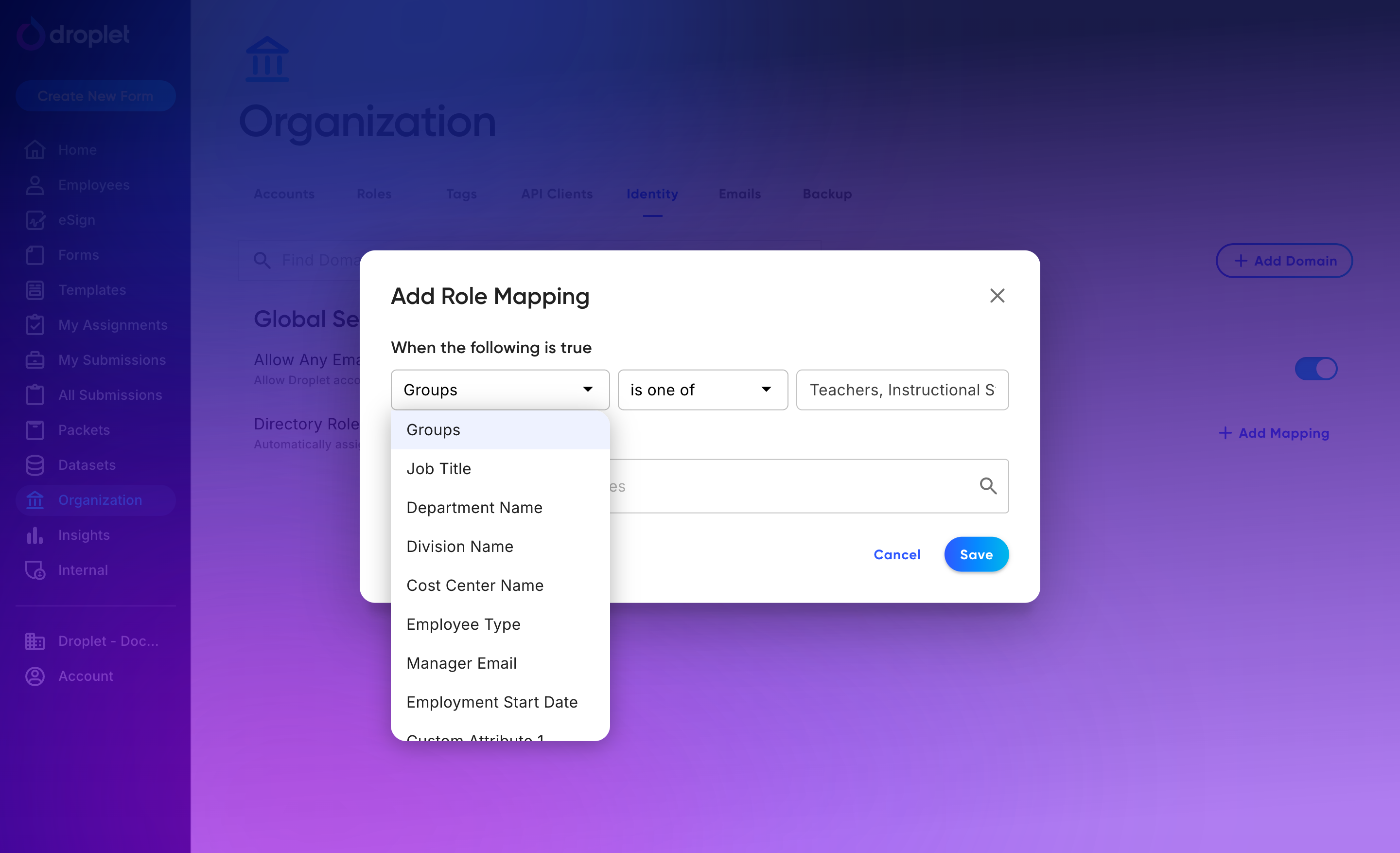
Build a rule on Groups or on any synced attribute.
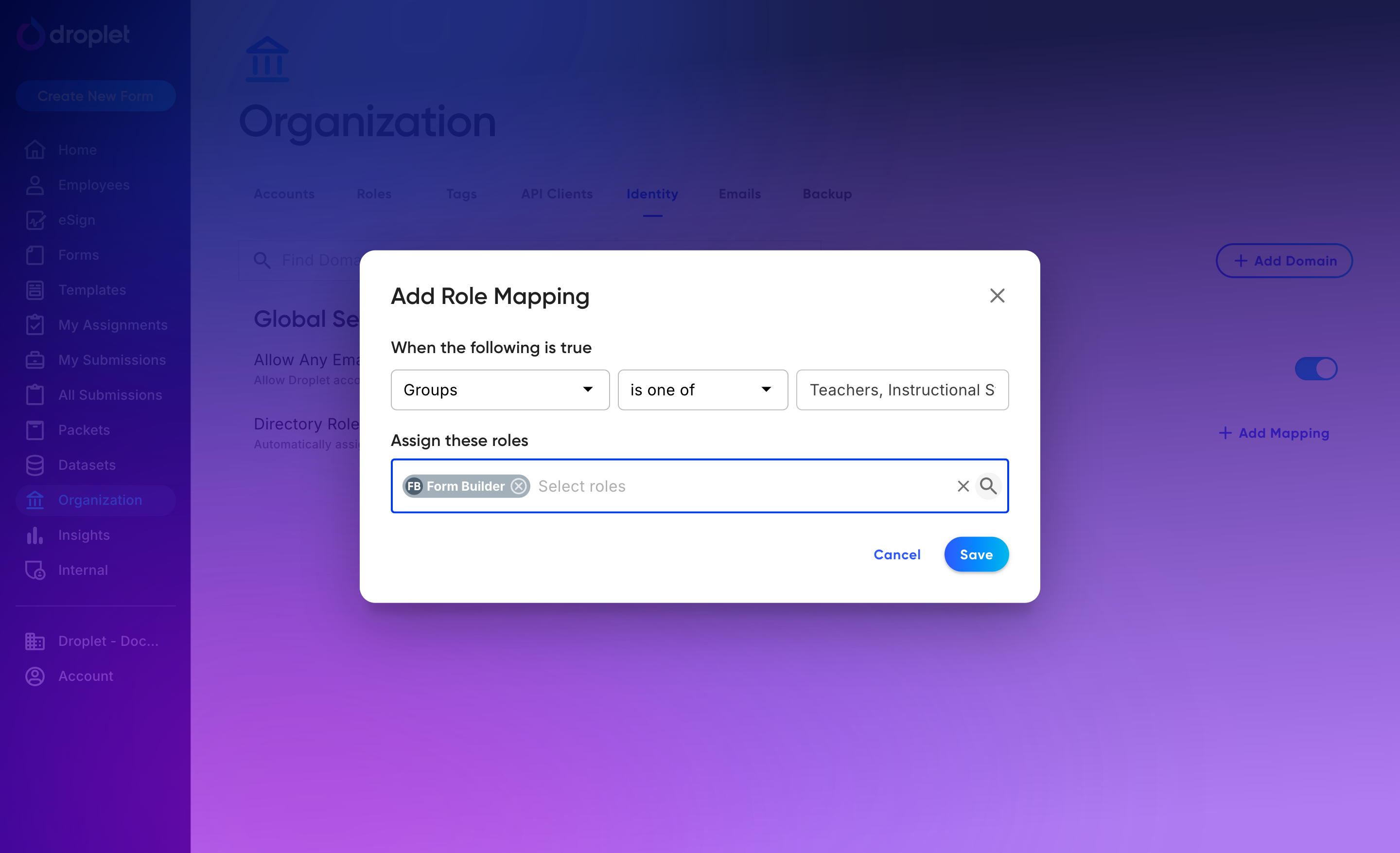
A finished rule: anyone whose directory groups include Teachers or Instructional Staff is given the Form Builder role.
How the rules apply
A few things are worth knowing about how mappings behave when an account is created:
- Every matching rule applies. If an account matches more than one rule, it receives the roles from all of them. Because roles are additive, the account ends up with the combined permissions. (See how roles work.)
- There is no priority ordering. Rules are not ranked, so none overrides another. Every rule that matches contributes its roles.
- The Default role is the fallback. If no role mapping is configured, or none of your rules apply to a new account, Droplet still assigns the Default role. Every account always has at least Default.
When mapping runs
Role mapping is applied at account creation. It sets a new account's roles automatically so you do not have to. To change roles on an account that already exists, adjust them by hand from the Accounts tab (see Assign roles to a user).
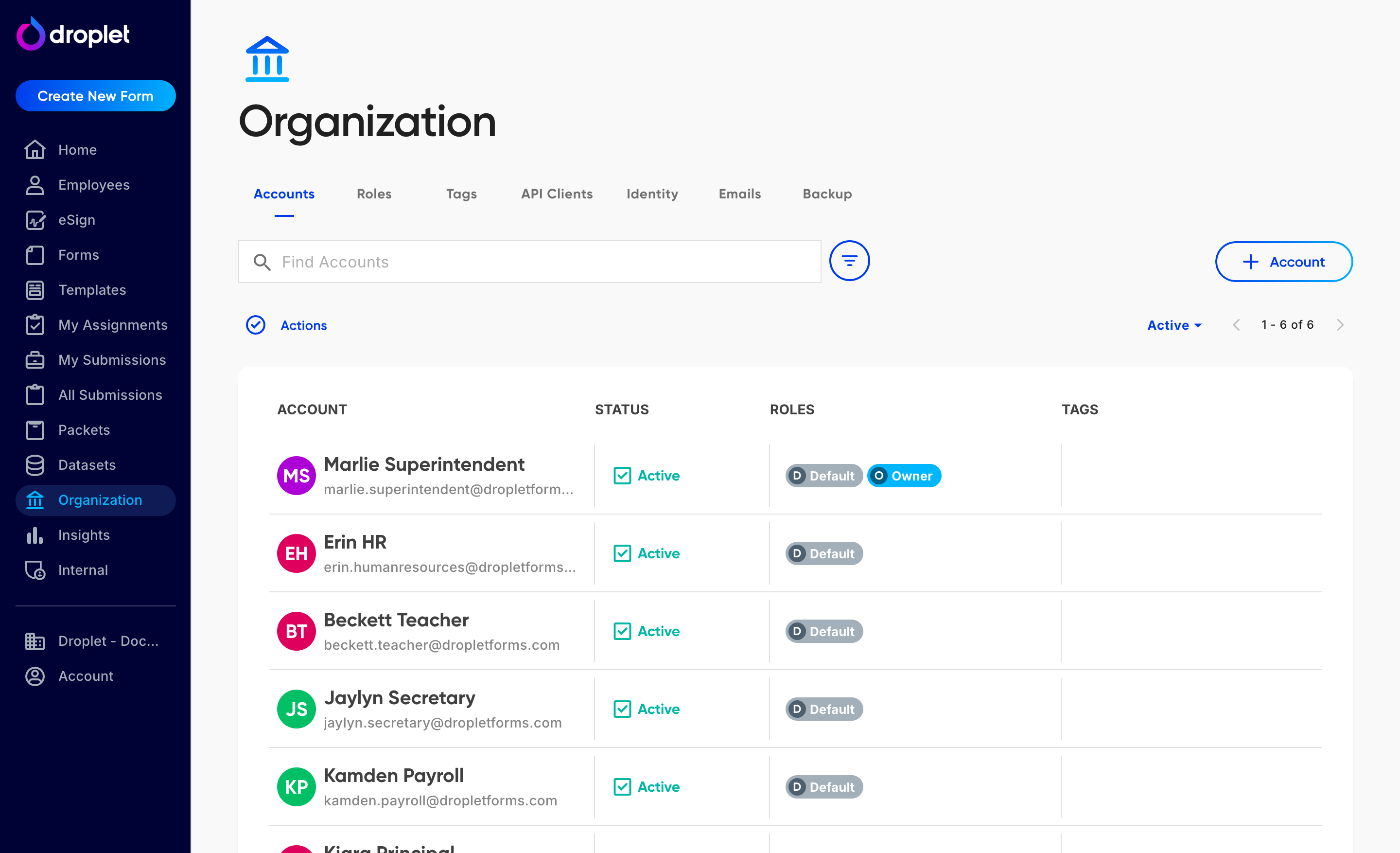
Each account's roles show on the Accounts tab, whether they were mapped automatically or set by hand.
Frequently asked questions
Do I need SSO for role mapping to work?
No. Mapping applies to accounts created through SSO for the first time and to any other new account, as long as Directory Sync is enabled and the email matches a synced user.
What happens if two rules match the same account?
Both apply. The account receives the roles from every matching rule, combined. There is no priority ordering.
What if no rule matches?
The account still gets the Default role. Default is always applied when no other mapping applies.
Does changing a rule update existing accounts?
Role mapping runs when an account is created. To change roles on accounts that already exist, update them on the Accounts tab.
Should I map by groups or by attributes?
Groups are the common choice because they usually already reflect access, but attributes such as Job Title or Department Name work well when your directory does not model the distinction as a group.