Assign a step to several people
Some approvals don't need one specific person, just one of a few. Assign a workflow step to a group and Droplet sends it to all of them at once. Whoever submits or rejects first completes the step for everyone, and the submission moves on without waiting for the rest.
Group assignment or parallel steps?
Both send a submission to several people at the same time, but they finish in opposite ways. Pick the one that matches how the work is shared.
| Group assignment | Parallel steps | |
|---|---|---|
| Who has to act | Any one person in the group | Everyone, each in their own substep |
| What each person sees | The same step, with the same fields | Their own substep, with its own field visibility |
| When it moves on | As soon as one person submits or rejects | When every substep is done (any reject exits right away) |
| Good for | A shared queue: any assistant principal, any member of the business office | Sign-off from different people: HR and Finance both have to approve |
You can also combine them. Each substep of a parallel step can be assigned to a group, so HR and Finance each have their own substep, and anyone on each team can complete it. See Set up parallel workflow steps.
Assign a step to a group
Open your form in the Form Builder and go to the Workflow editor.
On the step card, click the assignee control under the step name. It reads Assign to when the step has no one yet. You can also click Edit Step and use the same control at the top of the Step Details panel.
Choose the first person. The menu stays open, so keep choosing until everyone is in the group.
Click outside the menu to close it, then publish the form.
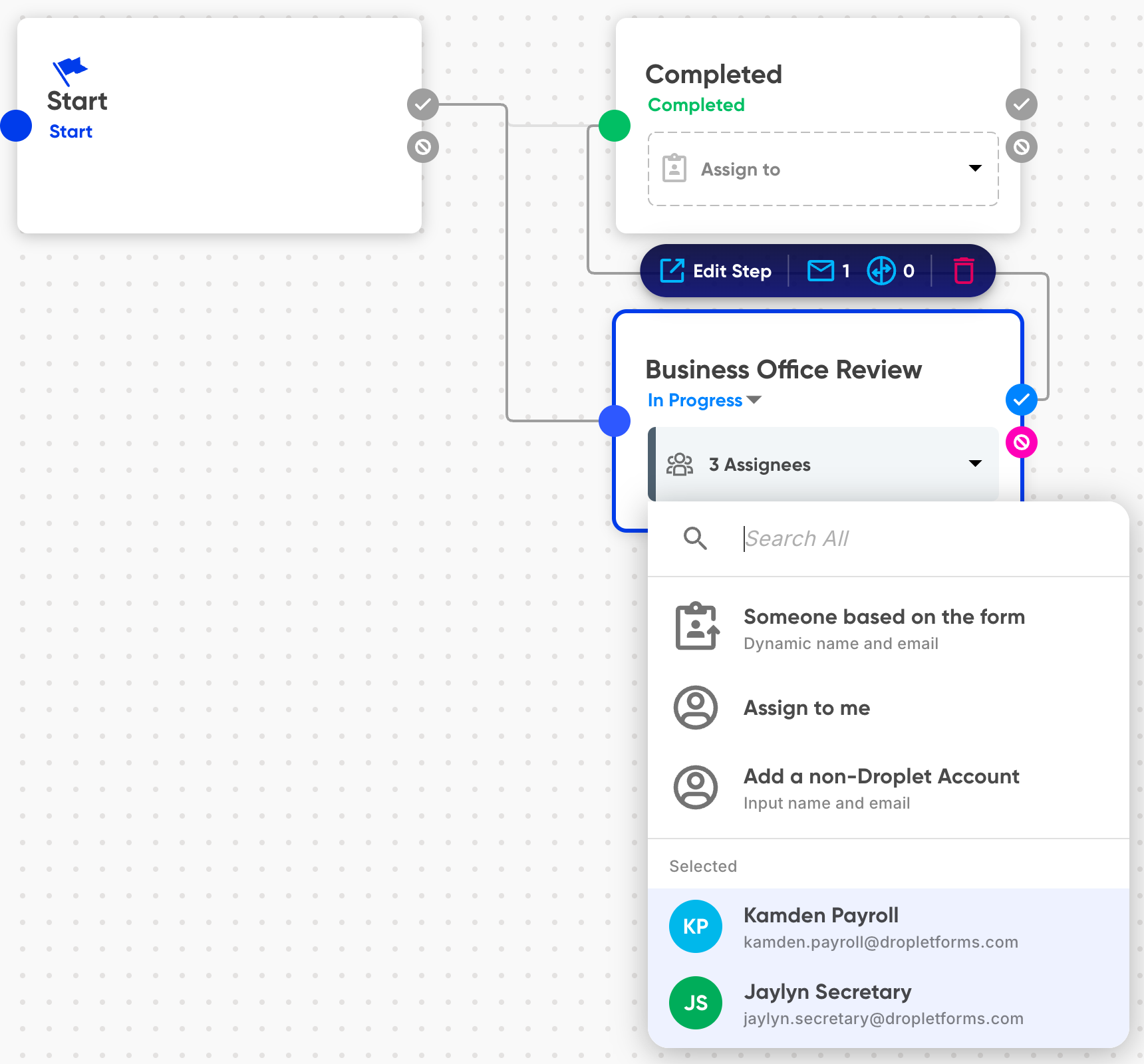
With one assignee the step card shows that person. With two or more it shows a count, such as 4 Assignees. The Step Details panel lists each one, with +N more when they don't all fit.
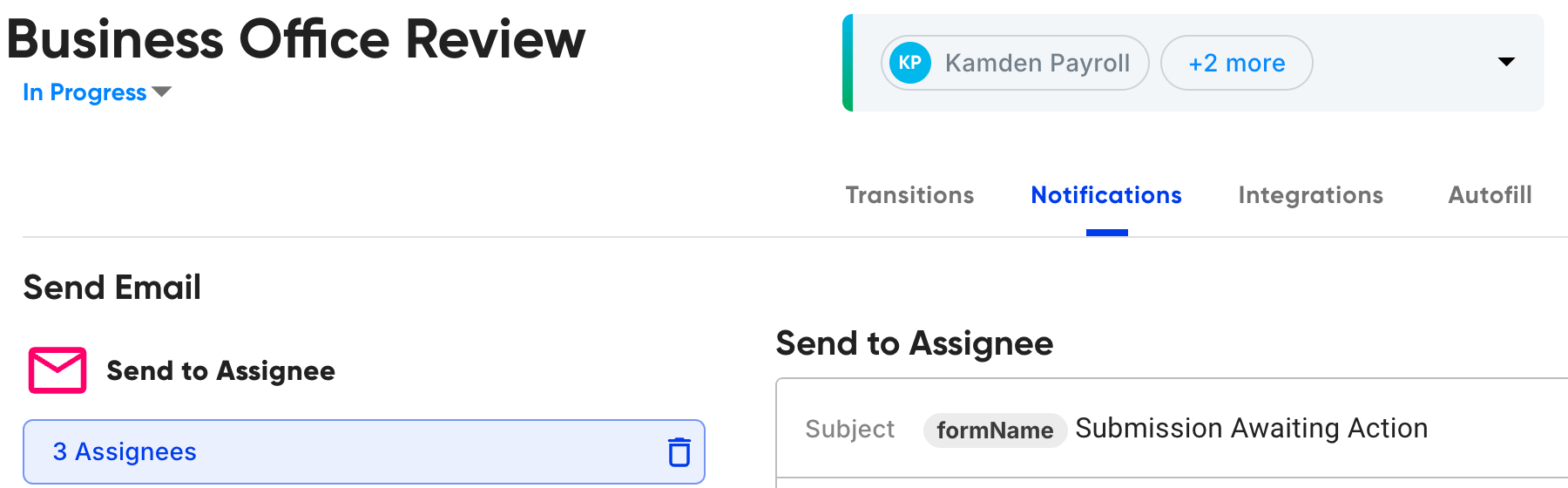
Who you can add
A group can mix any of these:
- Droplet accounts
- Search by name or email with Search All, or scroll the Droplet Accounts list. Assign to me adds you.
- Someone without a Droplet account
- Click Add a non-Droplet Account and enter a name and email. Their assignment email has a link of their own.
- Submission creator
- The person who started the submission, listed under Participants & Roles.
- Someone based on the form
- A person whose name and email come from the submission itself, so the group changes with each submission. See the next section.
Groups are made of people. You can't assign a Droplet role or team as a whole; add the individual people instead, or use someone based on the form when the right people depend on what was submitted.
Add someone based on the form
In the assignee menu, click Someone based on the form.
In Populate Name with and Populate Email with, choose the fields that hold the person's name and email. Input, Single Choice, single-select Dropdown, and Computed fields can be used.
Click Assign.
For logic the two dropdowns can't express, such as looking up a principal from a dataset, click Switch to Code and write an expression instead. Each time you save the dialog, it adds one entry to the group, shown as Assign to "Field label" or Dynamic assignee.
To change a form-based entry, remove it and add it again, or edit it in the Code Builder.
Up to 8 per step
A step can have up to 8 assignees. Each person, each form-based entry, and the submission creator counts as one. Once a step has 8, the rest of the menu is grayed out until you remove someone.
To remove someone, open the assignee menu, hover over them in the Selected list, and click the X. Changed your mind? Press Cmd+Z (Ctrl+Z on Windows) to undo everything you changed while the menu was open.
When a form-based entry could come up empty, for example an optional "Supervisor email" field, keep at least one fixed person in the group. If every entry comes up empty, the step has no assignee and the submission waits there unassigned.
What happens when a submission arrives
Everyone is notified
Each person in the group gets their own assignment email, with their own link, and the submission appears in their My Assignments view. The email is addressed to them alone and doesn't list the others in the group.
If the step's Send to Assignee email is turned off, nobody in the group is emailed, but the submission still appears in their assignments. Reminders set with Send Reminder if Incomplete go to everyone in the group who is still assigned.
Anyone can work on it
Everyone in the group can open the step and fill it in. Nothing is locked while someone has it open. If the form has Save Progress, each person's saved work is their own: nobody else in the group sees it.
The first to submit or reject completes it
The first person to click Submit or Reject completes the step for the whole group, and the submission moves on along the workflow. It leaves everyone else's assignments, and nobody else in the group is emailed about it.
If someone else in the group submits a moment later, or opens their link afterwards, they see The submission has already been submitted by someone else. Anything they entered in the meantime isn't saved, and there's nothing more for them to do. This happens whether the first person submitted or rejected.
Let the group know they share the queue. A short line in the assignment email, such as "This request went to the whole business office; whoever gets to it first can approve it," saves people from starting work someone else has already finished.
Track and manage group submissions
Submissions page. The Assigned To column shows the first person and +N more. Click it to see everyone in the group. Filtering by Assigned To finds the submission under any member's name.
Activity Log. The log shows everyone the step was assigned to, then who advanced or rejected it.
Change the group on a submission. Select the submission, click Actions, and choose Assign. The people you pick replace the current group, which is listed under Previously Assigned. To keep someone, pick them again. Only people you add are emailed. See Take actions on submissions.
Send Back. Sending a submission back to an earlier group step returns it to the person who completed that step, not to the whole group.
Out of Office. If someone in the group is out of office with a backup, only that person is swapped for their backup. Everyone else stays assigned. See Set Out of Office with a backup assignee.
Send a notification to several people
The Send When Step Begins and Send When Step Finishes emails use the same menu, so one notification can go to a mix of Droplet accounts, people without accounts, the submission creator, and people based on the form. Notifications have no 8-person limit. See Workflow notifications.
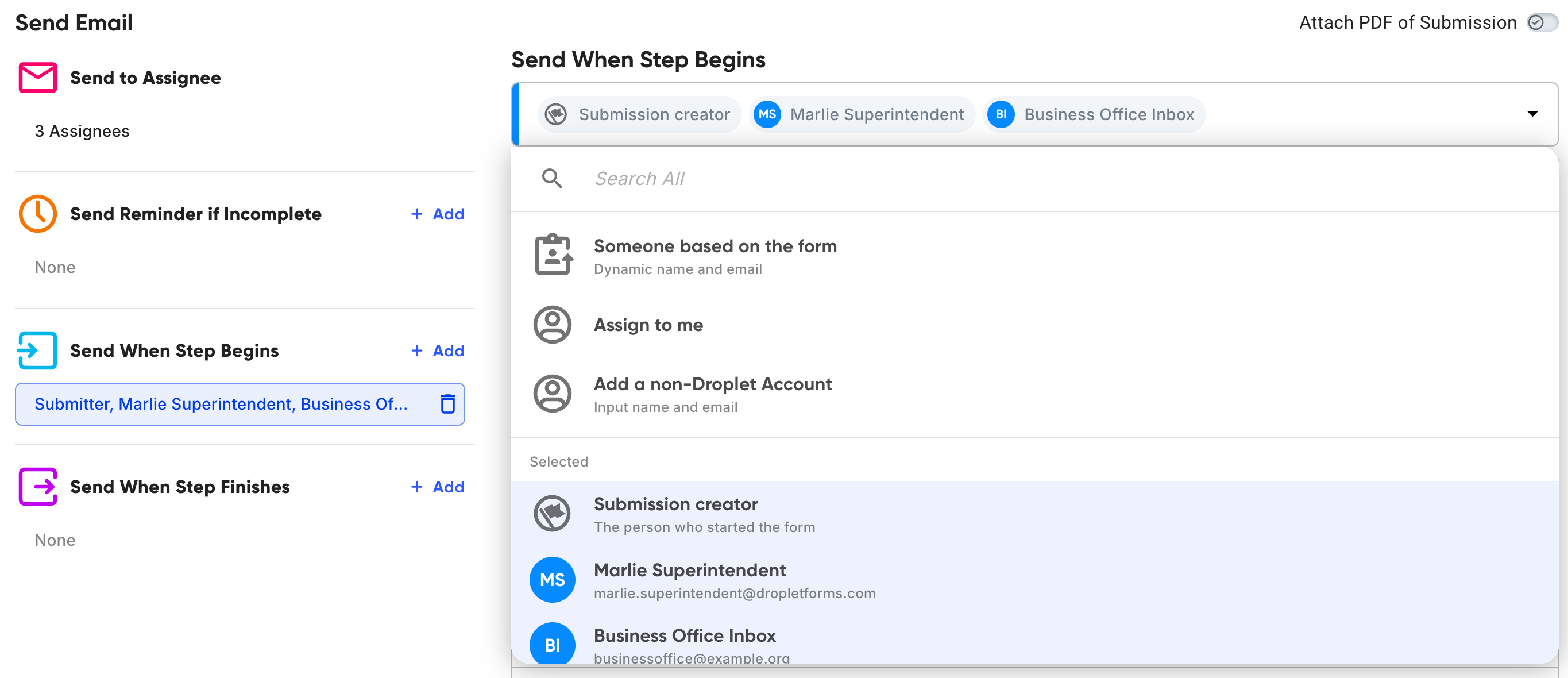
In those emails, the Assigned To dynamic fields show the first person in the group. The Send to Assignee email always greets each person by their own name.
In the Code Builder
In the Code Builder's Workflow tab, a group is a list in the step's assign setting. The submission creator is sendToSubmitter, next to it. This step goes to one fixed person, the person named in two form fields, and the submission creator:
"principalReview": {
  "status": "pending",
  "onEnter": {
    "assign": [
      { "name": "Dana Whitfield", "email": "dana.whitfield@example.org" },
      { "nameElementId": "supervisorName", "emailElementId": "supervisorEmail" }
    ],
    "sendToSubmitter": true
  }
}
A step with one assignee keeps the single-value form, so existing workflows don't change. Publishing stops with must contain at most 8 assignees if a list goes over the limit, counting the submission creator. Groups can also be set through the Submissions API.
In form expressions, getAssignedTo() returns the person working on the step, and getAllAssignedTo() returns everyone in the group.
Common questions
Do I need group assignment or parallel steps?
Ask whether one person's answer is enough. If any one of them can handle it, use a group. If each person has their own part to complete, use parallel steps. The comparison above lays out the differences.
Does everyone in the group get an email?
Yes. Each person gets their own assignment email and link, unless the step's Send to Assignee email is turned off or they've turned off email notifications on their account.
Can people in the group see who else is assigned?
Not from the email. Anyone who can see the submission on the Submissions page can click +N more in the Assigned To column to see the whole group.
What if two people submit at the same time?
Only one counts. Droplet records whoever finishes first, and the other person sees that the submission has already been submitted. Their changes aren't saved.
Are the others told when someone finishes?
No email goes out. The submission simply leaves their assignments, and their link shows that someone else submitted it. To tell the group, add a Send When Step Finishes notification.
Can I assign a role, department, or team?
Not as a whole. Add the individual people, up to 8, or use someone based on the form when the right people depend on what was submitted.
I need more than 8 people.
A step can have up to 8 assignees. If a form-based entry finds more people than that, only the first 8 are assigned. For a wider audience that only needs to know about the submission, add them to a Send When Step Begins notification, which has no limit.
Can someone without a Droplet account be in a group?
Yes. Add them with Add a non-Droplet Account. Their assignment email has a link of their own, the same as anyone else in the group.
I sent a submission back to a step that went to a group. Who gets it?
The person who completed that step the first time. To send it to the whole group again, use Actions › Assign afterwards and pick the group.
Why is my group step unassigned?
Every entry in the group came up empty, usually because the form fields a form-based entry reads were left blank. Assign the submission by hand with Actions › Assign, and add a fixed person to the step so it always has someone.
We set up group steps through the API. Do they still work?
Yes. They open in the Workflow editor like any other group, and you can edit them there.
Related reading
Configure workflows covers steps, routing, and the other ways to assign a step.
Set up parallel workflow steps covers steps where everyone has to finish.
Workflow notifications covers the emails a step sends.