Set Out of Office with a backup assignee
Mark yourself out of office and pick a backup, so new work routes to a teammate instead of piling up while you are away. New automatic assignments reroute on their own, and nothing needs untangling when you get back.

When you are out, the forms and eSign documents that would normally land on your plate keep moving instead of waiting for you. You turn on Out of Office from your Account page and choose a backup assignee. From that point on, any new automatic assignment that would have come to you is handed to your backup instead. You set it on your own account, and Organization Owners can set or clear it for anyone on the team.
How Out of Office works
Out of Office only touches new, automatic assignments. It is deliberately narrow so it never moves work behind your back:
- Automatic assignments reroute › while you are out, new form and eSign workflow assignments that would auto-assign to you go to your backup instead.
- Manual assignments are never rerouted › if someone deliberately assigns a submission to you, it comes to you whether you are out or not. Choosing a person always wins.
- No chaining › if your backup is also out of office, the assignment falls back to you rather than bouncing on to their backup.
- Nothing reverts when you return › marking yourself back in office only changes where future automatic assignments go. Anything already handed to your backup stays with them, so there is no pile of handoffs to sort through on your first day back.
- There is an audit trail › the submission activity log records when an assignment was redirected because someone was out, so the history is always clear.
- You are reminded it is on › a banner sits at the top of your main list views while Out of Office is active, and an Out of Office badge appears next to your name in Organization.
Set your own Out of Office
Open your Account page and scroll to the Out of Office section. When it is off, it simply reads "Not set."
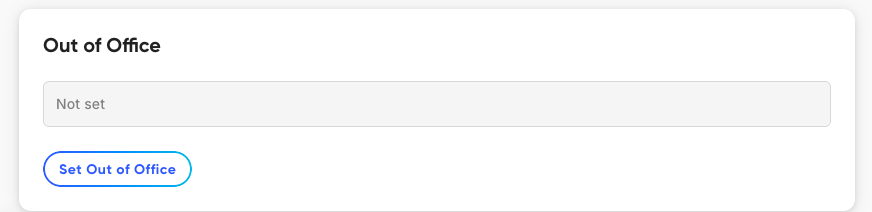
The Out of Office section lives on your Account page.
Click Set Out of Office to open the panel, then flip the Set Out of Office switch on.
Click the Backup Assignee dropdown and use the search box to find a teammate. This is the person your automatic assignments route to while you are out.
Click Save. Your Account page now shows that Out of Office is active and who your backup is.
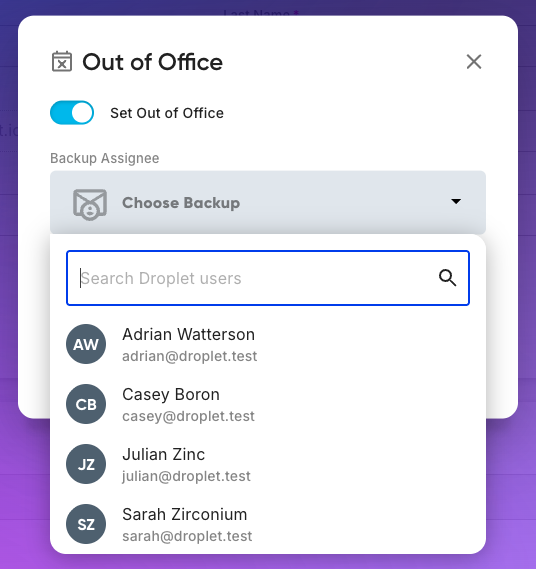
Turn the switch on, then search for and select a backup assignee.
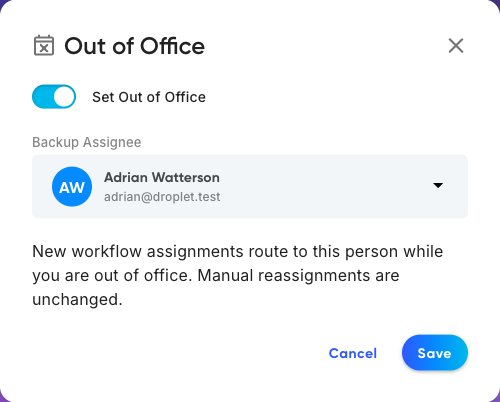
Once a backup is chosen, Save becomes available.
Back on your Account page, an active Out of Office card confirms the status, the date it was set, and your backup assignee.
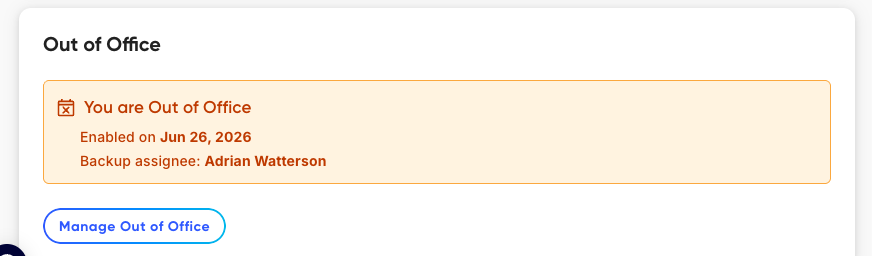
An active Out of Office status, with the backup assignee, on your Account page.
A reminder while you are out
So you never forget it is on, a banner runs across the top of your main list views (like Home and Organization) for as long as Out of Office is active. Click Manage in the banner to jump straight to the setting and turn it off when you are back.

The persistent banner keeps the status visible, with a Manage shortcut.
When you get back
To resume receiving assignments, open the Out of Office setting (from your Account page or the banner's Manage button) and switch it off. From that moment, new automatic assignments come to you again.
Set Out of Office for someone else
Plans change, and people forget to flip the switch before they log off. Organization Owners can set or clear Out of Office for anyone from Organization › Accounts.
Go to Organization and stay on the Accounts tab. Anyone currently out shows an Out of Office badge next to their name.
Click the three-dot menu at the end of the person's row and choose Out Of Office. You can also select the checkbox next to their name, open the Actions menu, and choose Out Of Office.
Configure the status and backup assignee in the panel just as you would on your own account, then click Save.
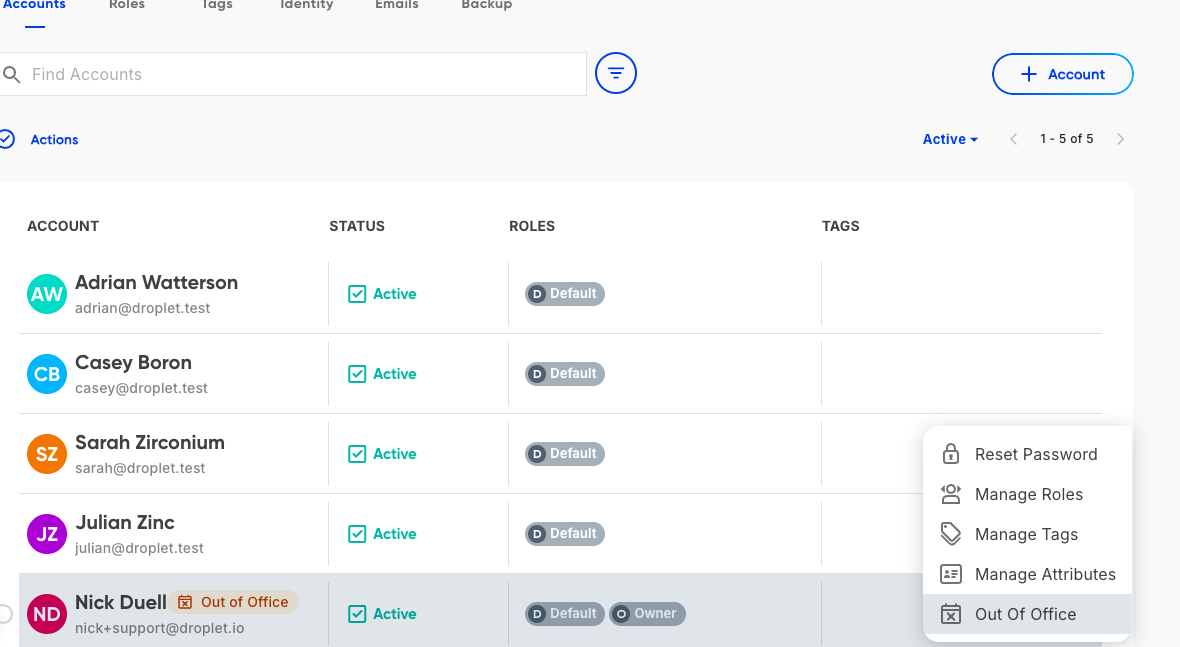
From Organization › Accounts, the row's three-dot menu includes Out Of Office. The badge marks anyone who is currently out.
Good to know
A couple of things to keep in mind with the current release.

The Out of Office badge sits next to the account name in Organization.
FAQ
When I come back, do the assignments that went to my backup return to me?
No. Marking yourself back in office only changes where new automatic assignments go from that point on. Anything already handed to your backup stays with them, so you never return to a queue of handoffs to sort out.
What happens to work I was already assigned before going out?
It stays with you. Out of Office only reroutes new automatic assignments created while you are out. Anything already assigned to you, and anything someone assigns to you by hand, is unaffected.
What if my backup assignee is also out of office?
The assignment falls back to you rather than chaining onward to your backup's backup. Out of Office never bounces work down a chain.
Will teammates manually assigning work know I am out?
An Out of Office badge appears next to your name on the Organization › Accounts tab. In this release the badge does not show in the Forms, eSign, or Packets assignment pickers, so a teammate would need to check Organization to know you are out before assigning to you by hand. Surfacing the status in more places is on the roadmap.
Can I set Out of Office without choosing a backup?
Not yet. A backup assignee is currently required so there is always somewhere for new assignments to go. An upcoming update is planned to let you turn on Out of Office without selecting a backup.
Is there a permission that controls who can use this?
There is no dedicated permission today. Out of Office lives on each person's Account page, and Organization Owners can set or clear it for others from Organization › Accounts. A more granular permission may come in the future.
Can I tell that an assignment was rerouted?
Yes. The submission's activity log records when an assignment was redirected because someone was out of office, so the handoff is always traceable.