eSign reminders and tracking
Follow every document you have sent, see who has signed and who hasn't, nudge the stragglers with a reminder, and download the finished PDF.

Requires eSign. eSign is part of eSign, a separate product from Droplet Forms. If you do not see an eSign tab in your left navigation, your organization has not added it yet. See What is eSign?.
Everything you send lives on the Submissions tab of the eSign area. The Documents tab holds your reusable documents; Submissions holds each time a document was actually sent, including one-time Send just once documents.
Track signing progress
Open the eSign tab and switch to Submissions. Each row is one sent document, showing its status and progress together in a single cell along with who it went to. While a document is still in flight, that cell shows a live progress ring, so you can see how far along the signing is without opening the document. Once it lands, the ring is replaced by an icon for its final status.
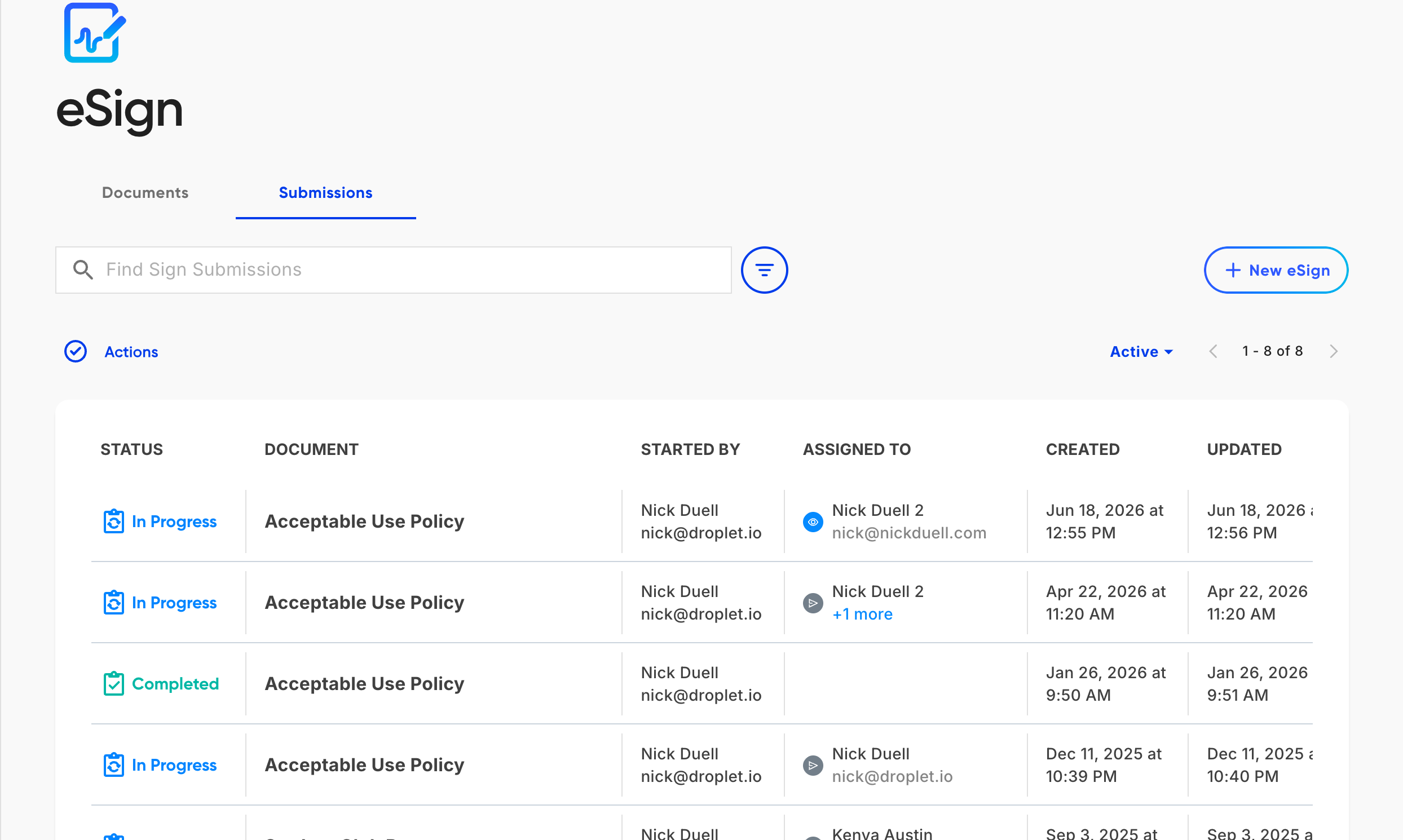
The Submissions tab tracks every sent document, its status and progress in one cell, and its signers.
- In Progress
- At least one signer still has to act. The document is live and waiting, and the cell shows a progress ring for how much of the signing is done.
- Completed
- Everyone has signed. The document is final and the signed PDF is ready to download.
- Rejected
- A signer declined to sign, so the document stopped there.
- Voided
- The document was voided before everyone finished. Voided is reported as its own status, so a voided document is never mixed in with genuinely rejected ones, including when it is part of a packet.
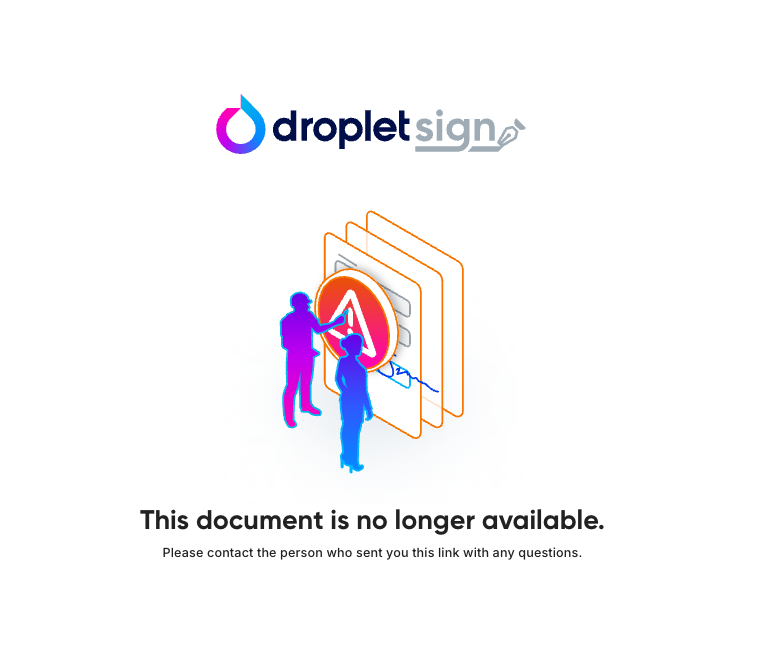
You will no longer be able to view a submission that is voided. Voiding is an irreversible action, but the data can still be pulled through a CSV export.
Opening a voided submission, you will see this error message:
To see exactly where each person stands, click the assignee in the Assigned to column. A small panel shows each signer's state: Sent (emailed, not yet opened), Viewed (opened but not finished), or Completed.
Send a reminder
When a document is sitting in progress, send a reminder to nudge anyone who has not finished. You can review and edit the subject and body before it goes out, and you will not bother people who have already signed.
On the Submissions tab, select the documents you want to nudge. Reminders apply to documents that are still In Progress.
Open the Actions menu and choose Remind. An editor opens, pre-filled with the reminder subject and message.
Adjust the subject and body if you want to add context, then send. eSign delivers the reminder to every signer who still has an outstanding step.
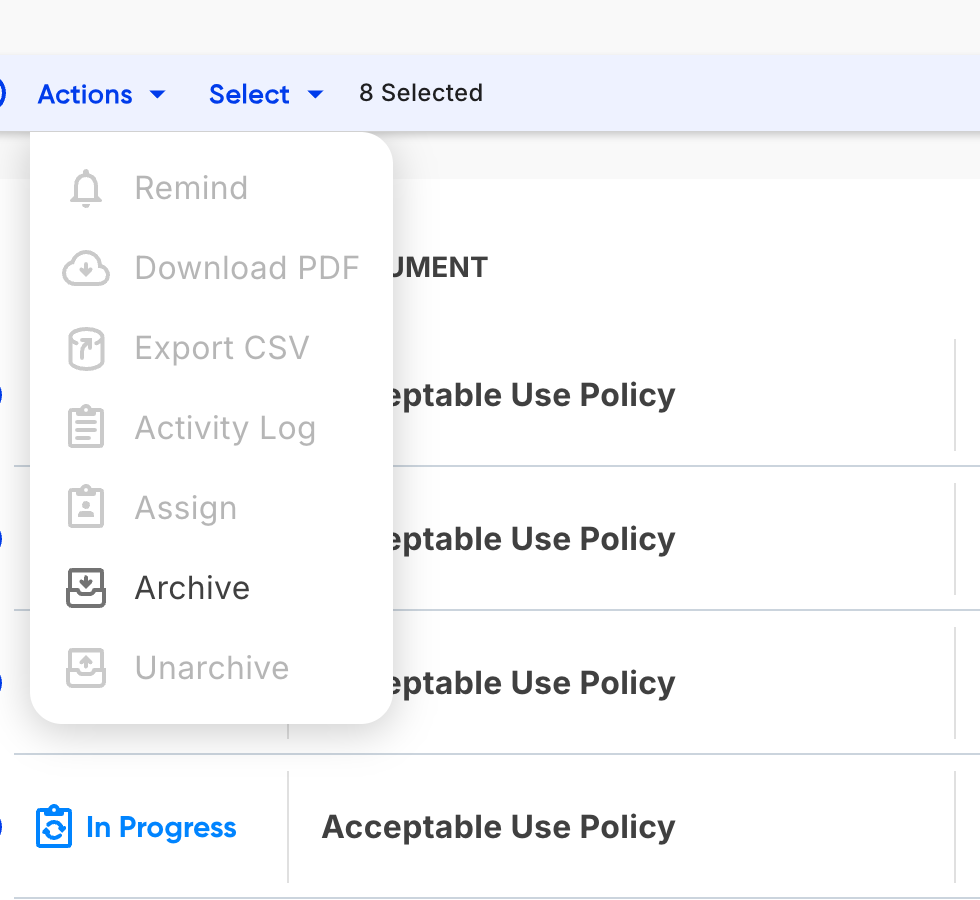
The Actions menu. Remind becomes available when the selected documents are in progress, and opens the reminder so you can edit the subject and body before sending.
Remind only works on in-progress documents. If your selection includes any that are already completed or archived, Remind is unavailable. Narrow the selection to in-progress documents and it activates.
Download the signed document
Once a document is Completed, download the signed PDF, every signature stamped in place, from the Actions menu (Download PDF) or from the document's own three-dot menu. You can also Export CSV to pull the data captured across documents into a spreadsheet.
Other things you can do here
- Activity Log
- Open any document's three-dot menu and choose Activity Log for the full audit trail: when it was sent, viewed, signed, and by whom. This is your record that a document was properly executed.
- Assign
- Reassign an in-progress document's signer, useful when an email was wrong or the wrong person was addressed.
- Archive
- Tuck finished or abandoned documents out of your active list with Archive, and bring them back with Unarchive.
FAQ
Does a reminder email everyone again?
No. A reminder only goes to signers who still have an outstanding step. Anyone who has already completed their part is not contacted.
Can I change what the reminder says?
Yes. Choosing Remind opens the reminder with the subject and body pre-filled, and both are editable before you send. If you do not need to change anything, send it as is.
Why is Remind greyed out?
Remind is available only for documents that are In Progress. If your selection includes completed or archived documents, the action is disabled. Reduce the selection to in-progress documents and it becomes available.
How do I tell who has and hasn't signed?
The status cell shows a progress ring while a document is still in flight, which tells you at a glance how much signing is left. For the details, click the assignee in the Assigned to column on the Submissions tab. Each signer shows as Sent, Viewed, or Completed, so you know exactly who to follow up with.
Where do I get the signed copy?
When the document's status is Completed, use Download PDF from the Actions menu or the document's three-dot menu to download the signed file.
Related: Create and send a document for signature and eSign Bulk Send.