eSign Fields and Display Rules
Place signature, text, date, and choice fields on your document, control how each one behaves, and show or hide fields based on what a signer chooses.

Requires DropletSign. eSign is part of DropletSign, a separate product from Droplet Forms. If you do not see an eSign tab in your left navigation, your organization has not added it yet. See What is DropletSign?.
Fields live on the Document tab of the eSign editor. Pick a signer from the assignee selector at the top of the palette, then drag a field onto the page. Every field belongs to one signer and takes on that signer's color, so it is always clear who fills in what.
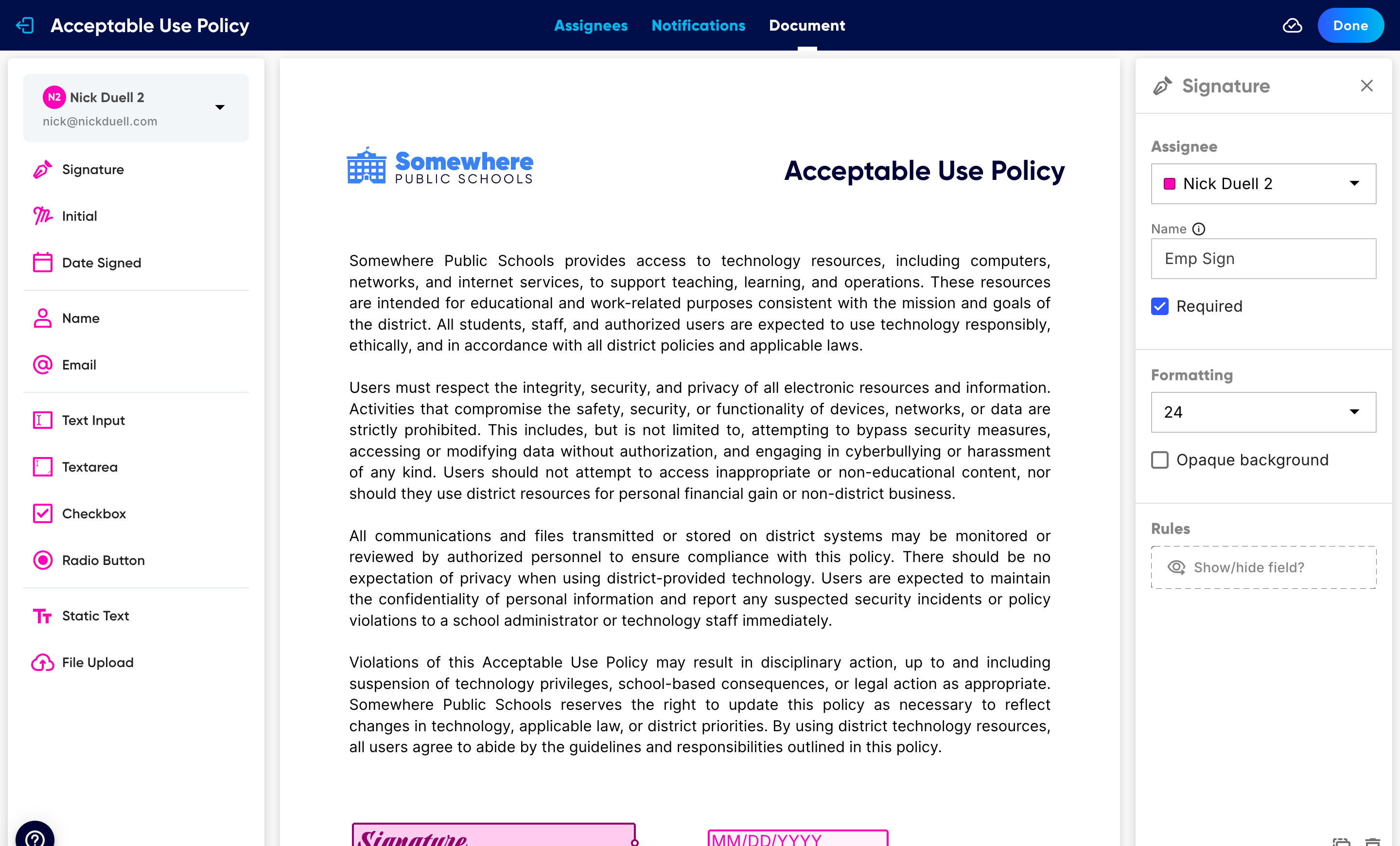
Drag a field from the palette onto the document. Click any placed field to open its settings.
The field types
- Signature and Initial
- Where the signer draws or types their signature, or just their initials. The cornerstone of any eSign document.
- Date Signed
- Fills in automatically with the date the signer completes the document, so you never chase a handwritten date.
- Name and Email
- Capture the signer's full name and email address, prefilled from who they are where possible.
- Text Input and Textarea
- Free-text fields. Use Text Input for a short value on one line (a title, an ID number) and Textarea for longer, multi-line responses.
- Checkbox
- A single box the signer ticks, for an acknowledgement or opt-in. Pair it with a display rule to reveal more fields when it is checked.
- Radio Button
- A set of options where the signer picks exactly one. Great for "Agree / Disagree" or selecting one of several choices that then drives what else appears.
- Static Text
- Fixed text you add on top of the PDF (a label or instruction). The signer cannot edit it.
- File Upload
- Lets the signer attach a file along with the document, such as a photo of an ID or a supporting form.
Field settings
Click any placed field to open its settings on the right. The options change a little by field type, but the common ones are:
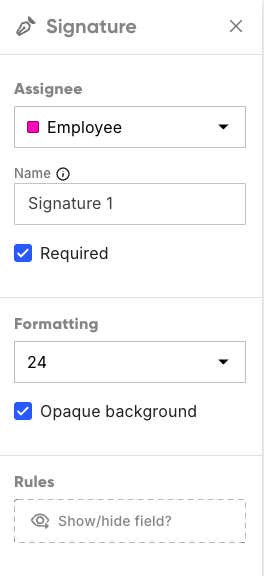
A field's settings: who it belongs to, whether it is required, its size, its background, and its display rules.
- Assignee
- Which signer this field belongs to. Switch it here to hand a field to a different person without redrawing it.
- Required
- When on, the signer cannot finish until they complete this field. Turn it off for optional fields.
- Name
- A label used by screen readers and other assistive technology. It does not show on the page, but it keeps the document accessible, so give each field a clear name.
- Formatting
- Sets the font size for what the signer types, so a typed value matches the surrounding document.
- Opaque background
- Controls whether the field is see-through. Off (the default) keeps the field transparent so the PDF underneath shows through, which is ideal when you place a field directly over an existing line or box on the page. On gives the field a solid white background, which cleanly covers up whatever is beneath it, handy for blanking out an old value or a printed line.
Use Duplicate Field to copy a field, with all of its settings, instead of building the same field again on another page or for another signer.
Show or hide fields with display rules
A display rule makes a field appear only when it is relevant, based on what the signer entered in another field. For example, reveal an explanation textarea only when someone chooses "Disagree", or show an extra signature only when a checkbox is ticked.
Select the field you want to control, then under Rules click Show/hide field?.
Decide whether the field should Show or Hide when the condition is met.
Pick the Component that drives the rule (often a checkbox or radio button) and the value to match. Use Add Condition to require more than one, then Apply Rules.
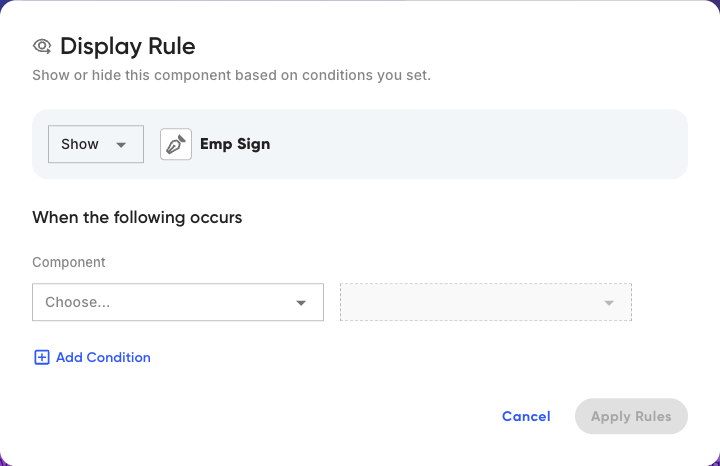
A display rule shows or hides a field based on another field's value, with one or more conditions.
Display rules read best when the controlling field comes first on the page, so the signer answers it before the conditional field would appear. Checkboxes and radio buttons make the clearest triggers.
FAQ
What is the difference between a checkbox and a radio button?
A checkbox is a single box that is either ticked or not, good for one acknowledgement. Radio buttons are a group where the signer chooses exactly one option. Use radio buttons when there are several mutually exclusive choices.
When should I turn on Opaque background?
Turn it on when you need the field to cover what is printed underneath it, for example to blank out an existing line or a pre-filled value. Leave it off (transparent) when you are placing a field neatly over an existing line or box and want that artwork to still show.
Can one signer's choice change what another signer sees?
A display rule reacts to the value of another field on the document. Whether a later signer sees a conditional field depends on the values captured before they open it, so design the order of signers and fields with that in mind.
Why do my fields have different colors?
Each color matches an assignee. Every field you place is tied to one signer and takes that signer's color, so you can see at a glance who is responsible for each field.