Use Address and Distance Components
Capture validated addresses and calculate driving distances with the Address and Measure Distance components, two premium fields powered by Google Maps.

The Address and Measure Distance components both connect to Google Maps, so they live together as premium fields in the Form Builder. Address collects a clean, validated location in a single field, and Measure Distance turns two of those locations into an accurate driving distance. They are designed to work as a pair: use Address to capture a start and an end point, then drop in Measure Distance to calculate the route between them.
Address
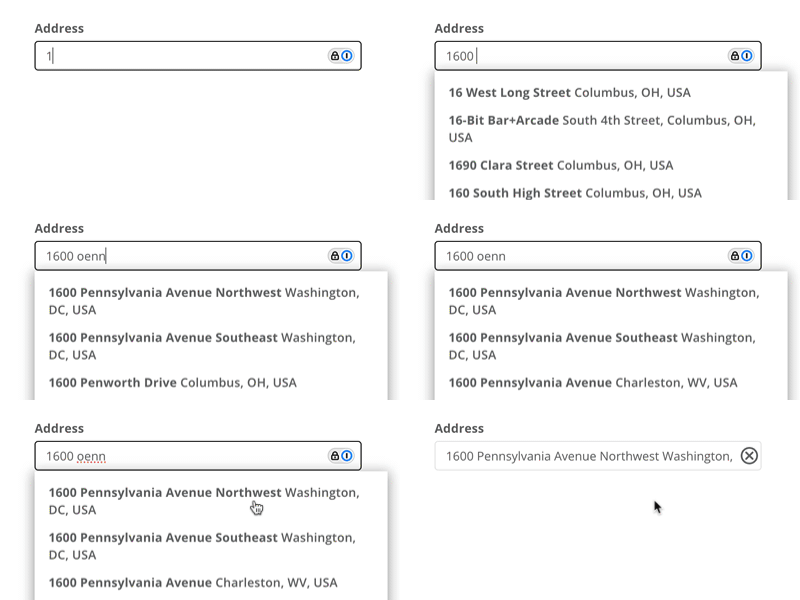
The Address field suggests matching addresses as the submitter types.
The Address component integrates with Google Maps to provide typeahead address suggestions. Instead of separate inputs for street, city, state, and ZIP, it offers one streamlined field that suggests matching addresses as the submitter types. Because Google Maps supplies the suggestions, the Address component:
Speeds up data entry by completing addresses after a few characters.
Reduces errors with automatic spelling and formatting validation.
Replaces several separate text fields with a single, consistent input.
Note: The Google Maps integration does not include zip codes at this time. If you are using this component for mailing purposes, we would recommend adding another input requesting the zip code specifically.
Properties
- Label
- The text displayed above the field.
- Placeholder
- Hint text shown inside the empty field, such as "Start typing a street address." It appears in the Form Builder, in Preview, and when someone fills out the submission.
- Required
- When enabled, the submitter must enter a valid address before submitting.
Address also has the shared Width, Visibility, Show/Hide, validation, Hint, Tooltip, Name, and ID options found on other fields.
Add two Address fields - one for a start location and one for an end location - then drop in a Measure Distance component to calculate the route between them automatically.
Measure Distance
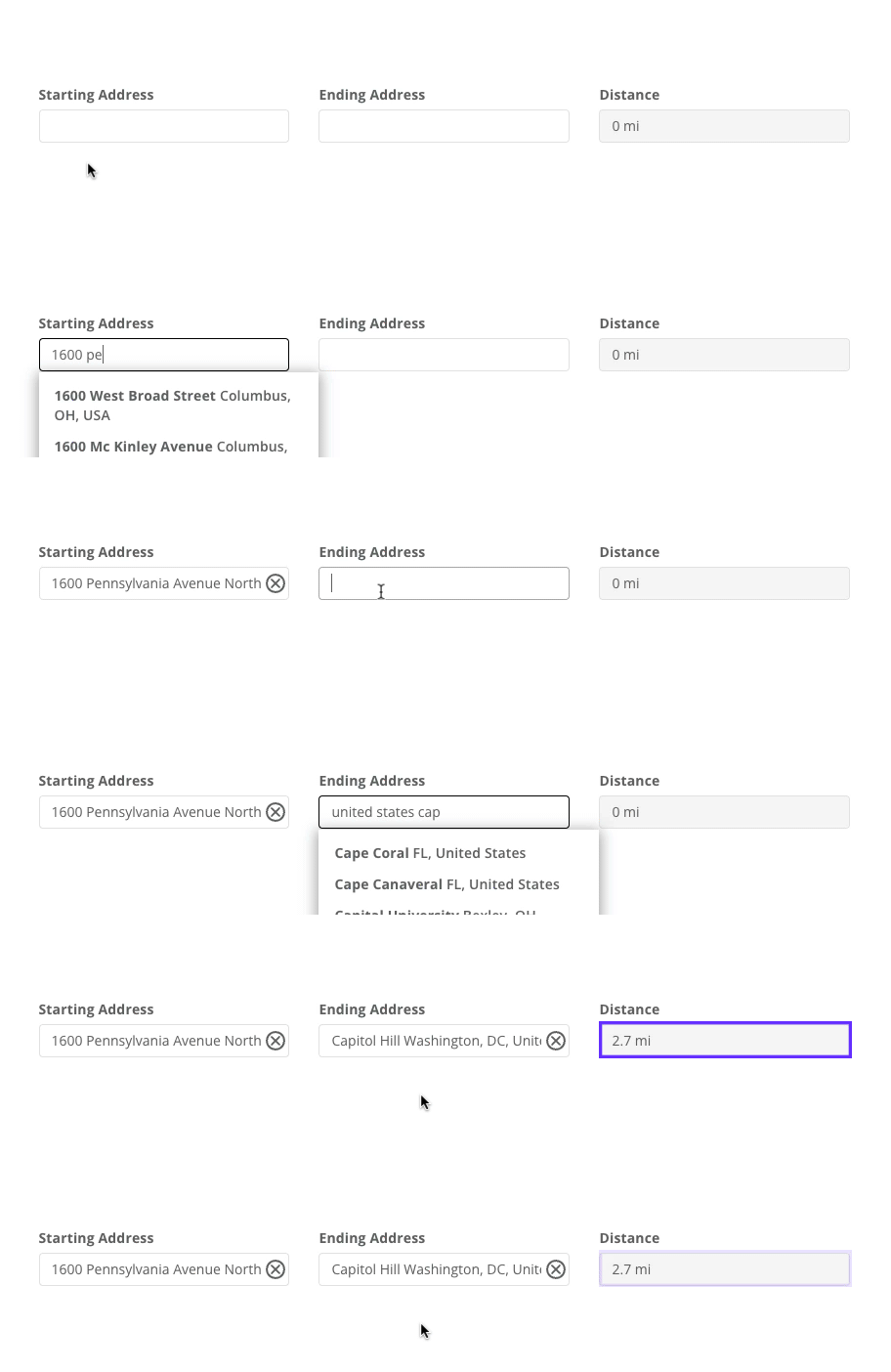
Measure Distance calculates the driving distance between two address fields.
The Measure Distance component automatically calculates the shortest driving distance between two points. It connects to Address components, or to Computed components that return addresses, making it ideal for any form that needs a distance - mileage reimbursements, field trip requests, or transportation planning.
Properties
- Label
- The text describing the measured distance - for example, "Travel Distance."
- Start Location
- The field that supplies the starting point of the measurement.
- End Location
- The field that supplies the ending point of the measurement.
- Unit
- The unit for the calculated distance, either miles or kilometers.
To use addresses inside a Table, add columns for the start address, end address, and distance, then set the address columns to the Address type and link the distance column to them.
How the Google Maps connection works
Address and Measure Distance are the only parts of Droplet that use Google Maps. There are no maps, pins, or location lookups anywhere else in the product. Each component uses a different Google service:
Address uses Google's Places Autocomplete service to suggest matching addresses as the submitter types.
Measure Distance uses Google's Distance Matrix service to calculate the driving distance between the two locations.
Neither request is made by the submitter's browser. When a submitter types into an Address field, the browser sends the text to Droplet, and Droplet's own servers ask Google for suggestions and pass the results back. The distance lookup works the same way. The submitter's browser never connects to Google, Google places no cookies on the submitter, and Google does not see the submitter's IP address.
While the submitter types
Suggestions appear a fraction of a second after the submitter pauses typing, and only when the field has text in it. Each suggestion shows the street address in bold, followed by the city and state. Picking a suggestion fills the field with that address and quietly remembers which exact place Google matched, so a later distance calculation can route to that precise location instead of re-interpreting the text.
A submitter can also type an address in full without picking a suggestion. Droplet accepts whatever they typed, but Google then has to interpret the text on its own, and an incomplete or ambiguous address may be matched to the wrong place. Selecting from the dropdown is the most reliable way to fill the field.
When the distance is calculated
Measure Distance calculates as soon as both of its linked fields contain at least five characters, and it recalculates whenever either address changes. Five characters is the length of a ZIP code, so a ZIP code on its own is enough to produce a distance. Google measures from a representative point within that ZIP code, so full street addresses give the most precise result. While a calculation is running, the field shows a brief loading indicator, then displays the result.
When a saved submission is reopened, a distance that was already calculated is not recalculated. The stored value is shown as it was, and a fresh calculation only runs if someone changes one of the addresses.
What is shared with Google, and what Droplet keeps
Organizations sometimes ask what leaves Droplet when these components are used. The answer is deliberately narrow.
Sent to Google
From Address: the characters typed into that one field, plus a session token. The token is a timestamp created in the browser when the field loads, and it exists only so that a burst of keystrokes counts as a single lookup.
From Measure Distance: a start point and an end point. If the submitter picked an address from the dropdown, Droplet sends Google's own Place ID for it. If they typed the address by hand, Droplet sends the text as entered.
Droplet does not send the submitter's name, email address, location, organization, the form name, or the submission ID. Google receives an address fragment and nothing that identifies who typed it.
Kept by Droplet
Each suggestion is reduced to three pieces: Google's Place ID, the bold first line, and the second line. The list exists only while the dropdown is open and is discarded as soon as it closes.
From the distance lookup, Google returns a distance and an estimated travel time. Droplet keeps the distance and discards the travel time.
Saved on the submission
Only two values are written to the submission, and they are what appear in exports and PDFs:
The address, as plain text.
The distance, as a plain number.
The Place ID is held in the browser's memory only for as long as the form is open. It is never written to the submission and never appears in an export.
Reading the distance
A few details help when reviewing the number Measure Distance produces.
It is a one-way driving distance. The value is the length of the shortest driving route between the two addresses, the same way a mapping app would route a car. It is not a straight-line distance, it is not a round trip, and it does not change with traffic or time of day.
Short trips show one decimal place. Distances under a mile appear as a decimal, such as 0.4, matching how Google reports miles.
A value of 0 means Google could not route between the two addresses. Usually one of them was typed by hand and Google could not match it to a real place. Ask the submitter to clear that field and pick the address from the dropdown, and the distance will recalculate.
The same two addresses can produce slightly different results over time. Google's road data and routing are continually updated, so a distance calculated today may differ a little from one calculated months ago. Because Droplet routes to the exact place the submitter picked, this variation is small, but it is normal.
Need a round-trip figure or a reimbursement amount? Add a Computed component and reference the distance field's ID in its formula, for example distance * 2 for a round trip, or multiply by your per-mile rate.
FAQ
Does Google learn anything about the person filling out the form?
No. Google receives the address text and nothing else. Droplet's servers make the request on the submitter's behalf, so Google never sees the submitter's IP address, cannot set cookies in their browser, and is not told who they are, which organization they belong to, or which form they are completing.
Why doesn't the suggested address include a ZIP code?
Google's suggestions list the street address, city, and state without the ZIP code. If you need the ZIP code for mailing, add a separate short text field for it.
Can I measure the distance between two ZIP codes instead of full addresses?
Yes. Measure Distance starts calculating once both fields contain at least five characters, and Google can route between two ZIP codes. The result is measured between representative points within each ZIP code, so it is less precise than a street-to-street measurement.
Will the distance change if someone edits an address on a later step?
Yes. Any change to either linked address triggers a fresh calculation, and the new distance replaces the stored value. Opening the submission without changing an address leaves the stored distance as it is.