View and filter submissions
Find submissions across your organization using saved views and the filtering tools on the Submissions page.
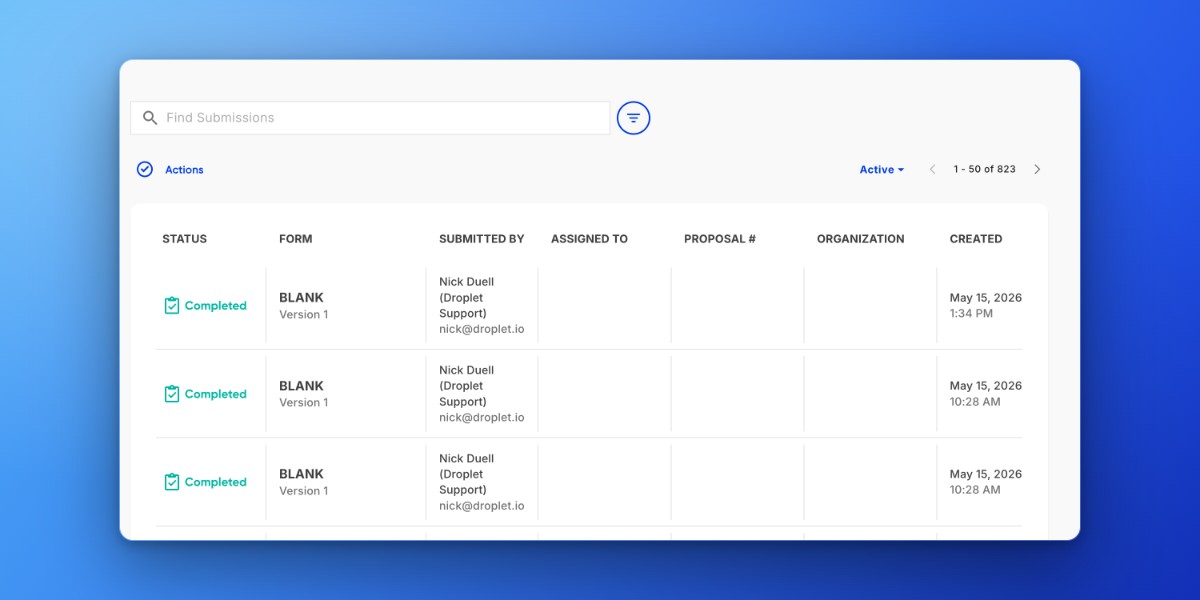
New My Assignments, My submissions, and All Submissions used to be separate nav items; they are now one Submissions page, and the scoping lives in the views instead.
Submission views
Submissions displays every submission in your organization that you have permission to view. Use this page for broad searches, bulk actions, and cross-form filtering. If you don't have permission to see other users' submissions, this page shows only the ones you initiated or that are currently assigned to you.
Submissions remembers your filters, search text, and sort order as named views, so you no longer need to keep a set of browser bookmarks. Two built-in views ship with every organization:
- My Submissions
- Shows only the submissions you personally initiated. Use this to check the status of forms you've filled out.
- My Assignments
- Shows submissions that are currently waiting for your action - whether that's approving, rejecting, or completing a workflow step. Once you take action on a submission, it is removed from this view.
The built-in views sit in the views list alongside any custom views you've saved, and they are yours to change: you can rename them and save new filters over them. You can't delete them.
Private saved views
Alongside the built-in views, you can save your own private views. Set up the filters, search text, and sort order you want, then save them as a named view. A single Save button handles both cases: it opens the Save view dialog, where you can overwrite the view you're on or pick Create new view and give it a name. From the views list you can:
Create a new view from the filters and sort currently applied.
Update a saved view after you change its filters, search text, or sort order.
Rename a view.
Delete a view. This applies to your own views; the built-in My Submissions and My Assignments views can't be deleted.
Bookmarks still work The URL query remains the source of truth for filters, search, and sort, so any bookmarks or deep links you saved before this change continue to open the same results. Old /assignments and /submitted links land where they always did, filters and all, even through a login round trip.
Filter submissions
Go to the Submissions page and select a view, such as My Submissions.
Above the results, click the Filters icon.
Select a filter category, such as Status, Form, Assigned To, Submitted By, Date, or any Custom Columns you've added.
Choose a value and click Add Filter.
To keep the combination for later, save it as a view.
New The Assigned To and Submitted By filters used to be available only on All Submissions. They now work in every view, including My Submissions and My Assignments.
The Date category filters for submissions that fall between two dates using the Beginning on and Ending on fields. These fields were previously labeled Created After and Created Before.
You can apply multiple filters at the same time to narrow your results further. The search field sits on the page above the results and is always visible, so you can start typing without opening anything first.

Use the Filters menu above the results to narrow submissions by status, form, assignee, and more.
Tool Tip: We've added keyboard shortcuts to the Submissions page! Press / to jump to the search field or F to open the filter menu.
Sort submissions
Click a column header to sort the submissions list. Sortable columns include:
Status
Created
Updated
Custom Columns
Click the same header again to reverse the sort order. The sort order is stored with the view, so saving or updating a view keeps the sort you chose along with its filters and search text.
New The Status column now combines status and progress in a single cell. Submissions that are still moving through a workflow show a live progress ring with workflow step information. Submissions that have landed on a final status show a status icon instead. This applies to the Packets, Submissions, and eSign Submissions tables, so you can see how far along an item is without opening it.
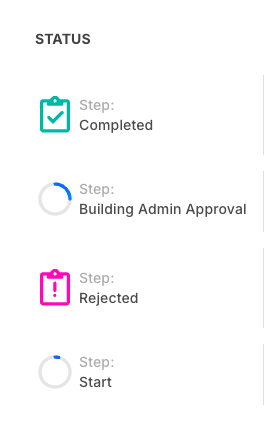
Filter by status
Submissions in Droplet have one of the following statuses:
- Not Started
- The submission has been created but no data has been entered yet (draft).
- In Progress
- The submission is actively moving through a workflow and is waiting for someone to take action. These submissions show a progress ring in the Status column.
- Completed
- The submission has passed through all workflow steps and is finalized.
- Rejected
- The submission was declined by a reviewer during the workflow.
- Voided
- An eSign submission that was voided before it was signed. Voided eSign submissions inside a packet now report as Voided rather than Rejected, so you can tell them apart from items a reviewer actually declined.
- Archived
- The submission has been manually archived by an administrator or manager.
To find submissions that may need attention, filter by In Progress status and sort by date to surface older items that haven't moved forward, then save the result as a view so it is one click away next time.
Use the Insights page as a shortcut
If you have access to the Insights page, you can click the status cards on the dashboard to jump directly to a pre-filtered view of submissions. For example:
Click the In Progress card to see all in-progress submissions.
Click the Ongoing card to see in-progress submissions created more than one week ago.
Frequently asked questions
Why can't I see a submission I'm looking for?
Your view is limited by your role and permissions. If you can't find a submission, try logging out and back in. If the issue persists, contact your organization's Droplet administrator to check your account permissions.
Can I search for a specific submission?
Yes. Use the search field above the results, which is always visible on the page, to search by keywords, names, or other identifying information. Your search text is saved along with the view.
Do my old submission bookmarks still work?
Yes. Filters, search text, and sort order still live in the URL query, so existing bookmarks and deep links open exactly the same results, including the old /assignments and /submitted links. You can also save those combinations as named views instead of keeping bookmarks.
Where do I find rejected submissions?
Go to Submissions, click Filters above the results, select Status, and choose Rejected. If you are looking for an eSign submission that was voided, choose Voided instead. Voided eSign submissions inside a packet are no longer reported as rejected.