Use Validation Rules
Prevent form submission until specific conditions are met - like checking that a value is in range, an email matches a domain, or a required acknowledgment is checked.

What are Validation Rules?
A Validation Rule is an expression attached to a form field that must evaluate to true before the form can be submitted. If the rule evaluates to false, the submitter sees an error message on that field and cannot proceed until the field meets the criteria.
Validation Rules go beyond the basic Required toggle. While Required simply checks that a field isn't blank, a Validation Rule can enforce specific formats, ranges, cross-field comparisons, and business logic.
Keep in mind that the two settings interact. If a field is both marked Required and has a Validation Rule, the Validation Rule takes precedence: when the rule passes, the submitter can leave the field blank and still submit the form, even though the red asterisk (*) shows on the label. If a blank value should never be accepted, either use Required on its own or make sure your expression also fails on empty values, for example value !== '' && value.endsWith('@yourdistrict.org').
Common uses include:
Ensuring an email address belongs to your organization's domain
Verifying a dollar amount matches an expected total
Requiring that a True/False acknowledgment is checked
Checking that a date falls within an acceptable range
Confirming that table row totals add up correctly
Add a Validation Rule to a field
In the Form Builder, select the component you want to validate.
In the Properties panel on the right, click the Validation Rule icon.
Write your expression, or use click Switch to Code and use Droplet AI to generate one from plain language.
Click Apply Rule, then save your form.
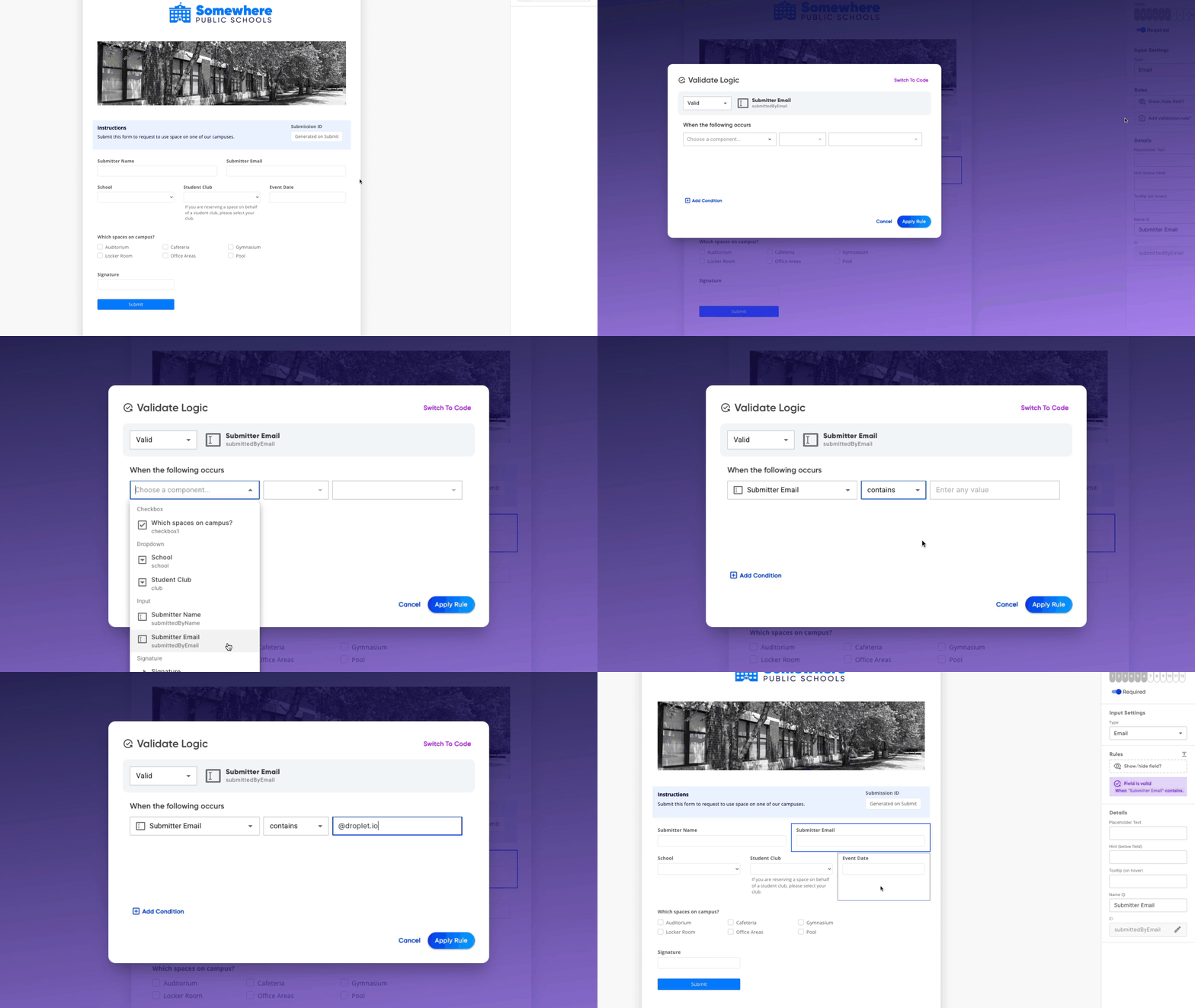
TIP Validation messages now appear on the field itself. When a rule fails, that individual component shows an error message that screen readers and keyboard users can reach.
Write a Validation Rule expression
Use value to refer to the current field's entry, and reference other fields by their component ID, just like in formulas. A Validation Rule expression must return true when the field value is valid, and false when it is not.
NOTE Expressions run in a hardened evaluator. eval and the Function constructor are blocked, so write your rules as plain expressions using the supported operators and functions.
Common examples
- Email must match a domain
-
Returns true only if the entered email ends with your domain.value.endsWith('@yourdistrict.org') - Number must be within a range
-
Returns true only if the value is between 1 and 100.value >= 1 && value <= 100 - True/False must be checked
-
Returns true only when the checkbox is checked. Use this to require acknowledgment on a True/False component, which does not have a built-in Required toggle.value === true - Field must match another field
-
Returns true only if this field's value matches the confirmEmail field. Useful for "confirm your email" patterns.value === confirmEmail - Table column totals must match an expected value
-
Validates that the sum of an amount column matches a total entered elsewhere on the form.sum(amount) === fromCurrency(totalContractValue)
Condition-based Validation Rules
Instead of writing a formula expression, you can build a Validation Rule using a visual condition builder. This is useful when you want to validate based on another field's value without writing code.
Each condition checks:
A field to evaluate (identified by its component ID)
A comparator - such as equals, not equals, contains, or includes
A value to compare against
You can combine multiple conditions. The field is valid when all conditions are met.
Make validation conditional
Sometimes a Validation Rule should only apply under certain circumstances. For example, you might require a driving amount field only when the mileage type is "Personal Vehicle."
To make validation conditional, use a ternary operator that returns true (always valid) when the condition doesn't apply:
mileageType === 'Personal Vehicle' ? value > 0 : trueThis reads as: "If mileage type is Personal Vehicle, the value must be greater than 0. Otherwise, any value is valid."
You can also use isOptional() in your validation expression to mark a field as not required under certain conditions:
equals(nextAction, 'Approve') ? value : isOptional()Validate fields inside tables
Validation Rules work inside table columns too. When writing a rule for a table column, use getCell() to reference other columns in the same row:
getCell(drivingAmount) ? getCell(value) : trueThis validates that the current column has a value only when the driving amount column in the same row is filled in.
Frequently asked questions
What's the difference between Required and a Validation Rule?
Required checks that a field is not blank, and required fields display a red asterisk (*) next to their label so submitters can spot them at a glance. A Validation Rule checks that the value meets specific criteria - like a number being within range or an email matching a domain. You can use both on the same field.
Can I use Droplet AI to write Validation Rules?
Yes. In the Validation Rule editor, type your requirements in plain language and Droplet AI will generate the expression for you.
What happens if a field is hidden by a Show/Hide Field Rule but has a Validation Rule?
Hidden fields are not validated. If a field is hidden, its Validation Rule is skipped and the form can be submitted without it.
Does the True/False component support Required?
No. The True/False component does not have a built-in Required toggle. To require that the box is checked, add a Validation Rule with the expression value === true.