Use the Forms page
Find, filter, and manage the forms in your organization from a single page.
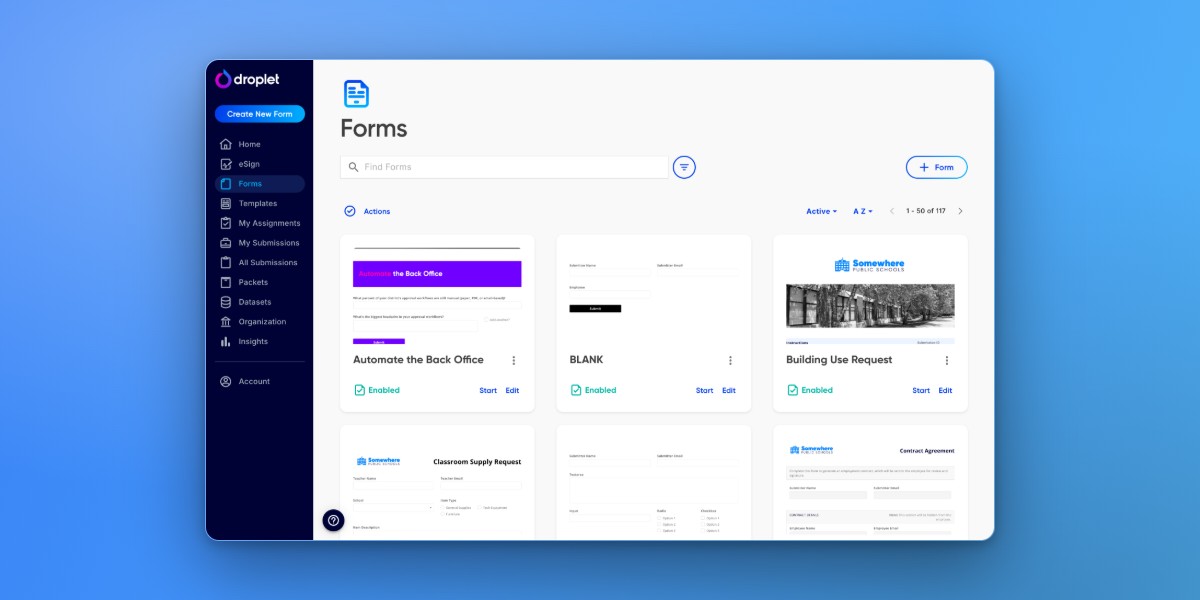
Overview
The Forms page is your central hub for every form in your organization. From here you can start submissions, share form links, manage tags, enable or disable forms, archive unused ones, and open the Form Builder.
What you see on the Forms page depends on your role. Some users see every form in the organization; others see only the forms their role grants access to. A role can also use the Created By This Person condition, which limits form-building permission to the forms that user actually created.
Find and filter forms
Use the search bar at the top of the Forms page to find forms by title. For more targeted results, click Filters to narrow by tag or form status.
Form menu options
Each form card shows key details about the form. Click the ⋯ menu on any form card to access the following options.
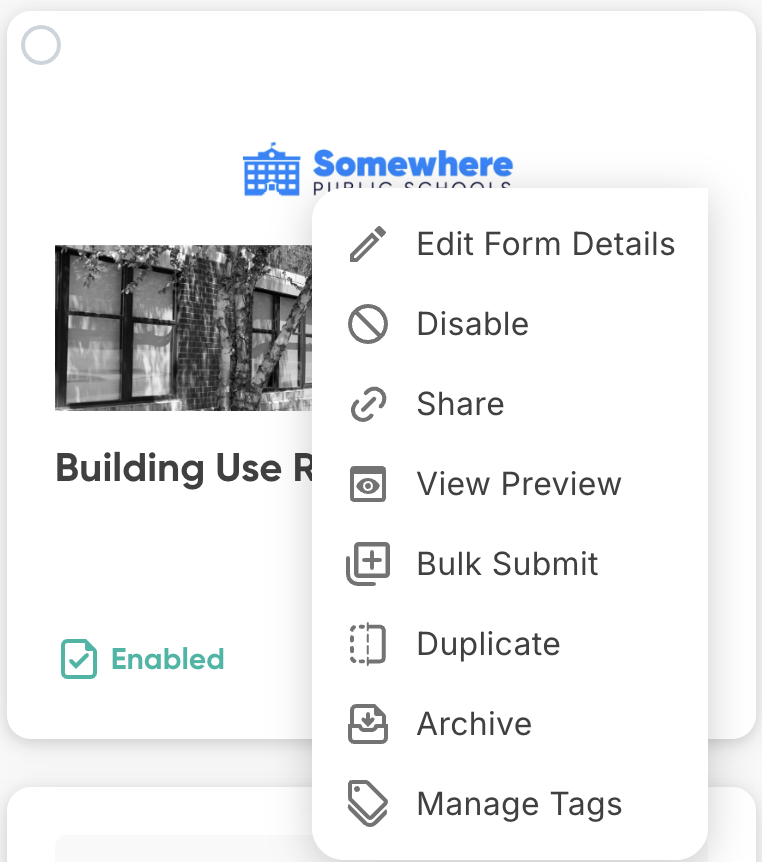
The form card menu with available actions.
- Edit Form Details
- Open a window to change the form's title, description, and sign-in requirements.
- Disable / Enable
- Temporarily turn off submissions for a form. Useful when you only accept submissions during specific timeframes, such as application periods or reimbursement cycles.
- Share
- Copy a shareable link to your clipboard. Anyone who opens the link can start a new submission for this form.
- View Preview
- Open a non-functional preview of the form. Use this to gather feedback or approval before launching.
- Bulk Submit
- Submit multiple submissions at once using a spreadsheet. Ideal for processing large batches efficiently.
- Duplicate
- Duplicate a form.
- Archive
- Move forms that are no longer active out of the default view. Archived forms can be restored later.
- Manage Tags
- Add or remove tags to keep forms organized and searchable by category or project.
Configure sign-in options
Click ⋯ then Edit Form Details to access two sign-in switches that control who can access and submit a form.
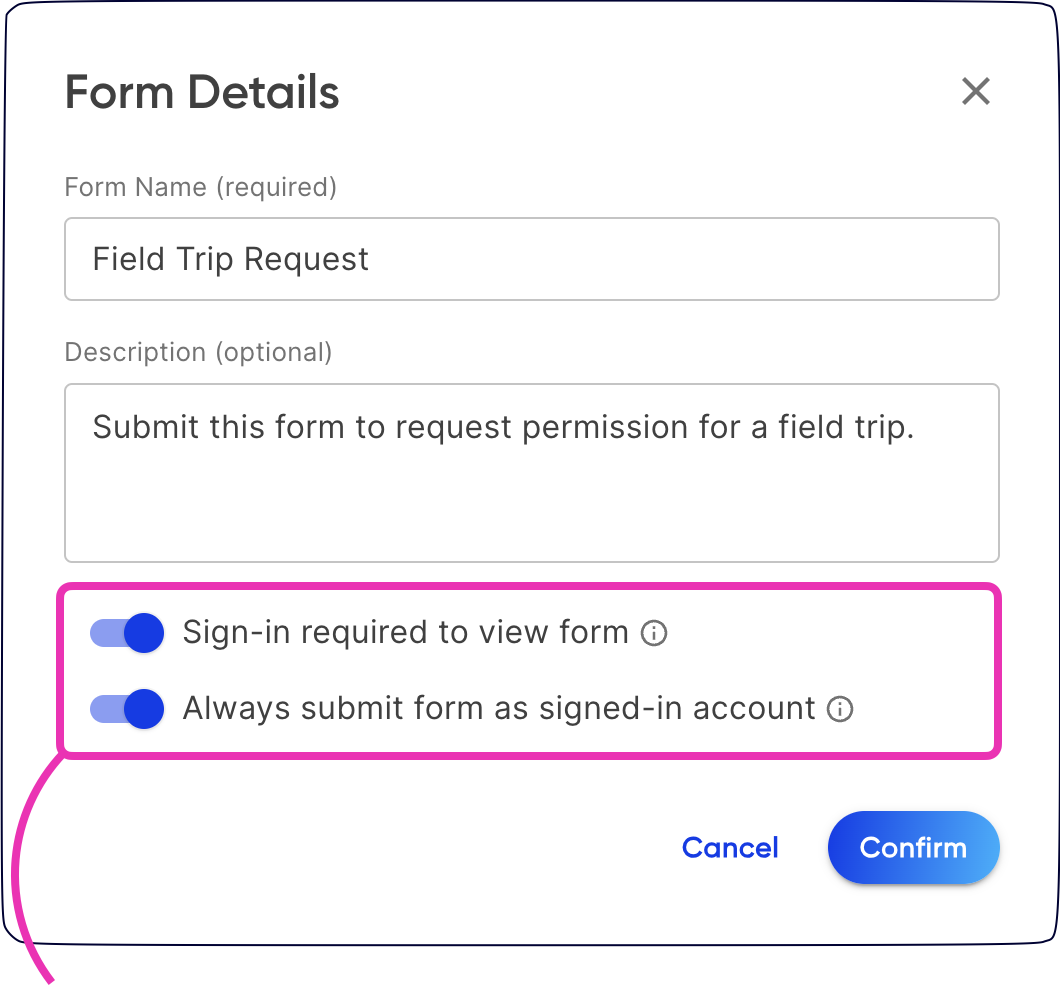
The sign-in options in the Edit Form Details panel.
- Sign-in required to view form
- Limits access to users who are logged into Droplet with your organization's domain.
- Always submit form as signed-in account
- Automatically fills in the submitter's name and email from their Droplet account. This ensures every submission is tied to the correct person.
For internal forms like mileage reimbursements, enable sign-in required. For forms that must come from a specific person like policy acknowledgments, enable both options. For external forms like permission slips or registrations, disable both so anyone can fill them out.
Frequently asked questions
Why can't I see certain forms?
Your role may not have permission to view those forms. A role can also include the Created By This Person condition, which limits you to only the forms you created. Contact your district admin to check your role assignments.
What happens when I disable a form?
No new submissions can be started. Existing in-progress submissions are not affected. You can re-enable the form at any time.
Can I recover an archived form?
Yes. Click Filters, select the Archived status, find the form, and choose Unarchive from its menu.