Use Show/Hide Field Rules
Show or hide parts of your form dynamically based on what the user enters.

What are Show/Hide Field Rules?
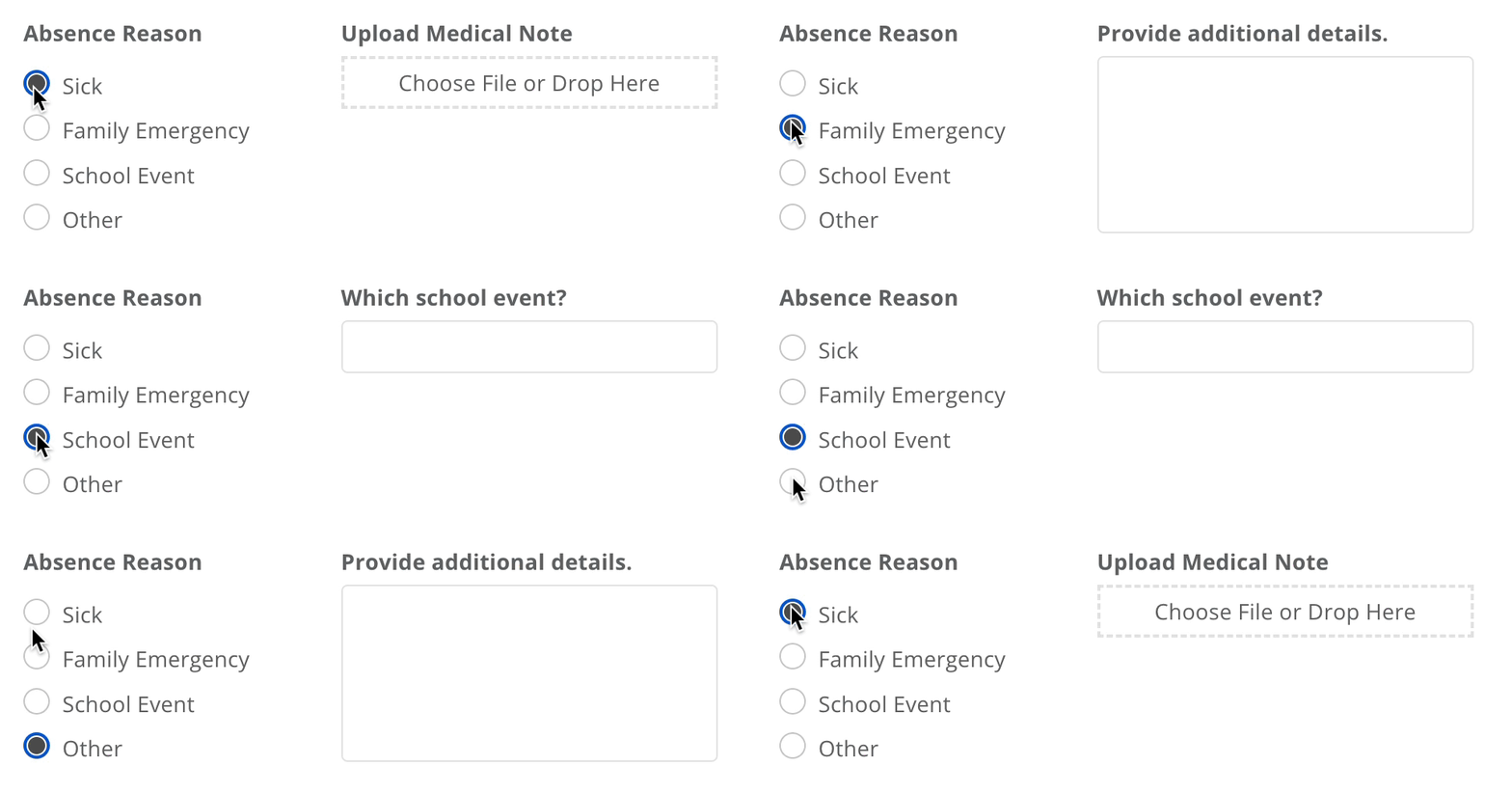
Show/Hide Field Rules determine when a component or group of components should be visible or hidden. If the expression evaluates to true, the component is shown. If it evaluates to false, the component stays hidden. This keeps your form clean and relevant by only showing fields when they're needed.
You can apply Show/Hide Field Rules to individual components or to entire containers like Sections, Groups, and Tiles. If a container is hidden, everything inside it is hidden too.
Add Show/Hide Field Rules to a component
In the Form Builder, select the component you want to control.
In the Properties panel on the right, click the Show/Hide Field Rules icon.
Write your expression using the drop down options, or click Switch To Code to write your own code expression or use Droplet AI to generate one from plain language.
Click Apply Rule, then save your form, then use the Debug feature to test and make sure it is working as expected.
Add Show/Hide Field Rules from the Properties panel to show or hide components conditionally.
Use Droplet AI
You don't need to write expressions manually. Droplet AI can generate them from plain language:
Open the Show/Hide Field Rules window for a component.
Click Switch to Code, then in the pink-shaded box, type the conditions in plain language (for example, "show when absence reason is Sick").
Press Enter and review the generated expression below.
Click Apply Rule to apply it. Save your form, then use the Debug feature to test and make sure it is working as expected.
After testing, if your display logic is not working exactly how you'd like it to, you may need to re-prompt Droplet AI with a bit more specific information in your prompt.
Common examples
- Show if a field equals a value
absenceReason === 'Sick'- shows the component when the absence reason is "Sick".- Show if a multi-select includes a value
additionalDetails.includes('Homework Request')- shows when a multi-select component (like a checkbox) option includes "Homework Request." Other options could be chosen, but we're simply looking to see if one of them is "Homework Request."- Show if a field does not equal a value
school !== 'Athena High School'- shows for every school except "Athena High School".- Show if a field is not empty
isNotBlank(signature)- shows when the signature field has been completed, commonly used so the timestamp component only displays when signature component has something in it.- Always hide a component
false- since Show/Hide Field Rules only show components when the expression is true,falsekeeps it permanently hidden.
Helper Functions
Droplet has a variety of shortcuts (called Helper Functions) to make writing Display Logic easier. Think of them like Google Sheets or Excel functions. Click the link below to view a full guide of our helper functions.
Hidden required fields
If a required field is hidden by Show/Hide Field Rules, it won't be required. Only visible required fields need to be completed before the form can be submitted.
Use the Workflow Tester to test your Show/Hide Field Rules with sample data. The Inputs and Values panel at the bottom of the workflow canvas shows every field's current value, making it easy to debug.