Understand and create Packet templates
Bundle multiple forms into a reusable Packet template for coordinated assignment and tracking.

What are Packets?
A Packet is a bundle of related forms and documents that are assigned and tracked together. Instead of sending forms one at a time, you can group them into a single package - useful for processes like employee onboarding, vendor registration, or compliance reviews that require multiple forms and eSign documents from multiple people.
Packets work in two stages:
Create a Packet template that defines which forms and eSign documents are included and who is responsible for each one.
Start a Packet from that template, assigning real people to each role. Droplet tracks their progress automatically.
Create a Packet template
Click Packets in the left-hand navigation menu.
Select the Templates tab, then click + New Template.
Enter a name for your Packet template in the upper left corner.
Set a Packet subject. This is the label that identifies each Packet instance. For example, for an onboarding Packet, you might use the new employee's name as the subject.
Optionally, add tags to categorize your template - for example, "Onboarding," "Compliance," or "Annual Review." Tags help you filter and find templates later.
Add the forms and eSign documents you want to include. You can add the same form more than once if different people need to fill it out. eSign documents appear alongside forms in your template configuration.
For each form and eSign document, choose a contributor title - this is the role that will be assigned to the item when the Packet is started. You are defining roles at this stage, not assigning specific people.
Configure assignment notifications. Write the subject and body, insert dynamic fields to pull in Packet and form values, and choose recipients: contributors, the Packet initiator, or additional recipients. You can set up notifications for events like form assignment, completion, or rejection.
Customize the filler portal with your organization's logo, title, and instructions.
Click Finish: Create Packet to save the template.
The template autosaves as you work, so you won't lose progress if you navigate away.
Edit, duplicate, or archive a template
On the Templates tab, click the three-dot menu on any template card to access these options:
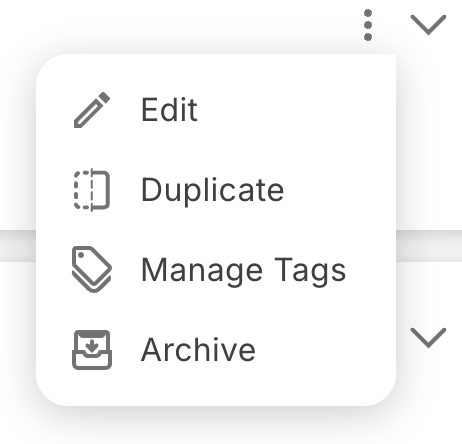
Use the three-dot menu on a template card to edit, duplicate, or archive.
Edit
Opens the template wizard so you can modify forms, eSign documents, contributor titles, notifications, or the filler portal. Notification changes open in the same editor you used when you first built the template, with the same dynamic field and recipient options. Navigate between steps using the Next and Back buttons, then save your changes by proceeding to the final step.
Duplicate
Creates a copy of the template with all settings pre-filled. You'll be prompted to enter a new name. This is useful when you need a similar Packet with minor variations.
Archive
Moves the template to the inactive list. Archived templates can't be used to start new Packets, but existing Packets started from the template are not affected. To unarchive, switch to the Inactive list using the dropdown at the top right and select Unarchive.
Frequently asked questions
What's the difference between a Packet template and a Packet?
A template is the blueprint - it defines which forms and eSign documents are included and what roles are needed. A Packet is a live instance created from that template, with real people assigned to each role.
Can I add the same form to a Packet more than once?
Yes. This is useful when different contributors need to fill out the same form independently.
Does archiving a template affect Packets already in progress?
No. Archiving only prevents new Packets from being started with that template. Existing Packets continue to function normally.
Can I include both forms and eSign documents in the same Packet?
Yes. Packets can include any combination of forms and eSign documents, all assigned to specific contributor roles for coordinated completion.