Start and track Packets
Launch a Packet from a template, assign contributors, and monitor progress as forms are completed.

Start a Packet
Click Packets in the left-hand navigation menu.
Choose how to start:
From the Tracking tab, click Start Packet and select a template.
From the Templates tab, click Start on the template card you want to use.
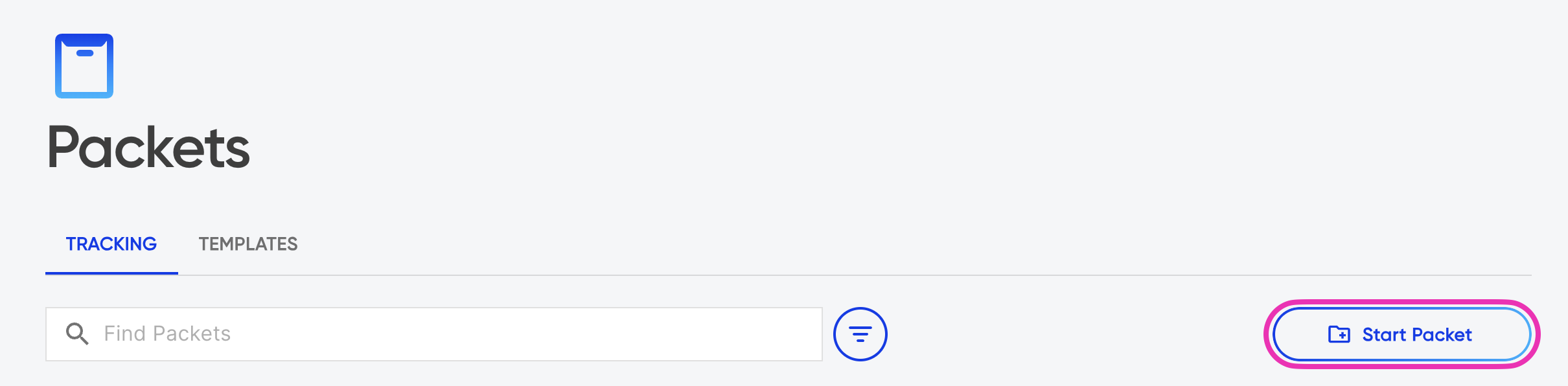
Start a Packet from the Tracking tab or directly from a template card.
The Packet Start Page opens, showing all forms and contributor roles on a single screen. Assign contributors to each role using the dropdown menus on the left. Search by name or email. For external contacts not in Droplet, click Not a Droplet Account and enter their details manually.
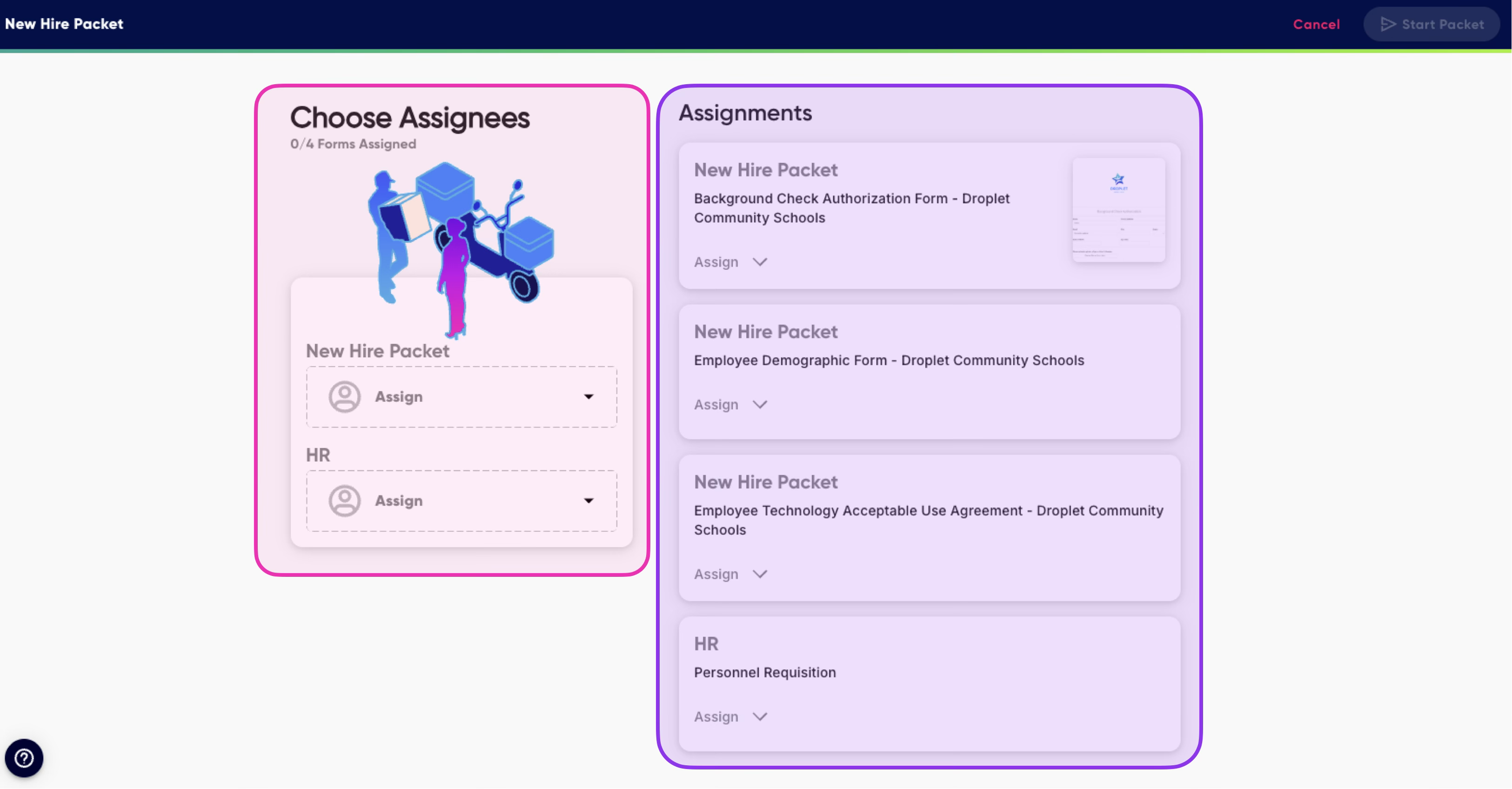
Assign contributors to each role defined in the template.
Review the form assignments on the right side of the window. Green indicators appear next to forms that have been assigned.
The right pane shows which forms are assigned and ready.
One-time adjustments
Before starting the Packet, you can make adjustments that apply only to this instance:
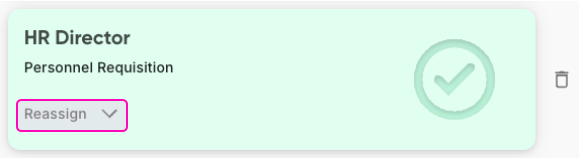
Click Reassign next to a form to change the assignee for this Packet only - useful when a contributor is unavailable.
Click the trash icon to remove a form from this Packet instance without deleting it from the template.
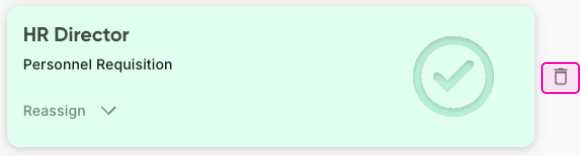
Reassign or remove individual forms before starting the Packet.
Click Start Packet to launch. Droplet assigns all forms and begins tracking progress.
Track Packet progress
After starting a Packet, a new card appears in the Packets tab on the All Submissions page. Status and progress share a single cell: while a submission is still in flight, the cell shows a live progress ring so you can see how far along it is without opening it. Once the submission lands, the ring is replaced by a color-coded terminal-status icon:
Gray - Not started
Blue progress ring - In progress, filled to show how much is complete
Green - Completed
Red - Rejected
Voided - A voided eSign submission inside the Packet, reported as its own status rather than as Rejected
The same combined status and progress cell appears in the Submissions and eSign Submissions tables, so a submission looks the same wherever you track it.

From the Packets view, Packet cards shows the status of every form at a glance.
From the Packets view (above), click the down arrow on a Packet card to expand the view and see individual forms and their statuses. From the expanded view, you can:
Click the three-dot menu next to a form's status and progress cell to take actions.
Click a form name to preview a completed form or edit one that's in progress.
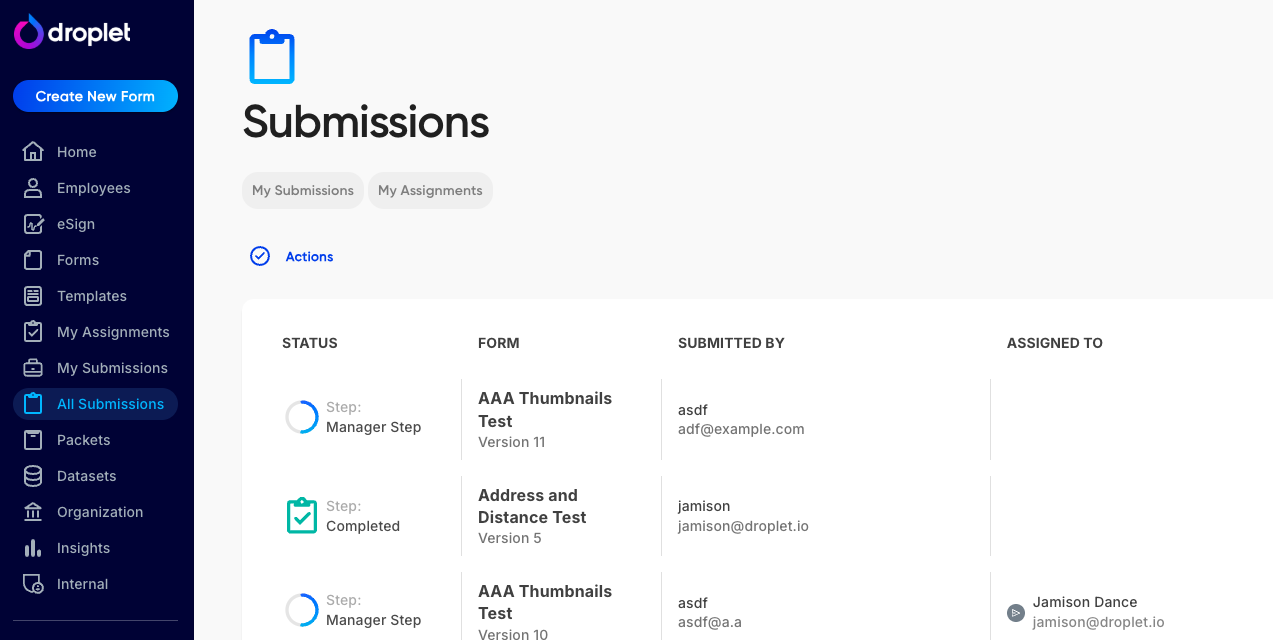
From the All Submissions view, Packet progress is indicated with a blue progress ring.
Find a Packet
Go to All Submissions and select the Packets tab.
Use the Search bar by clicking the magnifying glass icon on the right side to find a specific Packet, or click Filters by selecting the three lines to narrow by Date, Status, Form, Packet Name, Packet Subject, or Tag.
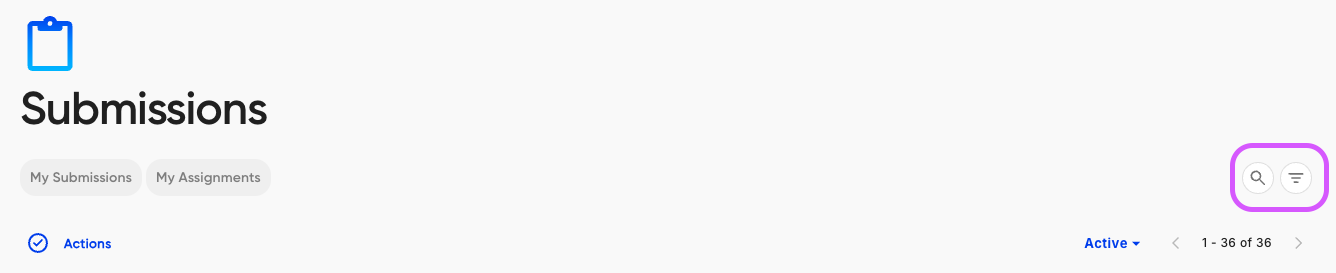
You can apply multiple filters at the same time.
Save a view
When you use the same combination of filters, search text, and sort order regularly, save it as a named view instead of bookmarking the page. All Submissions includes built-in My Submissions and My Assignments views, and you can create your own private views, then update, rename, or delete them. If you delete a view by mistake, you can un-delete it.
The URL still reflects your current filters, search, and sort, so any bookmarks or deep links you already share keep working.
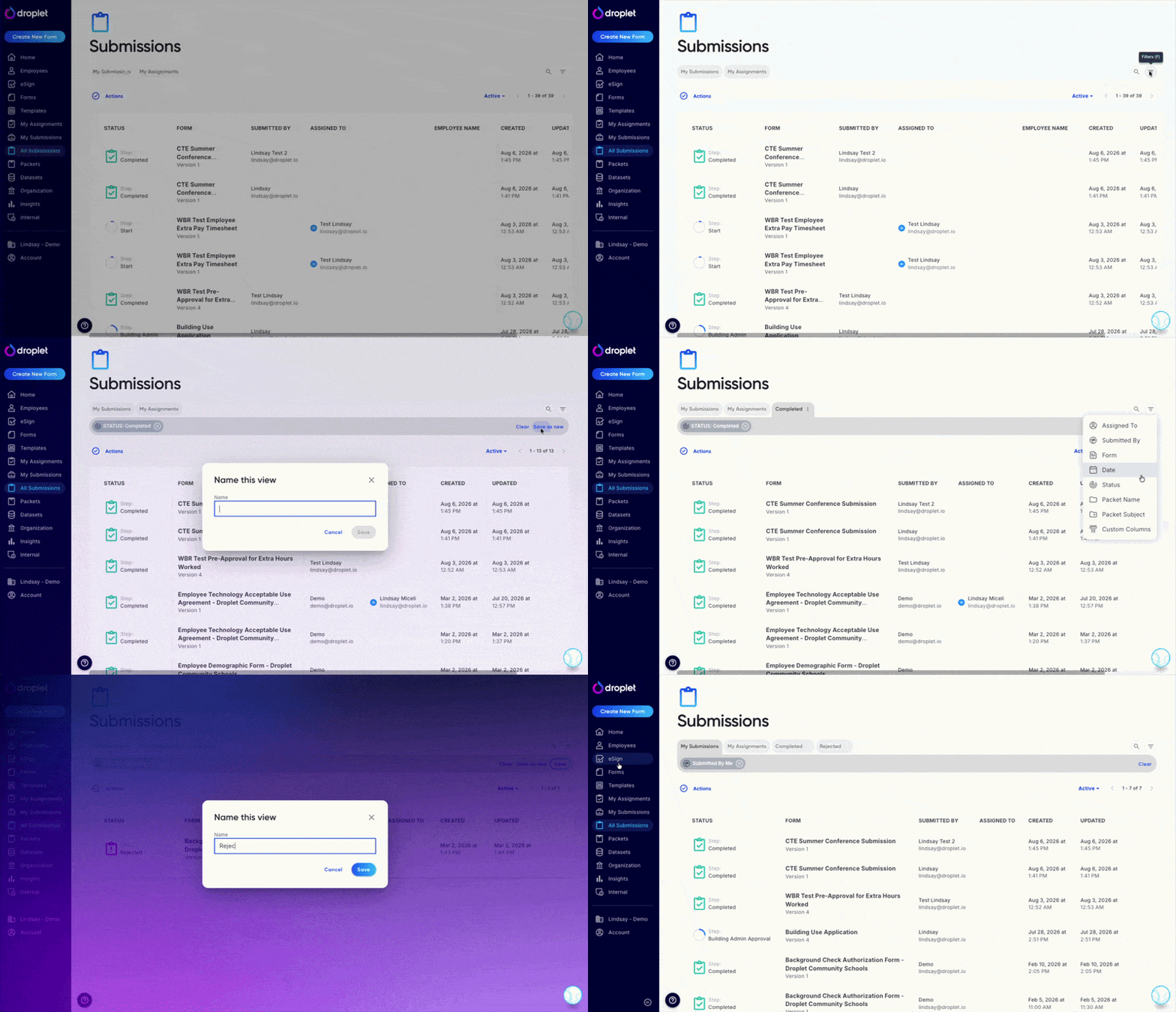
Search, Filters, and saved views sit in the toolbar above the results.
Frequently asked questions
Can I assign external contacts who don't have a Droplet account?
Yes. During the setup step, click "Not a Droplet Account" and enter the person's name and email. They'll receive an email with a link to complete their assigned form(s).
Can I remove a form from a Packet after it's started?
You can only remove forms during the setup step, before clicking Start Packet. Once a Packet is launched, all assigned forms remain part of it.
What's the difference between a rejected and a voided item in a Packet?
Rejected means someone declined the submission. Voided means an eSign submission in the Packet was voided. Voided is reported as its own status, so you can tell it apart from a genuine rejection.
Are saved views shared with my team?
No. Views you create are private to you. My Submissions and My Assignments are built in and available to everyone, but they show each person their own results.
Where do Packet submissions appear?
Individual form submissions within a Packet appear on the All Submissions page like any other submission. The Packet view on the Packets tab provides the grouped, visual dashboard for tracking overall progress.