Add translations
Translate your form into 150+ languages using Google Translate, then fine-tune with a human translator.

Add a language
In the Form Builder, click the three-dot menu and select Translations.
Click + New Language and choose your desired language from the dropdown or by searching.
Droplet automatically generates translations for all form text using Google Translate.
Review the translations and make edits as needed to ensure clarity and accuracy.
Click Save to apply your changes.
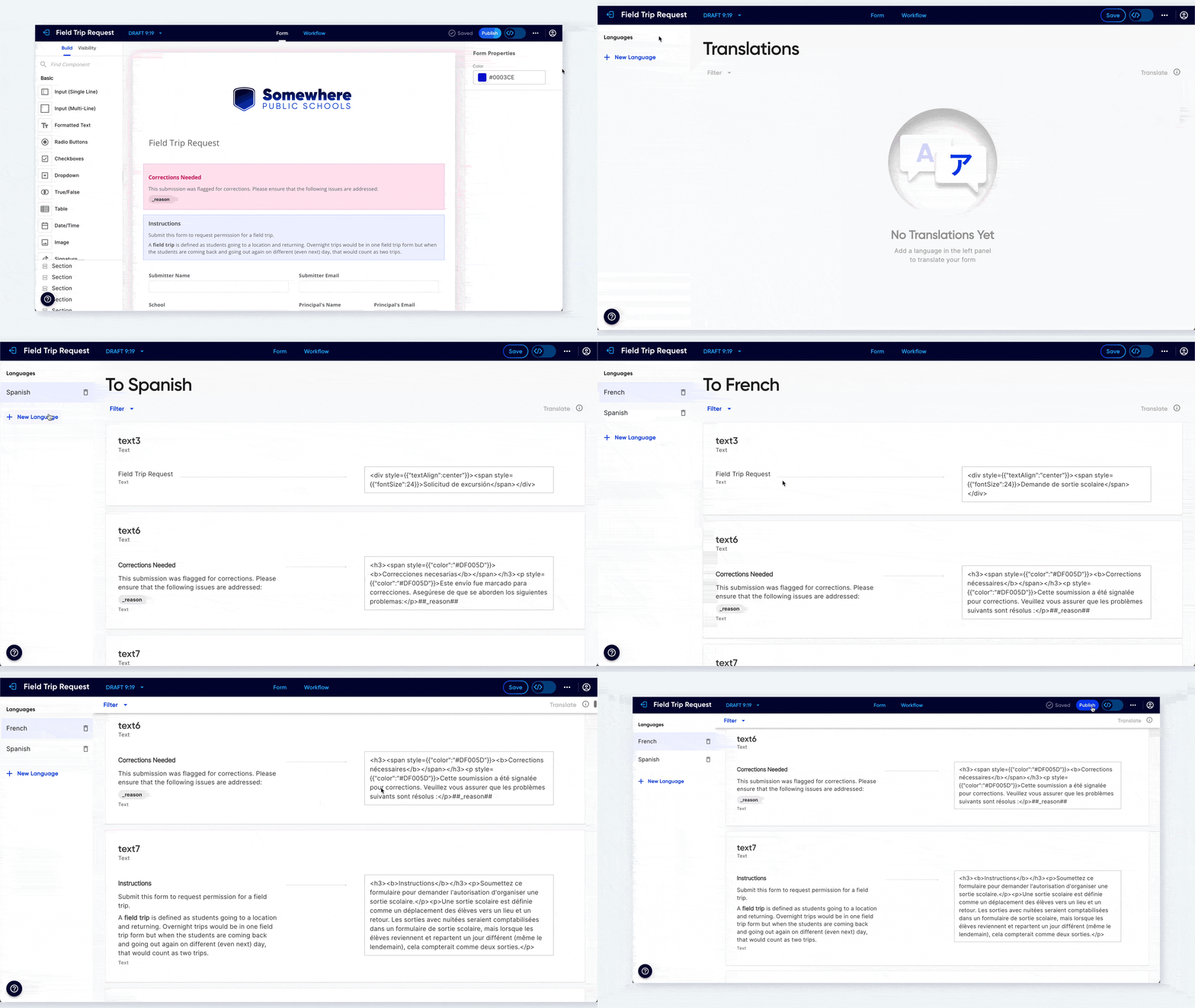
Add a language and review the auto-generated translations.
Add a Language Selector to your form
After adding translations, you need to give users a way to switch languages on the form:
Click the Form tab to return to your form layout.
Find the Language Selector component in the component library and drag it onto your form.
In the Properties panel, choose which languages to include.
Click Save.
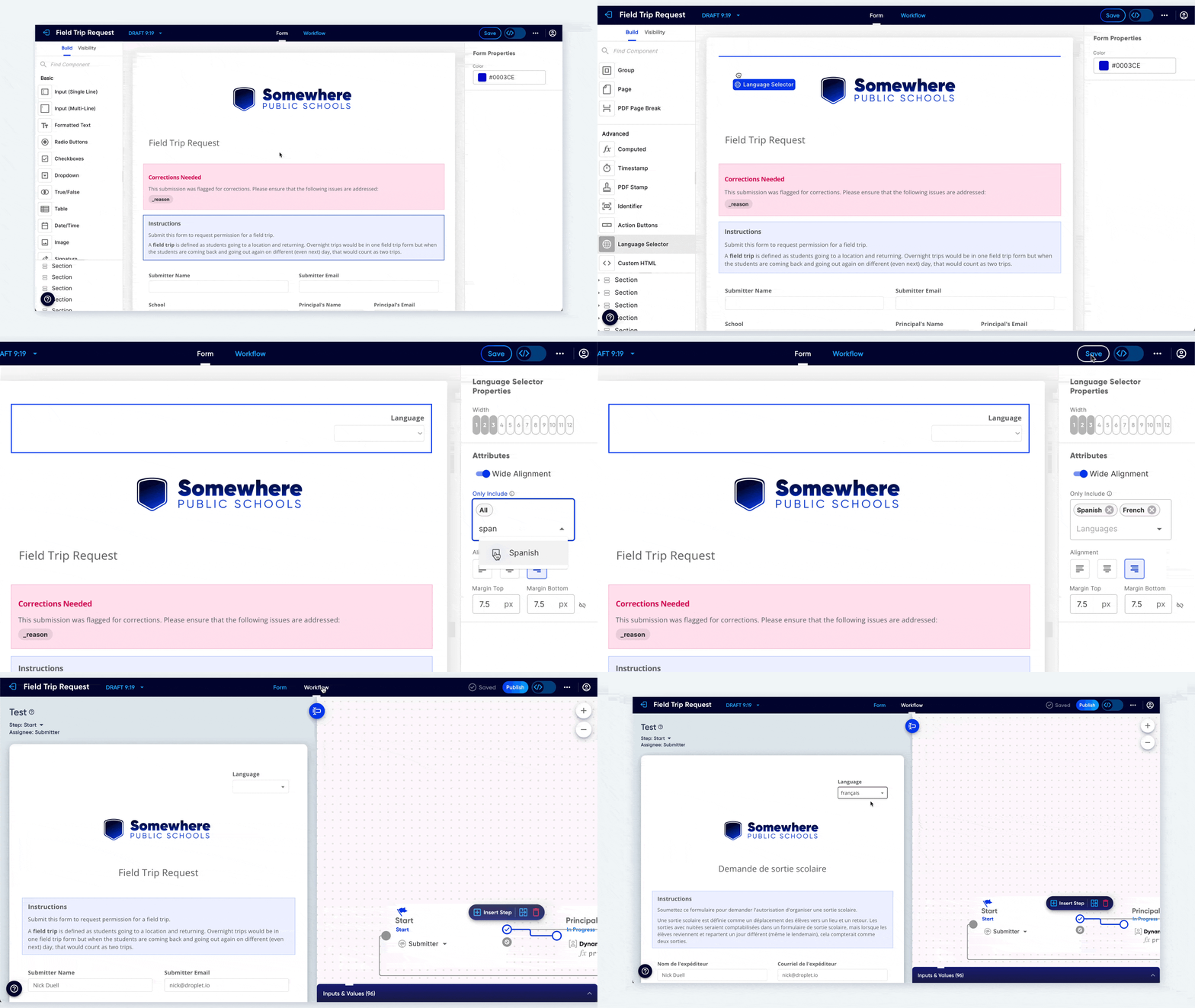
Add the Language Selector so users can switch between languages on the form.
Update translations after form changes
If you update any text in your form, the translations need to be refreshed:
Go back to the Translations area.
For each language, click Translate to regenerate the translations.
Updated text will be highlighted in light orange. Review the changes, then click Mark All Correct to clear the warnings.
Always have a native speaker review auto-generated translations before publishing, especially for forms that collect critical information.